General Troubleshooting Techniques
4-4 72A-2337-01 Rev. B 11/05
General Troubleshooting Techniques
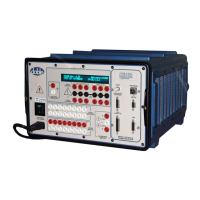
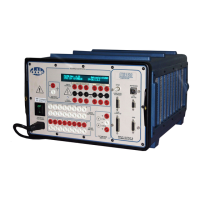
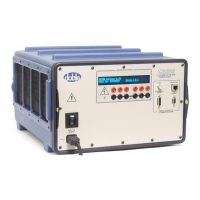
If the F6300 experiences difficulties, perform the following external checks to isolate the
problem before removing the cover.
NOTE Many of the major problems encountered in the F6300 are corrected by replacing a board in
the unit.
Chapter 5 ”Field Replacement Procedures” explains how to remove a defective board
and replace it.
1. Check for boot-up errors.
2. Power up the F6300 and watch the boot sequence displayed in the VFD (Vacuum
Fluorescent Display).
3. Check for source errors in the Source Table of the Control Panel (Version 2).
4. Verify the configuration of current sources.
5. Select Tools > F6000 Configuration in the ProTesT menu bar.
6. Check for open circuits (current sources).
7. Remove all connections and check the source outputs with an ammeter, or short the output
terminals.
8. Verify that the Ethernet connection is functioning properly.
9. Ping the F6300 from a DOS window (see Appendix B, Ethernet Communications.)
If the preliminary external checks do not identify the problem, remove the cover and check the
LED status of internal components for proper operation. Refer to
”LED Status Indicators”.
LED Status Indicators
The following circuit boards have status LEDs:
• Current amplifier circuit boards
• CPU board
• Analog multiplexer board
• High Voltage Power Supply Board
VOLTAGE Lethal voltages are exposed with the cover removed. Follow safe procedures designed to
protect against electrical shock. Always turn the unit off before making contact with any of the
internal components.


 To Next Page