F6300 Power System Simulator User Guide
72A-2337-01 Rev. B 11/05 3-3
Using the Setup Preferences
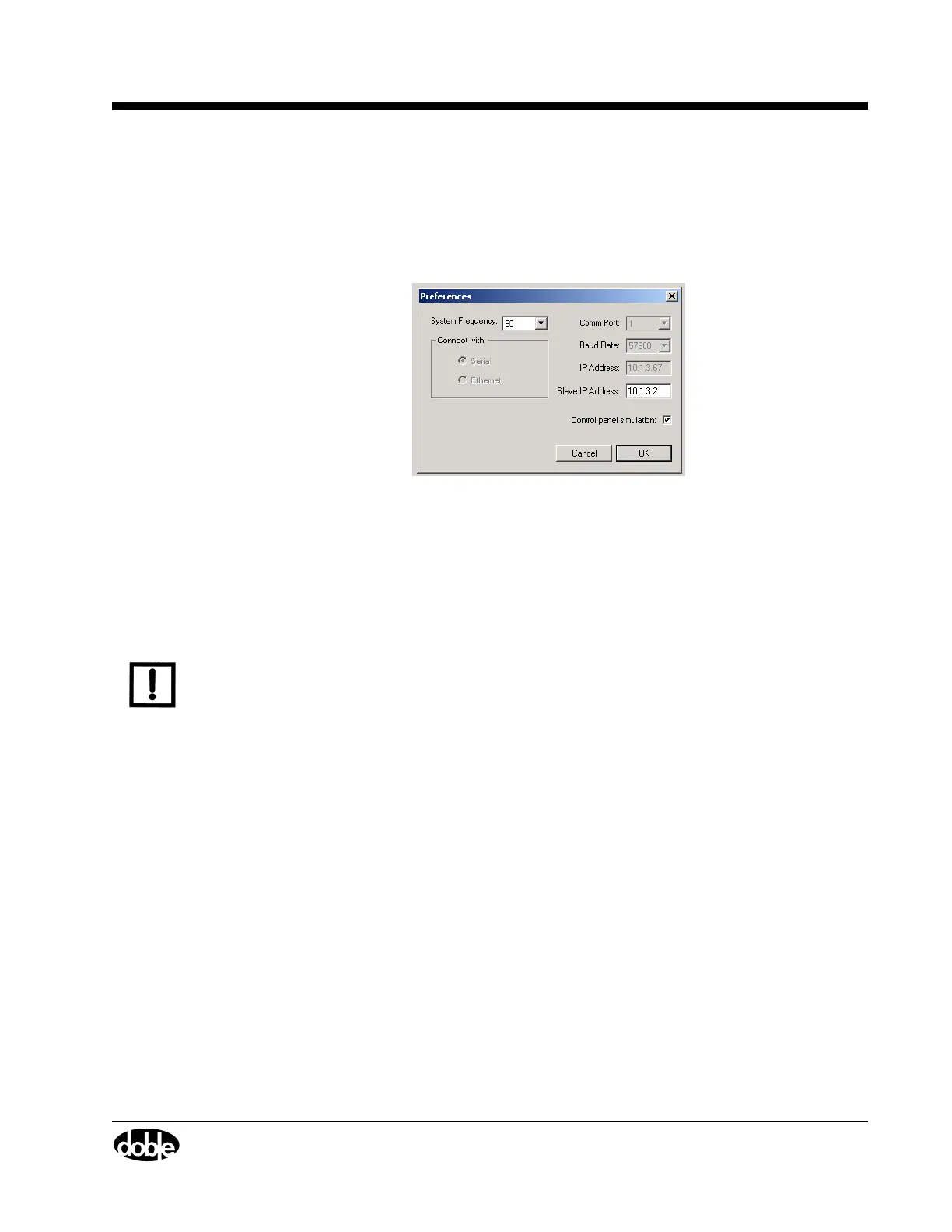
Use the Preferences window (Figure 3.3) to configure the ProTesT software to communicate with
the F6300 instrument. To open the Preferences window:
1. Select Setup in the ProTesT menu bar.
Figure 3.3 Preferences
2. Select either 50 or 60 for the System Frequency, as applicable.
3. Enter the Slave IP Address of the F6300.
4. Check Control panel simulation if the computer is not connected to an instrument, or if the
instrument is switched off, operate the Control Panel in simulator mode. Simulator mode is
useful for training and for configuring tests that will be conducted at a later time.
NOTE If the computer is not connected to an instrument or if the instrument is switched off when the
F6300 Control Panel Version 2 is opened, an error message appears. Acknowledge the error
message, then specify Control panel simulation in the Setup display or switch the instrument
on.
5. Click OK.
Using the F6300 Configuration Window
The F6300 sources can be placed in a number of configurations to suit test requirements.
Configure these sources via the F6300 Configuration window.
This window has a graphic display which represents the current source output terminals on the
F6150/F6300 front panel. When a preset configuration is selected, the source names and layout
appear.


 To Next Page