5.2.3 Other Fields
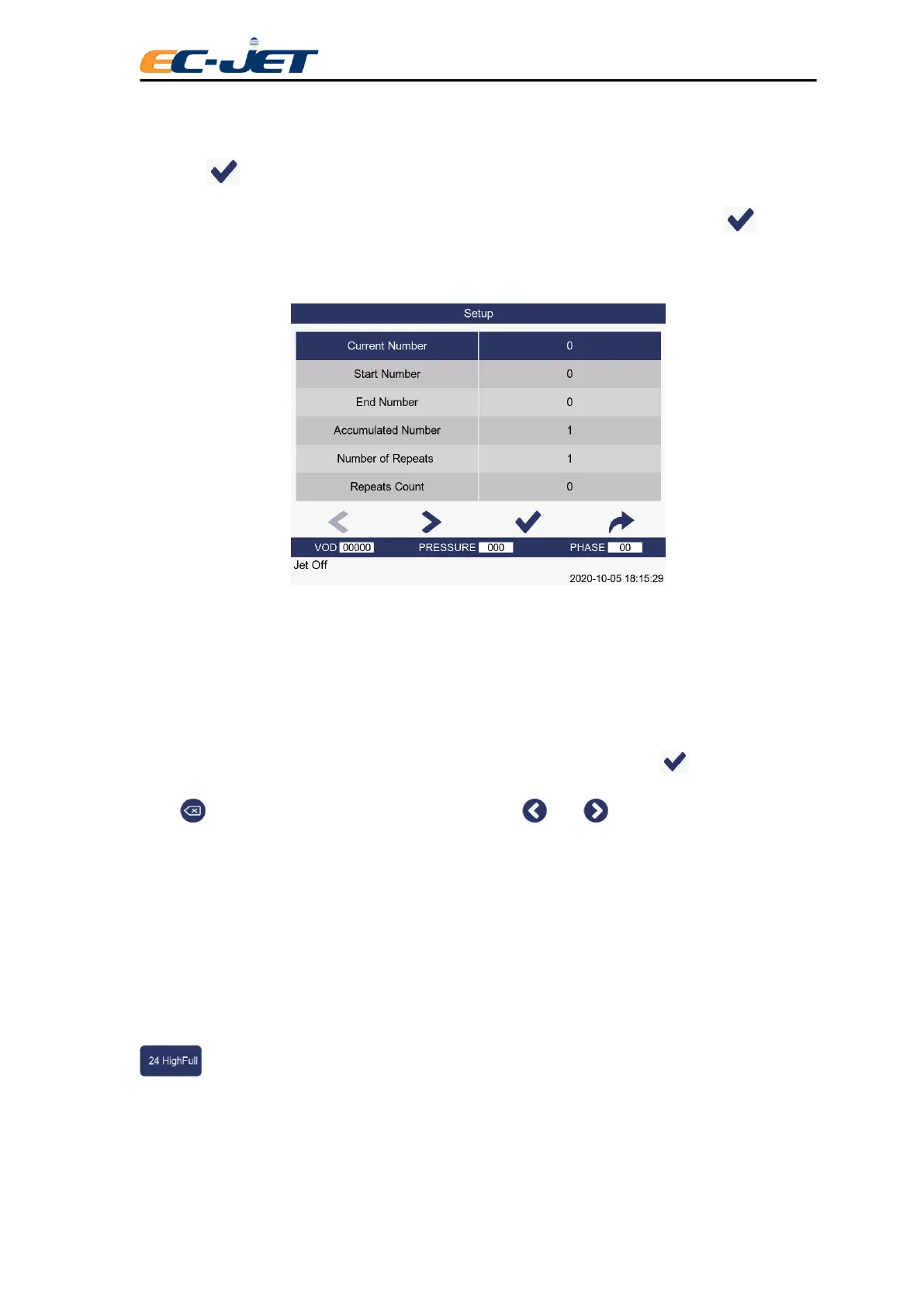
When the key is pressed with the cursor anywhere in a Date, Time, Timed Message, Sequential
Number, Logo and Remote field, the appropriate menu will be displayed. For example, if the key
is pressed while the cursor is located in a Sequential Number field, the SEQUENTIAL NUMBER menu
will be displayed:
The field can thus be altered in the same way it was originally created (see later “Creating: “Date”, “Time”,
“Timed Message”, “Sequential Number” and other Fields”).
5.2.4 Deleting Fields
All fields (whether Date, Time, Timed Message, Sequential Number, Logo and Remote) are deleted in
the same way.
Quite simply, move the cursor to any character with the field to be deleted, hold key down and
press key: the field will vanish from the display. The and keys may then be used to
position the cursor where needed.
5.3 Creating Text Fields
5.3.1 Creating Date Fields
These are useful for sell by dates, use by dates, or any date related to statistical information.
Before creating the date field, the example being used here will be satisfied first, by creating a text field
reading: “Sell by” in the top of the display. With the cursor located in the next available space, press
key to change the character set being used to “7 High Caps”:



 To Next Page