Guangzhou EC-PACK Packaging Equipment Co., Ltd.
EC-JET 1000Pro Continuous Inkjet Printer
completed, the “dd mmm yy” will be replaced with the relevant information from the current date.
5.3.2 Creating Sequential Number Fields
These are useful for batch numbers, item counts, etc.
Before creating the sequential number field, the example being used here will be satisfied, by creating a
text field which reads “BATCH”, underneath the “Sell By” date of the display.
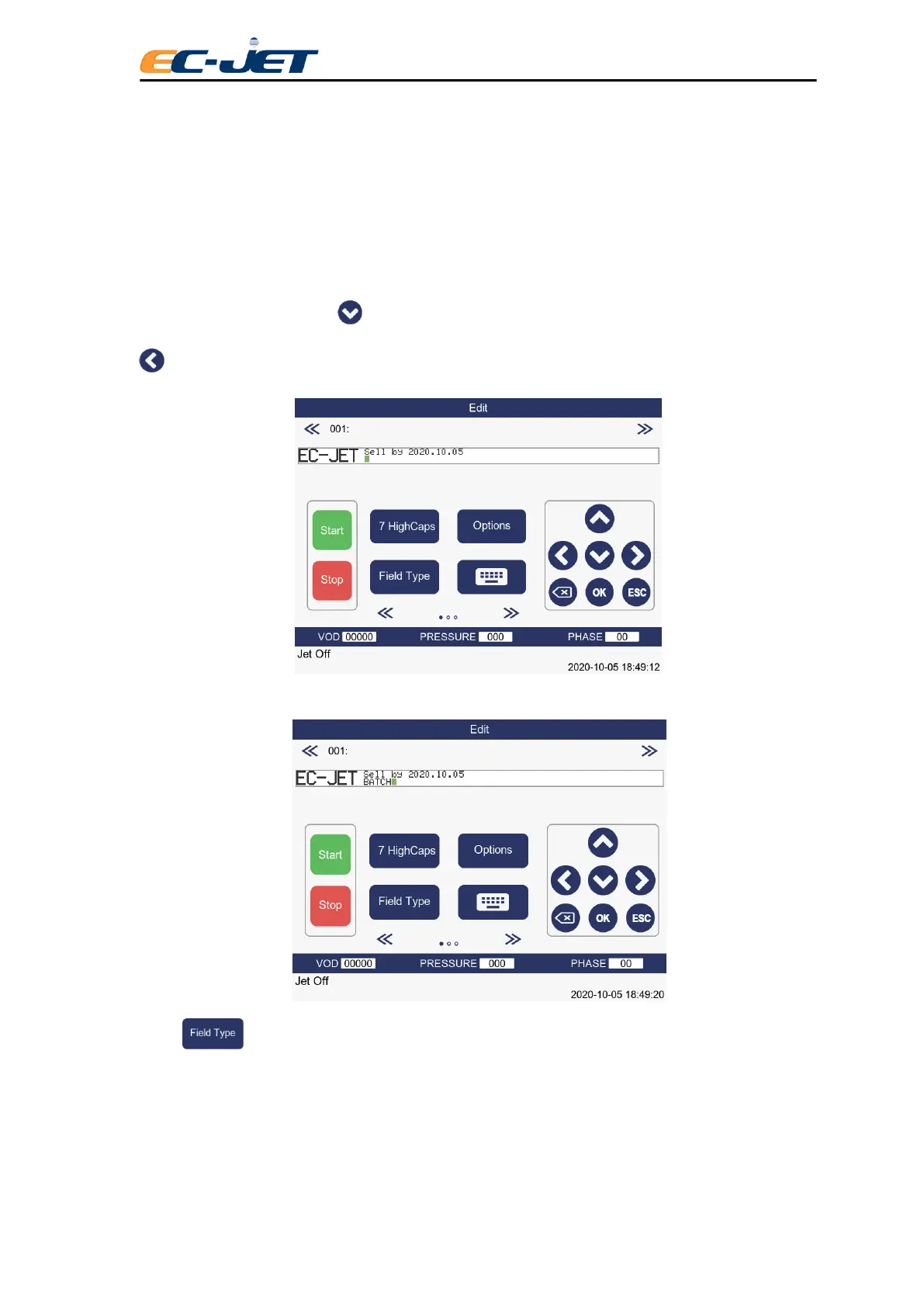
There is no need to change the Character Set but we do need to move the cursor so it is underneath the
“Sell By” date. To do this, use key to move the cursor to the bottom of the message area, and then
key to move the cursor to where the batch number should begin:
The cursor is now located in a position not already occupied by a field, so type in the word “BATCH”:
Press (Field Type) from the EDIT MESSAGE screen and this will display the SELECT FIELD
TYPE menu:


 To Next Page