65
65
■ Position menu
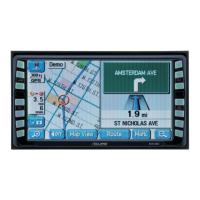
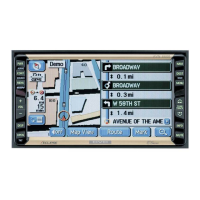
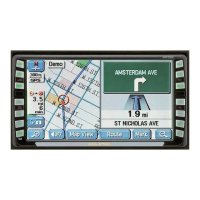
When you follow the recommended route on the map (the Cursor is the current GPS position),
the Position menu replaces the Cursor menu. It does not contain switches that modify the
current route, as the GPS position is not useful as a route point.
To open Position, touch [Position].
■ Checking vicinity information
● If you are interested in the details of your present position during navigation:
● You can check the details of any other location by selecting it on the map:
● It is even easier if you select the desired point in the Find menu. Then the Cursor menu
opens automatically. Just touch [Info].
1
Check the bottom line of the map. It shows the current street and house number
information.
2
For details, touch [Position] to open the Position menu.
3
Touch [Info]. The address, coordinates and a list of nearby POIs are displayed.
1
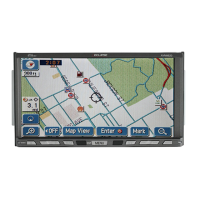
Touch the map anywhere to open the map control switch.
2
Touch the desired location on the map. The Cursor ( ) appears there. The address of
the location is displayed at the bottom of the map.
3
For further details, touch [Cursor] to open the Cursor menu.
4
Touch [Info]. The address, coordinates and a list of nearby POIs are displayed.


 To Next Page