78
78
Navigation Overview
Operation
■ Loading saved route
This feature is available in Advanced mode only.
The procedure is explained starting from the Map screen.
● If you choose to keep the current GPS position as the start point, the route will be
recalculated starting from your present position.
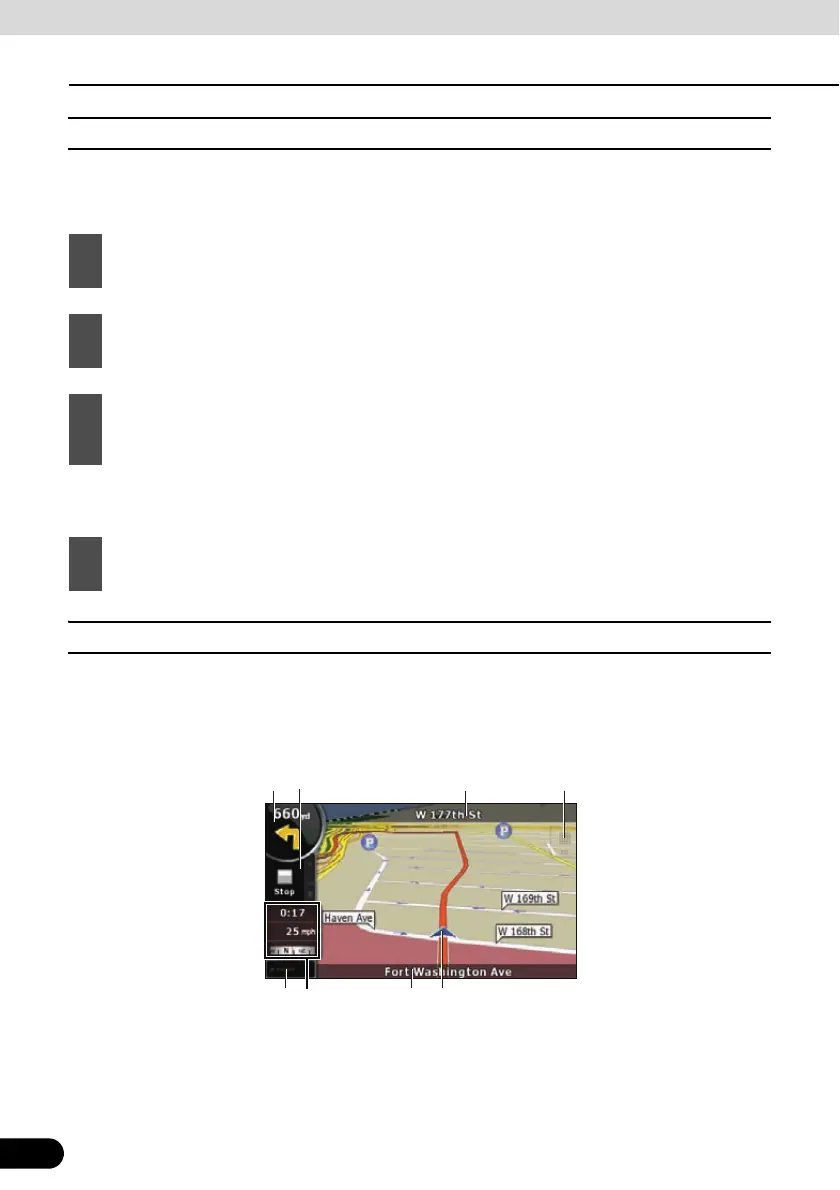
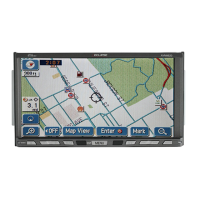
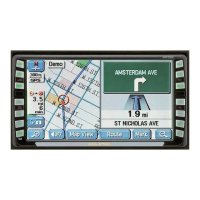
■ Map screen
Navigation is primarily intended for land navigation. That is why maps in Navigation look similar
to paper road maps. However, Navigation provides much more than regular paper maps. You
can customize the look and the content of the map. The most important and most often used
screen of Navigation is the Map screen.
1
Touch the following switches: [Menu], [Route], [Load Route]
2
Touch the route you wish to navigate.
3
In the very likely case that the start position of the saved route is different from the
current GPS position, you need to confirm whether you want to stop navigating from the
current GPS position to use the start point of the loaded route.
4
The map appears, and you can start navigating.
18
7
6
5
4
3
2
1


 To Next Page