54
13. FIRMWARE UPDATES
13.1 FIRMWARE UPDATE VIA EG4® ELECTRONICS APP
Before updating firmware through the EG4
®
Monitor app, ensure the mobile device being used has
enough battery life to last through the update. While the update is ongoing, do not close the
application. Ensure the Wi-Fi dongle is securely connected and correctly configured (see Section
10.1 for details) before performing the following steps:
Afte
r selecting the “UPDATE FIRMWARE” button, the update will begin. Update progress can be
viewed via the app. Once the update is completed, a notification will appear confirming that the
firmware has been successfully updated. After successfully updating firmware, the inverter will
restart itself. Make sure to update all inverters installed in the same ESS to the latest firmware
version.
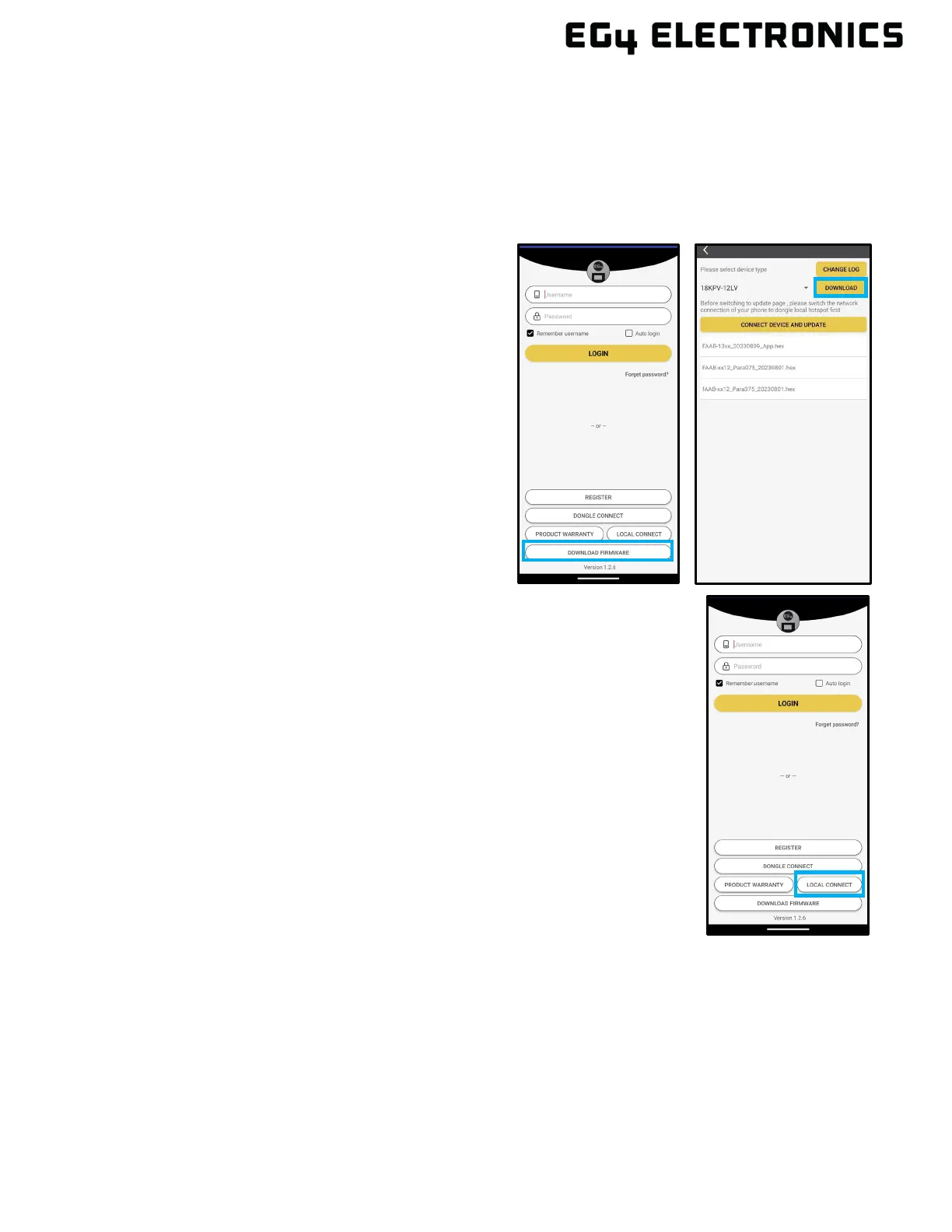
4. Return to the home screen of the app and select “LOCAL CONNECT”.
Select the “Set” button on the bottom right side and proceed to the
next step.
5. After completing step 4, the Local Set Interface will appear. Swipe
upward on the screen of the mobile device until the “UPDATE
FIRMWARE” button is visible at the bottom of the app’s display.
6. Choose the correct installation package in the dropdown box and
select “UPDATE FIRMWARE” to begin the updating process.
1. Open the EG4 Electronics app on a mobile
device and select the “DOWNLOAD
FIRMWARE” button.
2. Choose the correct firmware file (contact
distributor for the most up-to-date files) and
select “DOWNLOAD” on the right side to
download the file to the mobile device.
3. Keep the app running and go to the mobile
device’s Wi-Fi settings. Connect the mobile
device to the dongle’s network. The
dongle’s network ID will be the same as the
dongle’s serial number.


 To Next Page