55
13.2 FIRMWARE UPDATE VIA MONITOR CENTER (WEBSITE)
1. Distributors and installers can update firmware by using the EG4
®
Electronics website monitoring
system. Contact EG4 to make sure the files are correct.
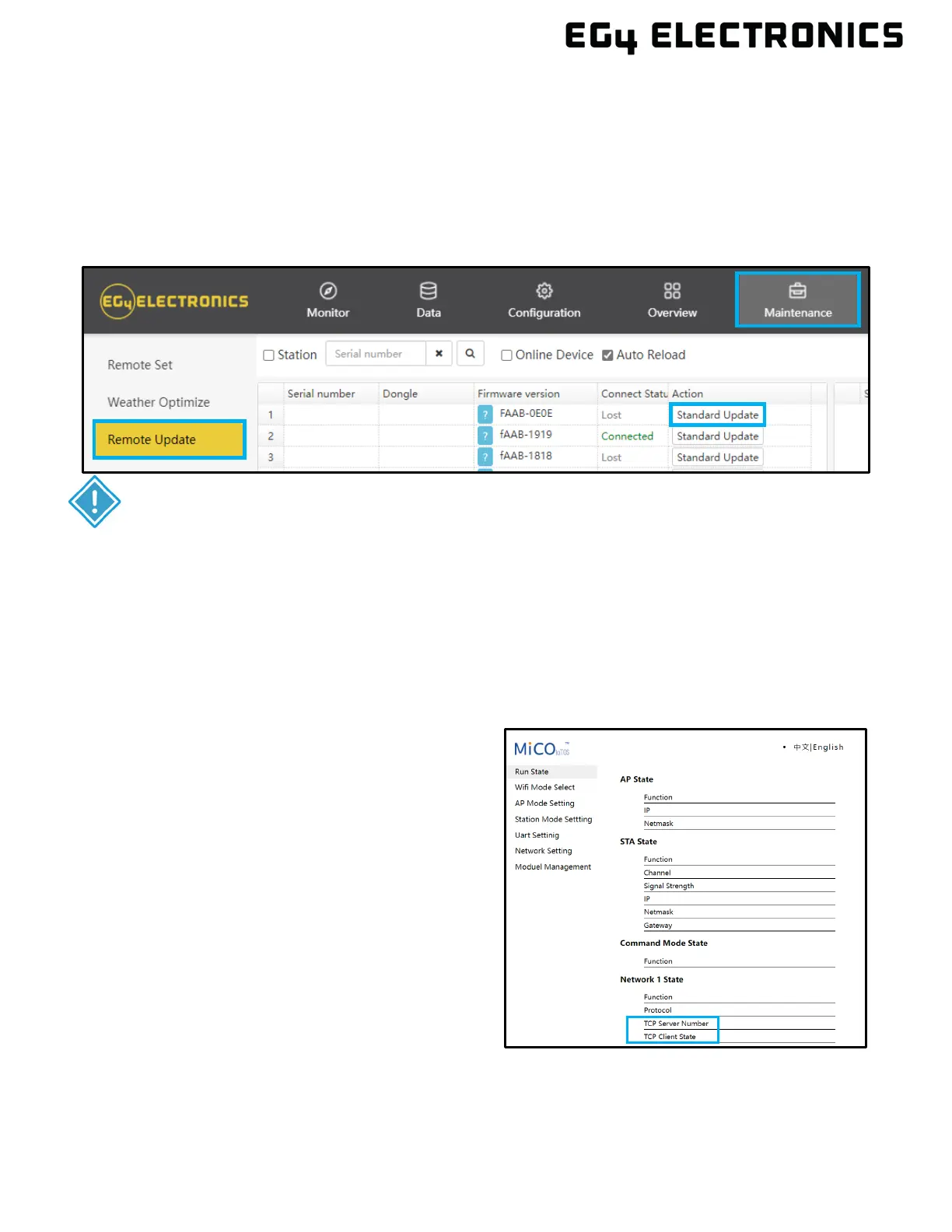
2. Log in to the EG4 Electronics Monitor System. Select “Maintenance,” and then select “Remote
Update.”
3. Choose the inverter to update and then select “Standard Update”. The Monitor Center will begin
updating both firmware files in the inverter. The latest version of the firmware will be displayed in
the bottom right window.
14. TROUBLESHOOTING AND MAINTENANCE
14.1 TROUBLESHOOTING WI-FI MODULE
IMPORTANT:
Throughout the update, the inverter will automatically cycle power as it moves from
one update to the next; however, if at any time an “Update Failed” alert appears,
restart the full update from the first task. The “Update Failed” alert will only appear in
the monitoring center. The software may need more than one attempt to update. If
unable to successfully update the firmware, contact the distributor.
Why is the middle light for the Wi-Fi module
flashing?
After setting the right Wi-Fi password, all three
lights should be solidly on. If they are still
flashing, try the following:
1. Check if the Wi-Fi is connected and that
the correct password has been entered.
Use a device to connect to the Wi-Fi
hotspot and visit the website 10.10.10.1;
the TCP client status should be
“Connected”. The username and
password are both “admin”. Check the
Wi-Fi name and password.


 To Next Page