77
Setting Up Parental Controls
Offensive web content can be blocked when a parent species keywords. Parents can also limit Internet access within a specied
time and day, with a Schedule. A Policy is a rule prole which describes the keyword lter and Internet access schedule. Parents can
apply the policy to multiple users or Policy Members. The Parental Controls tool will screen policy members based on applied policies.
Conguring the Access Control List
To view the ACL settings, click Firewall then select ACL.
Viewing the Access Control List
To learn how to view existing access control list, refer to Viewing Parental Policies.
Adding a Control Policy
To learn how to create and add a policy to the access
control list, refer to Adding a Control Policy.
To view the Wizard settings,
click Parental Control then select Wizard.
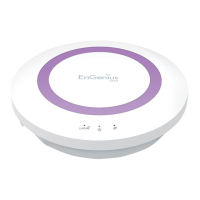
Enable Parental Control (Access Control)
Click to enable Parental Control.
Add Policy
Click the button to add a new control policy to the
network.
Policy Table
Shows the control policies available on the network.
Click Apply to save changes or Cancel to discard them.
Note: By default, everyone is allowed to view all the contents
without any limitation and lter.



 To Next Page