78
Adding a Control Policy
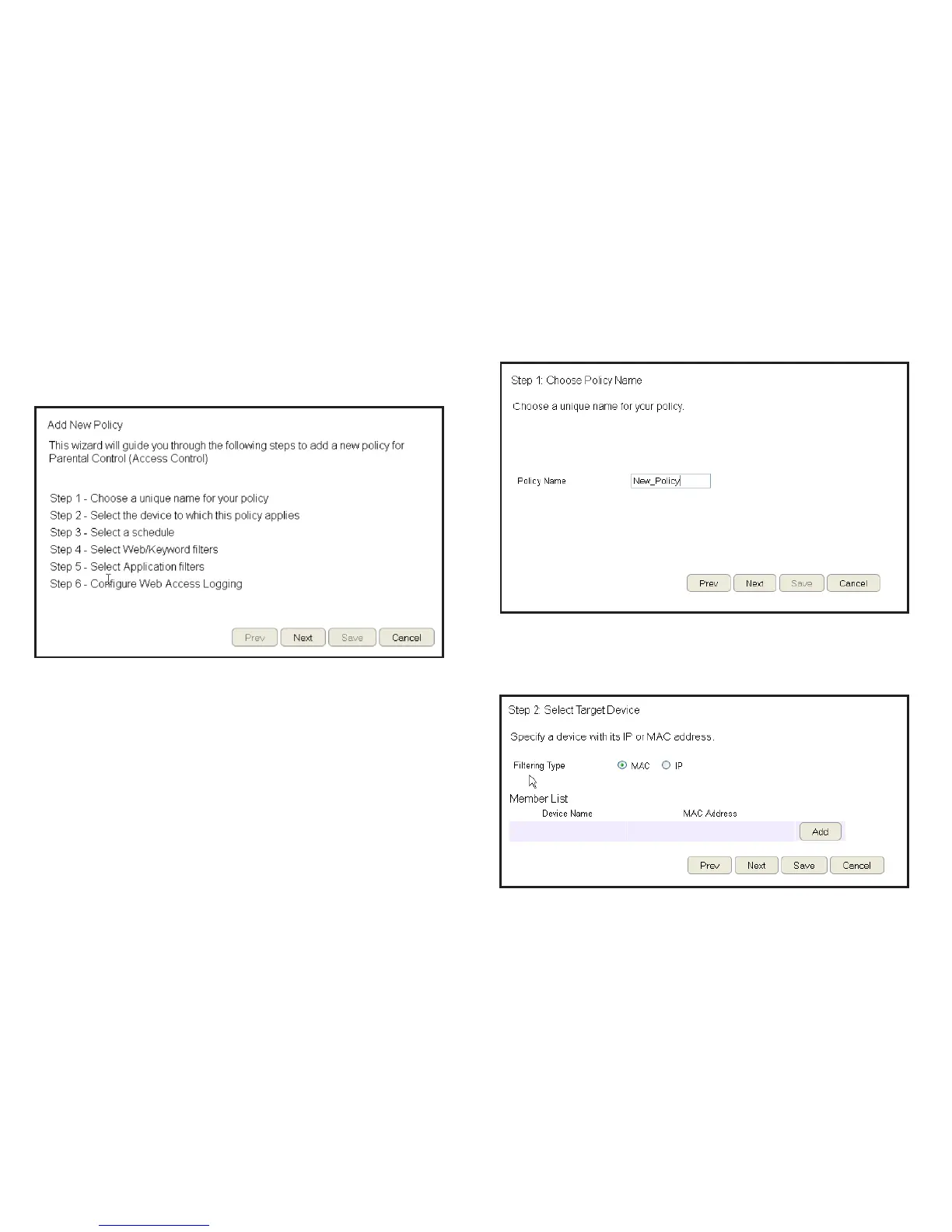
The router provides a wizard to guide you through setting up a
new Access Control Policy.
To start the procedure, click the Add Policy button.
Click Next to continue the procedure or Cancel to stop the
procedure.
The procedure consists of the following steps:
1. Enter a unique name for your policy in the Policy Name
text eld.
2. Click Prev to return to the previous screen, Next to continue
the procedure, or Cancel to stop the procedure.
3. Add target devices to the access control policy.


 To Next Page