5700MSC-IP
IP Network Grand Master Clock & Video Master Clock System
Revision 0.2 Page - 67
5. OPERATION
This section of the manual is currently under development and is subject to change.
Missing heading and field descriptions will be added in the upcoming revision.
The model 5700MSC-IP IP Network Grand Master Clock and Video Master Clock System combines
the latest LSI technology with sophisticated embedded microcontroller firmware to provide a powerful,
flexible, and upgradeable system. This combo IP Network Grand Master Clock and Master Sync
Generator is ideal for timing today’s IP based video broadcast, production, and distribution facilities. It
provides all of the future timing needs of an IP based plant while providing precision reference to any
baseband SDI/Analog systems.
5.1. FRONT PANEL CONTROLS
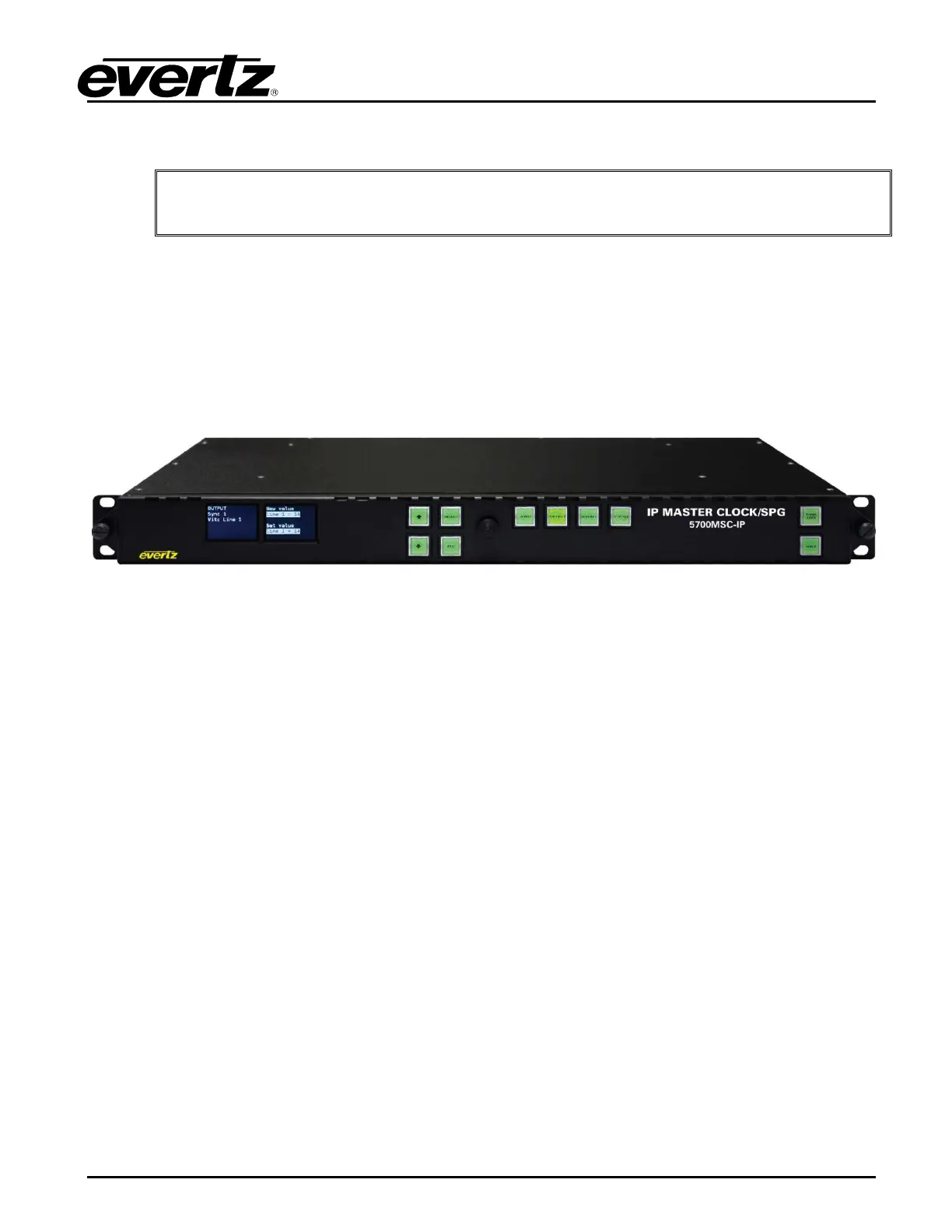
Figure 5-1: Model 5700MSC-IP Front Panel Layout
The front panel controls consist of two color LCD displays, 10 pushbuttons and a control knob. The
buttons are used to navigate the front panel menu system, view status information, and to change
various settings on the unit. The control knob can also be used to navigate the menu system and
make changes to settings. Pressing in the control knob is equivalent to pressing the SELECT button in
most cases. Press the HELP button at any time to view information on any currently selected menu
item.
The two color LCD displays are used to display the menu system and the current position within the
menu tree. There are also messages on the left LCD that indicate system status.
5.1.1. Front Panel Buttons
There are four buttons to the right of the control knob that are used to select the four main root menus.
These buttons are labelled INPUT, OUTPUT, GENERAL, and STATUS. These buttons will illuminate
to show which menu is currently active. The control knob and the four green buttons to the left, , ,
SELECT, and ESC, are used to navigate the menu system and change settings. The PANEL LOCK
button can be used to lock the front panel to prevent accidental button presses after the unit has been
configured. The HELP button can be pressed at any time to display online help about the currently
selected menu or menu item.
INPUT - Enters the INPUT menu that contains various menus for configuring the frequency and time
references of the 5700MSC-IP and how to lock to them.
OUTPUT - Enters the OUTPUT menu that is used to configure the Sync and test generator outputs of
the 5700MSC-IP.



 To Next Page