Juno System: User Guide
Chapter3:Using Advanced Features ofJuno
Manage Scripts
38
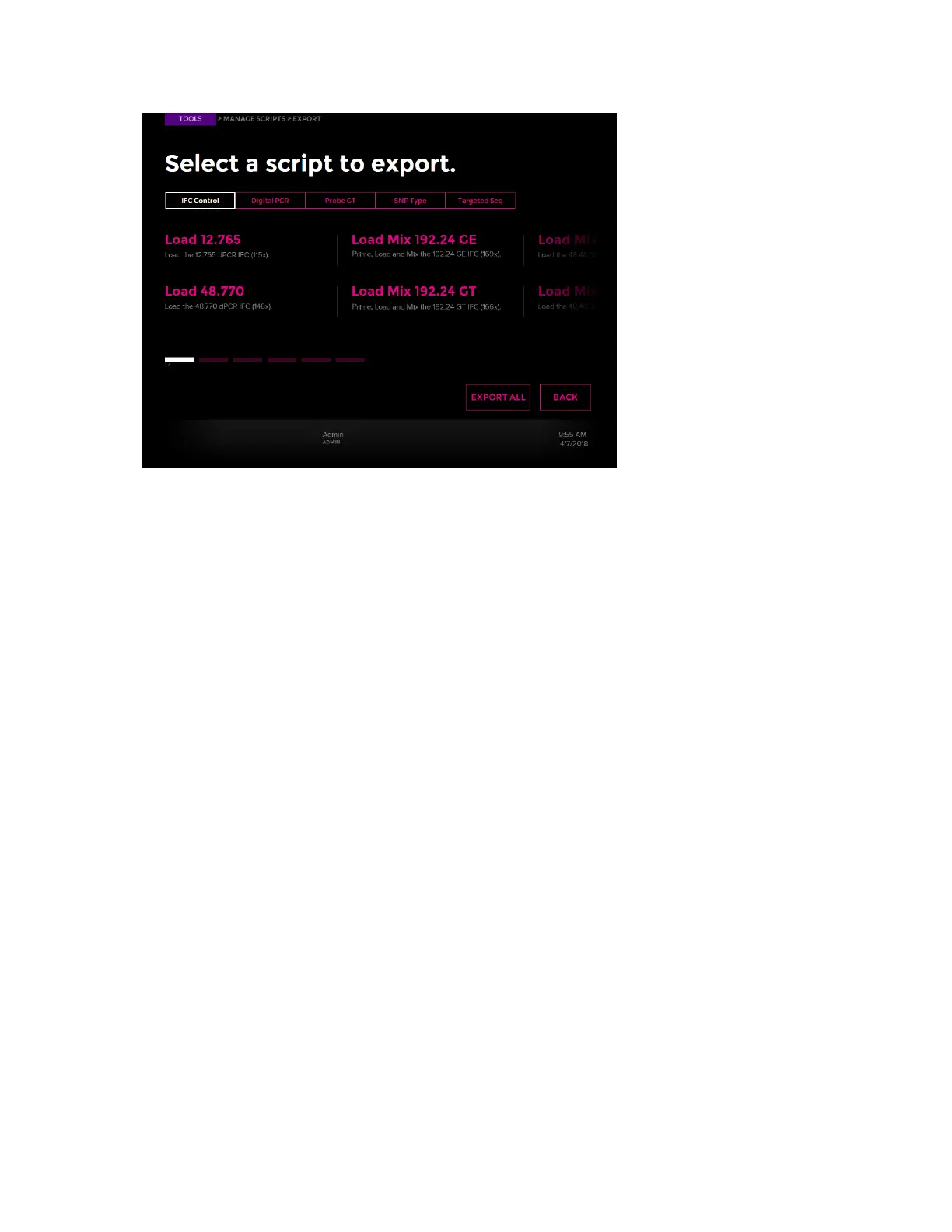
5 Tap the script name to export (copy) the script from the instrument to a Scripts folder on
the USB. A screen confirms copying was successful.
6 (Optional) Tap EXPORT ALL to export all scripts to the USB. A status screen displays to
confirm the software/firmware was updated successfully. You may be asked if you want
to overwrite a script. If you wish to do so, tap Yes.
7 Unplug the USB from the instrument.
Install Scripts from a USB
NOTE You can run a script only if the script is on the instrument or it has been imported from
a USB.
1 Ensure that you have logged in to the system as administrator. (See Log In on page 36.)
2 Ensure that the scripts were copied on a USB into a “Scripts” folder.
3 Plug the USB with the scripts to be added to a USB port on the instrument.
4 On the Start screen, tap TOOLS, then tap Manage Scripts to display the Manage Scripts
screen.
5 Tap Install. A list of scripts available on the USB displays.
6 Tap the script name to add it to the instrument. A screen confirms installation (import).
You may be asked if you want to overwrite a script. If you wish to do so, tap Yes.
7 (Optional) Tap INSTALL ALL to copy all scripts from the USB to the local drive.
If you are adding scripts to support a new IFC type, the new IFC barcodes are detected
and a confirmation screen displays. Tap YES.
8 Unplug the USB from the instrument.


 To Next Page