18
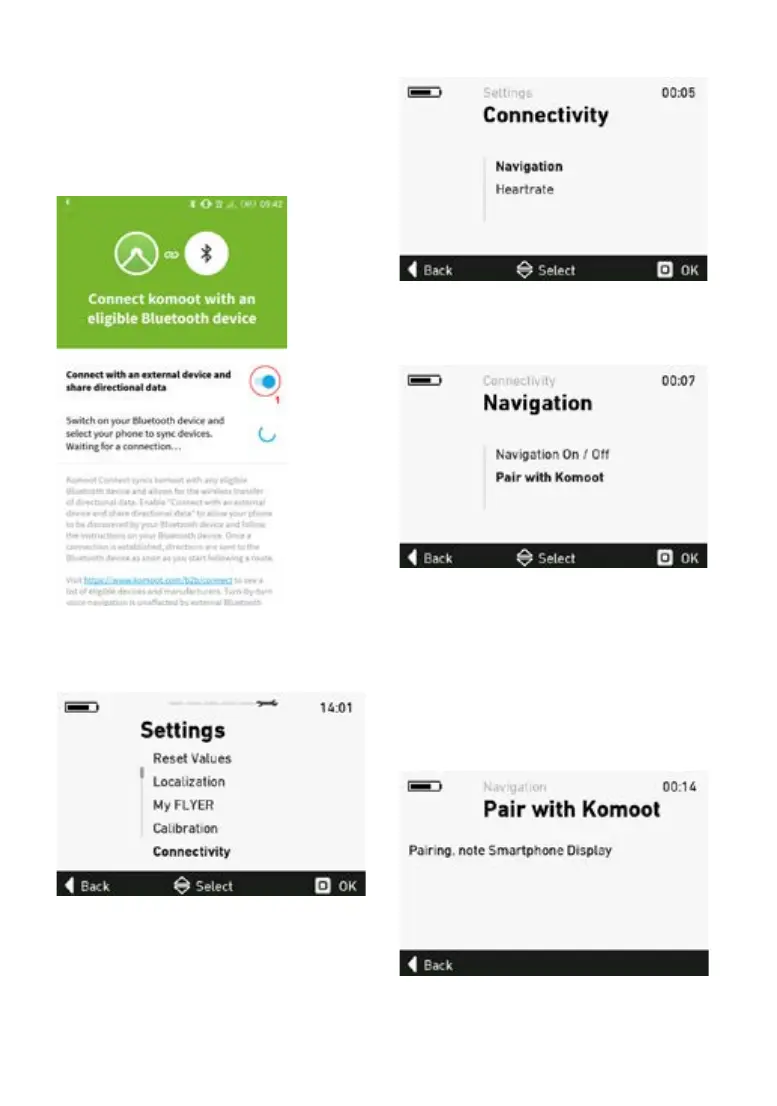
6. Press switch 1 to establish a connection
Pop-up messages may appear that prompt you to
grant access rights to the app.
Important
After this step, leave the komoot app open and
switch to the FLYER display.
8. Open the settings menu on the e-bike display.
9. Select the sub-menu “Connections”.
10. Open the sub-menu “Navigation”.
11. Select “Pair with komoot“ to establish a
connection.
The komoot app must remain open on your
smartphone and the connection activated in order
for this to work.
The display now indicates that it is searching for
devices.
If no devices are found, you can start a new se-
arch by selecting “Pair with komoot“ again.


 To Next Page