MANTIS User's Guide | Chapter 9: Dispensing With the MANTIS
4. In the File Settings option:
● The Column Delimiter determines the separator between values in the .CSV
file. Type the separator used in your file.
● If your .CSV file has a header and the column names are in the first row,
select the Column Names are in the first row box. If not, deselect the option.
● Select or type the row number you want to start importing data from in the
Start Row box (typically the first data row).
5. In the Target Plate option, select the plate type you want to use for dispense
from the plate list and then click Next.
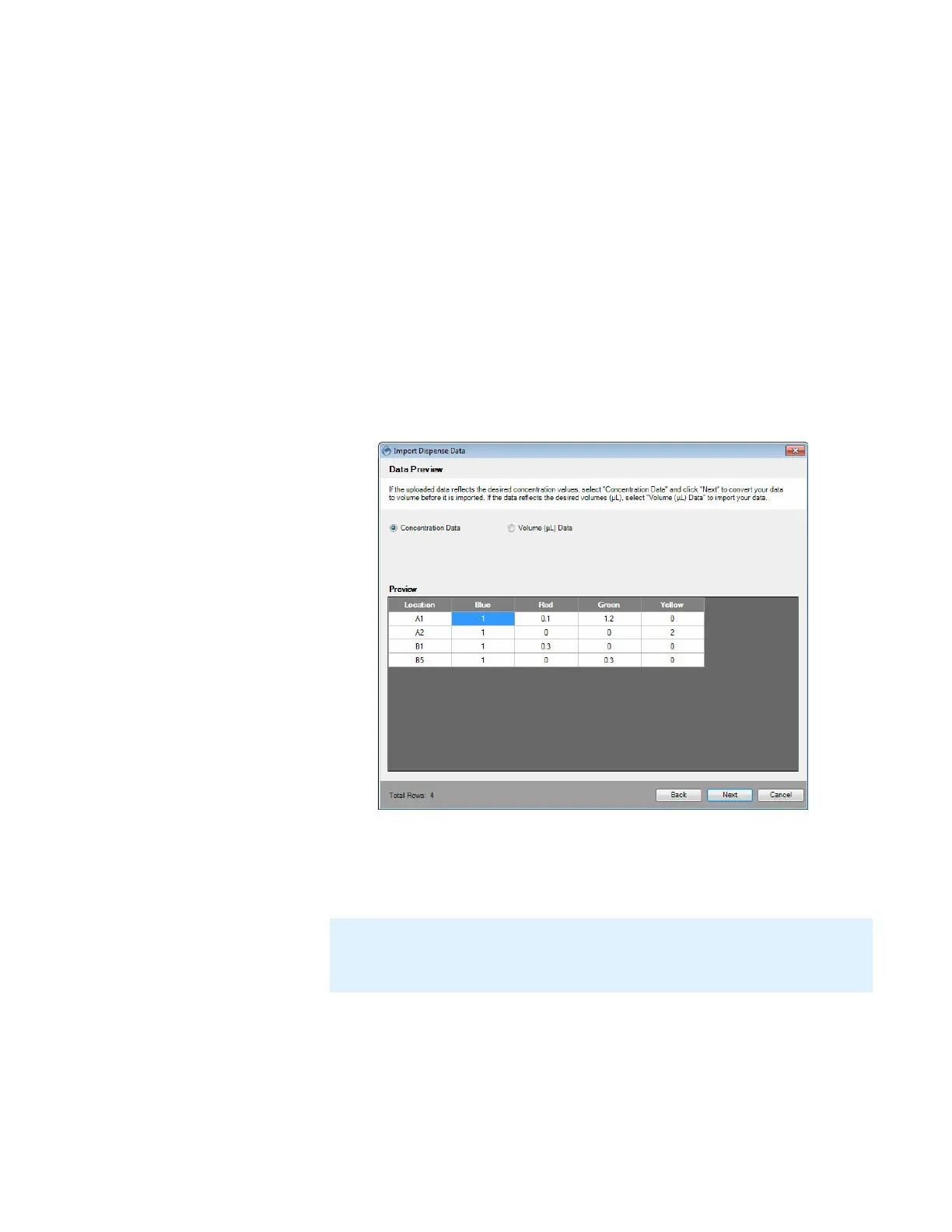
6. Select from one of the options below:
● Concentration Data: If your current data is a list of concentration values,
select this option to convert it to volume, and then proceed to step 7.
● Volume (μL) Data: If your current data is a list of volumes in μL, select this
option and proceed to step 8.
7. Input the Total Well Volume (μL) and the stock concentration values of each
reagent, then hit the Enter key on your keyboard to apply the values. The
Converted Data table will display the updated volumes in microliters (μL). Click
Next to select the chip type for your reagents.
Note: If one or more items in the converted data are highlighted in red, the stock
concentration is not suitable for delivering one or more of the well volumes without
overfilling the well(s). Adjust the stock concentration value and try again.
Data Preview Options


 To Next Page