12 RUBY 10 Advanced Features and Functions
Physical Buttons
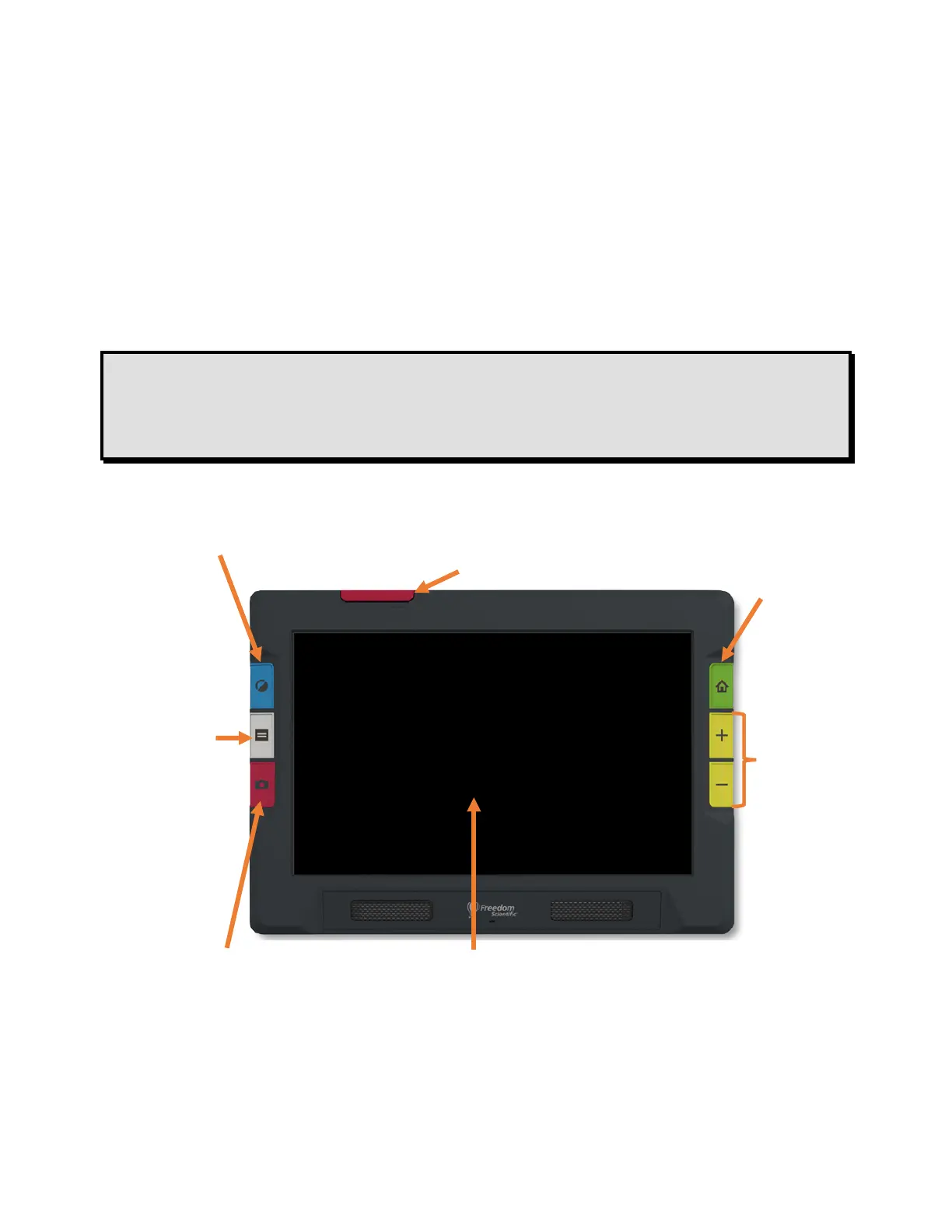
The following illustration shows a graphical display of the hardware buttons
to explain how they work. The table below the graphic provides more detail
about each button.
A long press, as shown in this illustration, means pressing the button about
one second before releasing it, as opposed to a short press, which means
pressing and immediately releasing the button.
Tip: When in Live view, you can press the blue Color Mode button for
about a second, then when you release it, the screen displays in full
color. The screen color does not change until you release the Color
Mode button.
Short press:
rotate
through
configured
color modes
Long press:
in Live view
only,
displays full
color
_______
Live view:
toggle lines
and masks
Document
view: toggle
teleprompter,
tickertape,
image, and
zone modes
_______
Short press:
capture
image
Long press:
capture,
scan, and
read text
Push up to raise camera arm.
Fully extend to use full-page camera
Go to Live view,
where device
screen displays
image seen by
current camera
_______
Press and hold:
continuously
increase/decrease
magnification
Press and
release:
incrementally
increase/decrease
magnification
Pinch to zoom on touch screen to
increase or decrease magnification


 To Next Page