48 RUBY 10 Advanced Features and Functions
Visual Display Settings
RUBY 10 offers a light sensitivity filter and three color blindness correction
filters to users with varying eye conditions. To display these visual display
settings, tap the screen to display the on-screen buttons, then go to
Main Menu > Settings Menu > Appearance > Visual Display Settings.
Two fields on this screen enable you to improve how the image is
displayed: the Light Sensitivity Filter and the Color Blindness Filter.
Light Sensitivity Filter
Enabled by default, the Light Sensitivity Filter mutes the lighting of very
bright colors to allow for eye conditions where bright light makes it difficult
to read. For example, white might be shown as a light gray.
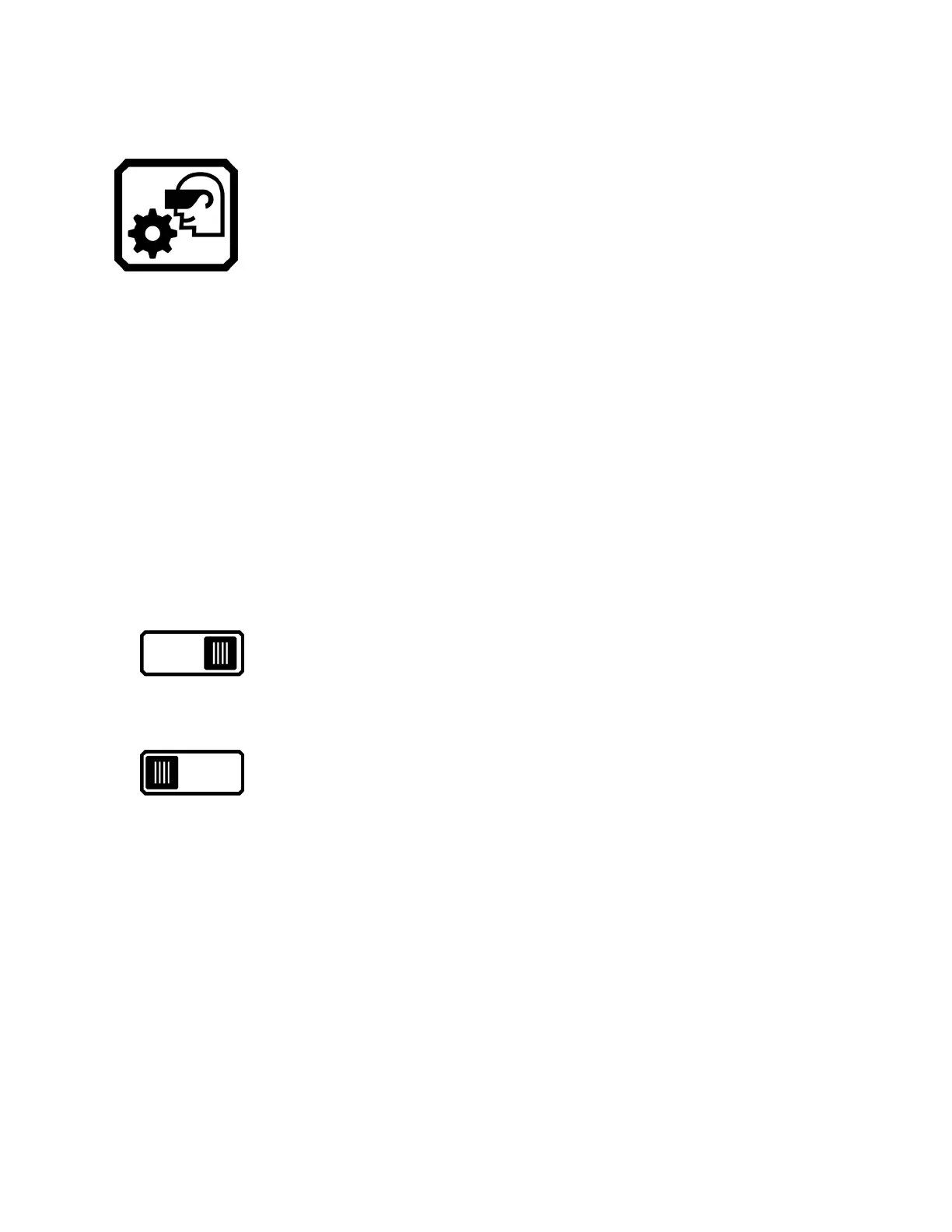
To disable it, slide the toggle to the left.
Rather than changing the overall brightness of the display screen, this
setting changes how bright colors are presented in images.
Color Blindness Filter
RUBY 10 offers three color blindness correction filters to improve contrast
between colors. For example, one filter changes reds to pinks, which is a
color better recognized by users affected by protanopia. These filters are
applied to colors in the menus and all views, including Live view, Snapshot
view, and all Document views.



 To Next Page