1. INITIAL SETTINGS AND ADJUSTMENTS
1-37
4. Select the Equipment ID from the pull-down list for [AMS Backup] to assign the
backup AMS.
A maximum of four units can be assigned as backup AMS. The topmost entry has
the highest priority.
5. Select the communication check interval for the master AMS from the pull-down
list for [Alive Check Interval].
6. To save the configuration, perform a consistency check, then save the configura-
tion data on the [Save and Sync] menu.
1.7.3 Alert transfer setting
1. Access the [Common Installation Setting] menu, then select [AMS] from the tab
bar.
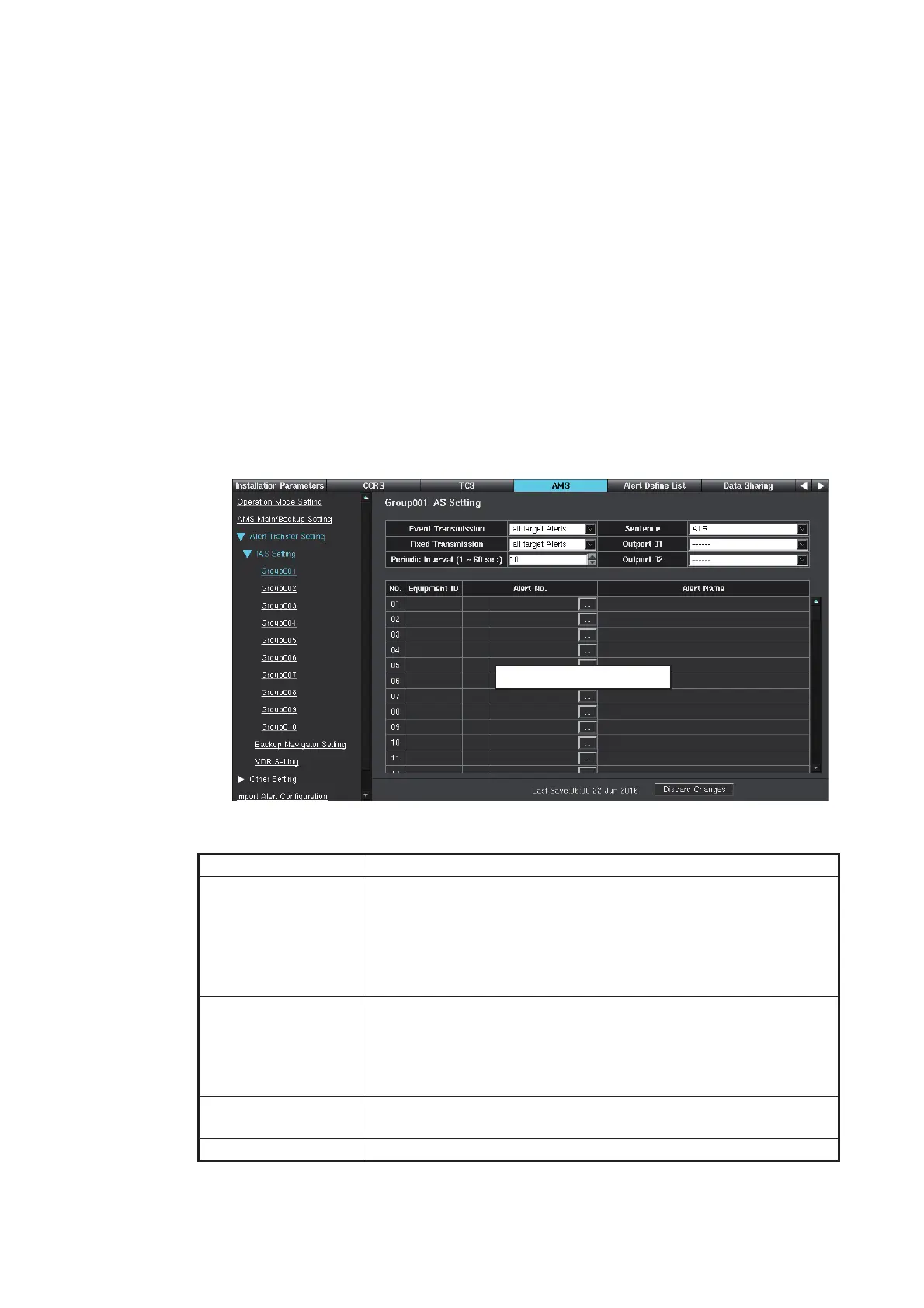
2. Select [Alert Transfer Setting] o [IAS Setting] on the menu bar.
You can create the alert group and transfer the alert to the navigational equip-
ment. A maximum of ten alert groups ([Group001] to [Group010]) can be created,
and a maximum of 99 alerts can be registered to one alert group.
3. Select the appropriate alert group number ([Group001] to [Group010]) to transfer,
then set the following items.
Item Remarks
[Event Transmission] Select the alert to be transferred.
• [Change Status Alert]: Transfer the alert whose status is
changed. For example, when alert problem is rectified and
alert status is changed from unrectified to rectified, alert is
transferred.
• [all target Alerts]: All alerts in the group are transferred.
[Fixed Transmission] Select the alert to be transferred periodically.
• [all target Alerts]: All alerts in the group are transferred period-
ically.
• [send “all occurred Alerts” or “ALR <null>, V,V”]: Transfer only
active alert periodically.
[Periodic Interval (1 -
60 sec)]
Set the interval to transfer the alert data.
[Sentence] Select the data type of alert notification, ALR or ALF.
Alert registration field



 To Next Page
 Loading...