5. INPUT/OUTPUT SETUP
5-3
5.3 Data Source
Set the data source and the PGN transmitting.
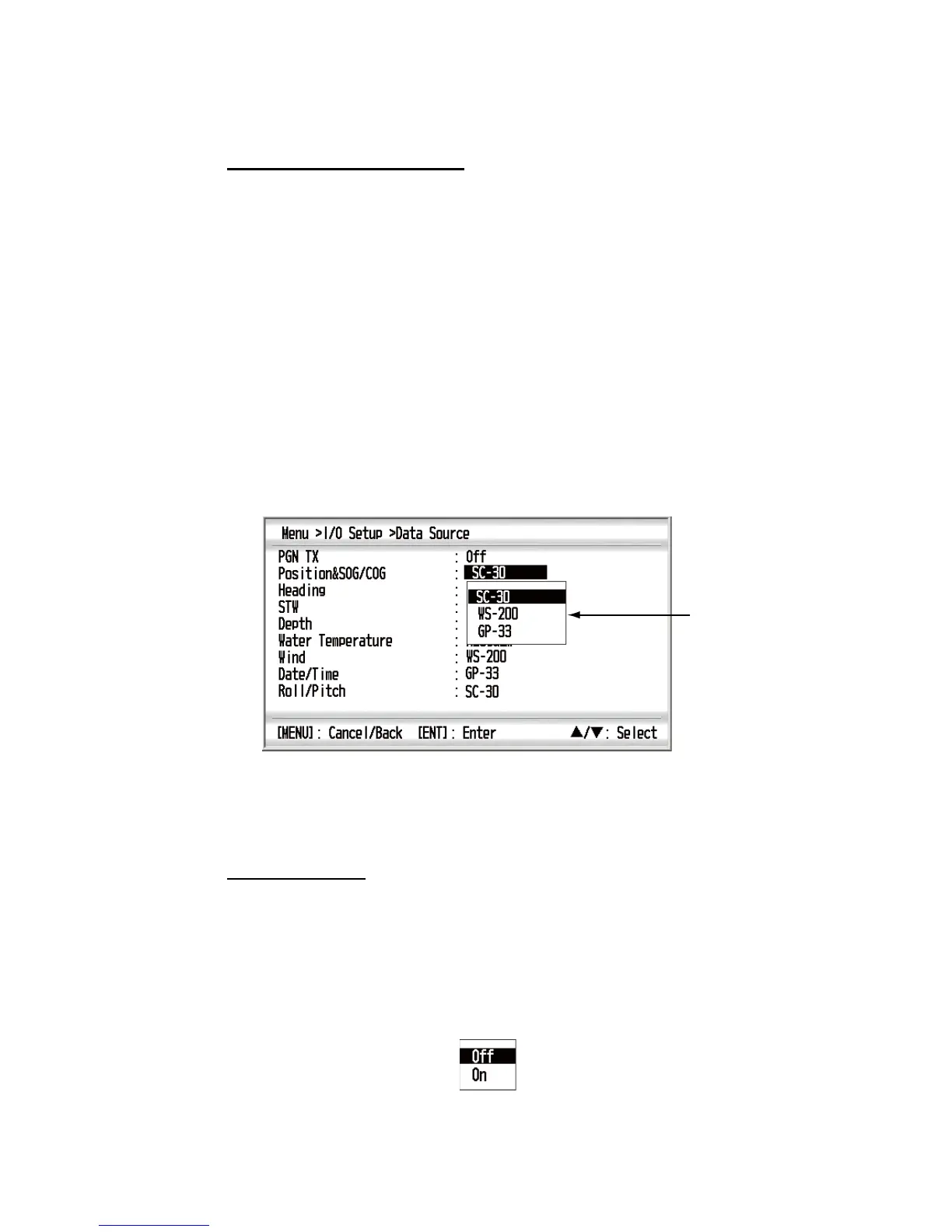
How to select the data source
You can select the data source to display on the screen when data of the same type
is input from multiple sources. For example, you can select the position data from GPS
navigation equipment or the position data from satellite compass when these two po-
sition data are input. The available data are the following:
1. Press the MENU key to open the menu.
2. Use the Cursorpad (S or T) to select [I/O Setup] and press the ENT key.
3. Use the Cursorpad (S or T) to select [Data Source] and press the ENT key.
4. Use the Cursorpad (S or T) to select the item desired and press the ENT key.
The list of the data source appears.
5. Use the Cursorpad (S or T) to select the data source desired and press the ENT
key.
6. Repeat steps 4 and 5 to set the other items if necessary.
7. Press the DISP key to close the menu and display the data screen.
PGN transmitting
Transmit the input data selected as the data source in PGN format.
1. Press the MENU key to open the menu.
2. Use the Cursorpad (S or T) to select [I/O Setup] and press the ENT key.
3. Use the Cursorpad (S or T) to select [Data Source] and press the ENT key.
4. Use the Cursorpad (S or T) to select [PGN TX] and press the ENT key.
5. Use the Cursorpad (S or T) to select [On] and press the ENT key.
• Position&SOG/COG
• Depth
• Date/Time
• Heading
• Water Temperature
• Roll/Pitch
• STW
• Wind
The list of the
data source
(nickname, see
section 5.2)


 To Next Page