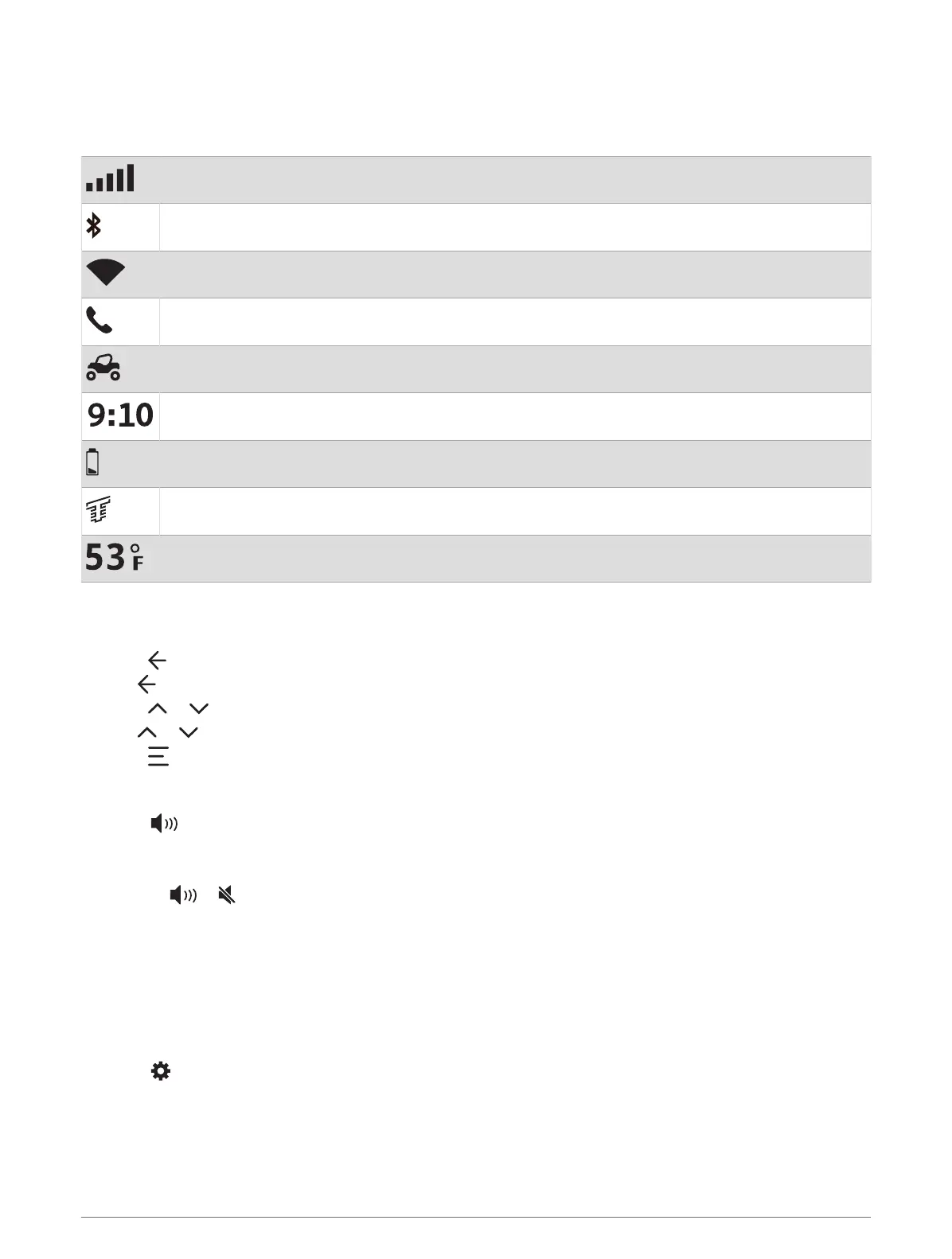
Status Bar Icons
The status bar is located at the top of the main menu. The status bar icons display information about features
on the device. You can select some icons to change settings or view additional information.
GPS signal status. Select to view GPS accuracy and acquired satellite information .
Bluetooth technology status. Select to view the Bluetooth settings (Phone Settings, page52).
Wi‑Fi signal strength. Select to change the Wi‑Fi settings (Wi‑Fi Settings, page52).
Connected to hands-free calling. Select to place a phone call (Hands-Free Calling, page50).
Active vehicle profile. Select to view the vehicle profile settings (Editing a Vehicle Profile, page15).
Current time. Select to set the time (Setting the Time, page55).
Battery charge level.
Tread app connection status (Pairing with Your Smartphone, page48).
Temperature. Select to view the weather forecast (Viewing Weather Information, page26).
Using the On-Screen Buttons
On-screen buttons allow you to navigate the pages, menus, and menu options on your device.
• Select to return to the previous menu screen.
• Hold to quickly return to the main menu.
• Select or to scroll through lists or menus.
• Hold or to scroll faster.
• Select to see a context-based menu of options for the current screen.
Adjusting the Volume
1 Select .
2 Select an option:
• Use the slider bar to adjust the volume.
• Select or to mute or unmute the device volume.
• If you have paired a phone with your device, touch the volume buttons under the phone name to increase
or decrease the phone's volume.
• Select Mixer to individually control volume for sounds such as navigation instructions and proximity
alerts.
• Select a check box to enable or disable additional sound options.
Adjusting the Screen Brightness
1 Select > Display > Brightness.
2 Use the slider bar to adjust the brightness.
6 Getting Started















 To Next Page