Enabling LED Groups
By default, the controls for LED groups RGB 1 and RGB 2 are enabled. Enabling an LED group allows you to
use the LED lighting controls for that group. You can enable the LED group for the Tread 6.5" XS-LED Tower
Speakers or any additional speakers or addressable LEDs after you set up and pair them with your Tread Audio
Box.
1 Select .
2 Select the LED group.
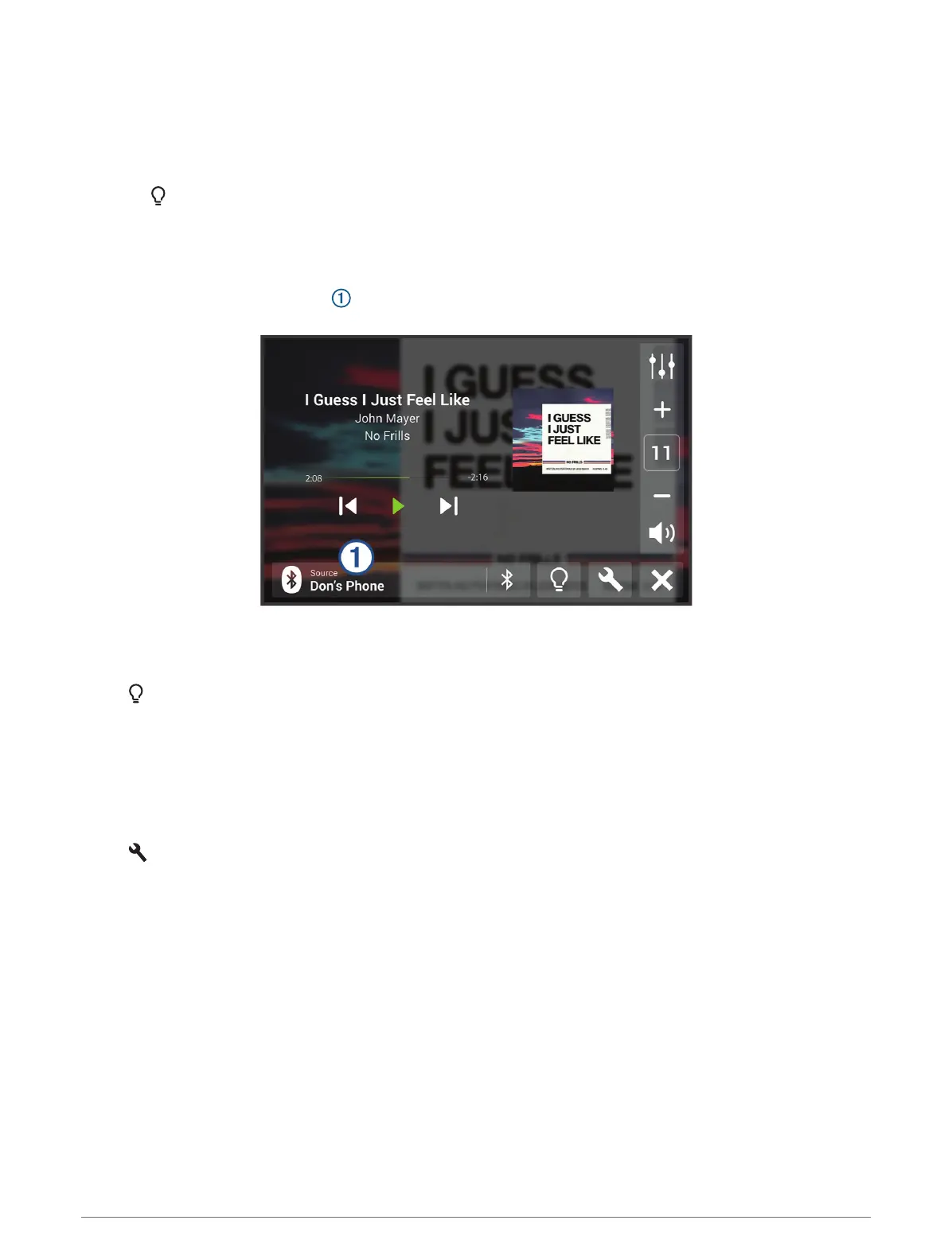
Changing the Media Source
You can change the source from which media is played on your device.
1 Select the current media source .
2 Select an available media source from the list.
LED Light Settings
Select .
Set Color: Sets the color of the LED lights.
Music Sync: Syncs the LED lights to music playback.
Speed Sync: Syncs the LED lights to the vehicle's speed.
Group Ride Sync: Sets the LED lights to display a call sign color during a group ride.
Audio Zone Settings
Select > Stereo Settings > Audio Zones, and if necessary, select a zone.
Zone Name: Sets the name of the zone.
Loud: Boosts the high and low frequencies.
Subwoofer Filter: Sets the low-pass frequency of the subwoofer.
Bass: Sets the relative volume of low-frequency audio.
Middle: Sets the relative volume of middle-frequency audio.
Treble: Sets the relative volume of high-frequency audio.
Dog Tracking
The dog tracking features allow you to see information transmitted from your compatible Garmin handheld dog
device on your Tread device. You can navigate to your dogs, view their current status and location, and observe
the distance they have traveled.
Using the Apps 45















 To Next Page