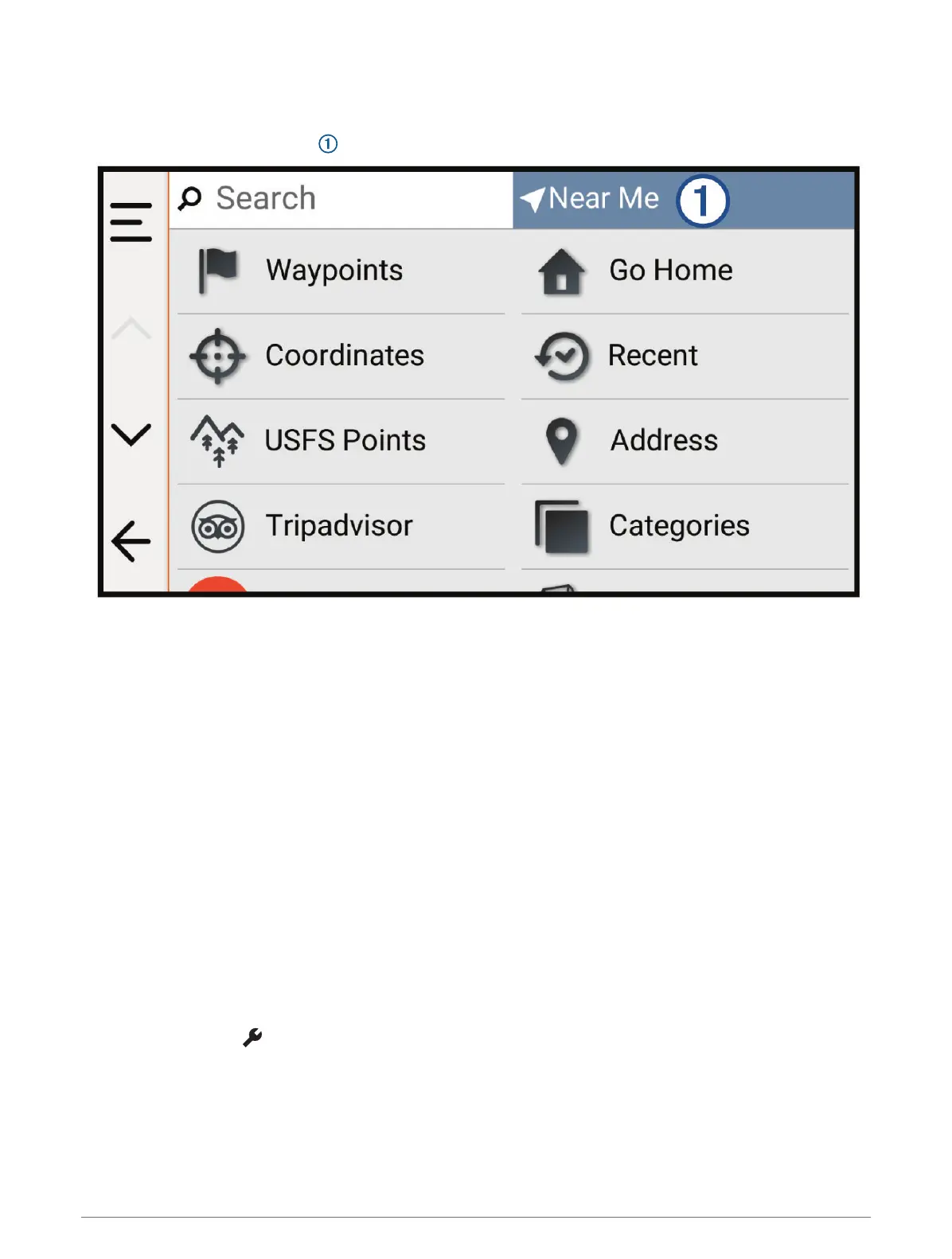
Finding Parking Near a Specified Location
1 Select Search.
2 Select the current search area .
3 Select Select a Location.
4 Follow the on-screen instructions to select a location.
5 Select Categories > Parking.
Parking options near the selected location appear.
6 Select a parking location.
7 Select Go!.
Finding an Address
NOTE: The order of the steps may change depending on the map data loaded on your device.
1 Select Search.
2 If necessary, select the current search area to search near a different city or area.
3 Select Address.
4 Follow the on-screen instructions to enter address information.
5 Select the address.
Finding a Location Using Coordinates
You can find a location using latitude and longitude coordinates.
1 Select Search > Coordinates.
2 If necessary, select , and change the coordinate format or datum.
3 Select Coordinates.
4 Enter the latitude and longitude coordinates, and select Done.
5 Select an option:
• To save the coordinates as a location, select Save.
• To start a route to the coordinates, select Go!.
Finding and Saving Locations 33















 To Next Page