Pairing the Device with a Wireless Camera
You can pair a wireless camera with your Tread 2 device.
1 Update your Tread 2 device to the latest software version (Map and Software Updates, page58).
Your device may not support the wireless camera without the latest software.
2 Select > Cameras > Add New Camera.
3 Follow the on-screen instructions to finish pairing and setting up the camera.
After you complete the pairing process with a camera for the first time, it connects automatically to the Garmin
navigation device when power is applied.
Viewing the Camera
WARNING
This device is intended to enhance situational awareness when used properly. If used improperly, you could
become distracted by the display, which could lead to an accident causing serious personal injury or death.
Always view the display at a glance when the vehicle is in motion to avoid becoming distracted.
Select > Cameras.
Aligning the Guidance Lines
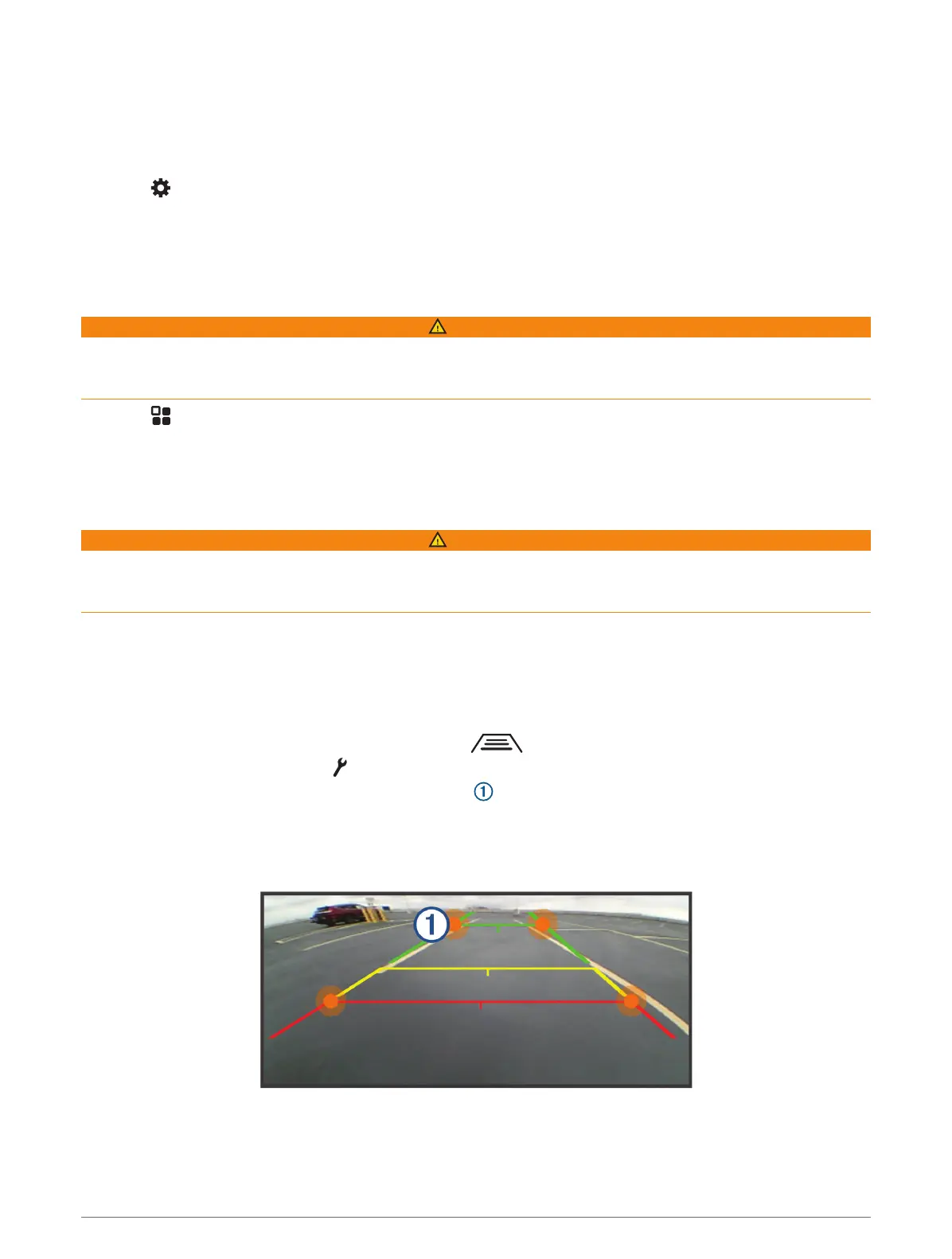
For the best reference points, the guidance lines should be aligned to reflect the outside edges of the vehicle.
You should align the guidance lines separately for each backup camera. On some models, adjustment is
automatically available after pairing a camera.
WARNING
You must ensure that the guidance lines are properly aligned before using the device and after making any
camera angle adjustments. Failure to properly align the guidance lines could result in an accident or collision,
resulting in death, serious injury, or property damage.
1 Position the vehicle with one side closely aligned to a curb, driveway, or parking stall lines.
You may want to position the vehicle in the center of a parking stall, and then pull forward into the next stall.
This allows you to use the parking stall lines in the rear of the vehicle as reference points for alignment.
The curb, driveway, or parking stall lines should be clearly visible on the device.
2 Select an option:
• From the camera view, tap the screen, and select .
• From the camera view, select > Adjust Video.
3 Drag the circles on the corners of the guidance lines , or tap the arrows until they match the angle and
position of the curb, driveway, or parking stall lines.
The guidance lines should appear directly on top of your reference points.
The red or orange section of the guidance lines should align with the rear of your vehicle.
Using the Apps 39















 To Next Page