Synchronizing Garmin Account Data
Before you can synchronize account data, you must pair your device with the Tread app (Pairing with Your
Smartphone, page48).
You can synchronize data, such as tracks, with your Garmin account. Your device periodically synchronizes data
with your account automatically. You can also synchronize data manually at any time.
1 Select > Saved.
2 Select .
Using the Apps
Handlebar Controller
The Handlebar Controller app allows you to view and configure the actions triggered by each button on the
Handlebar Controller accessory.
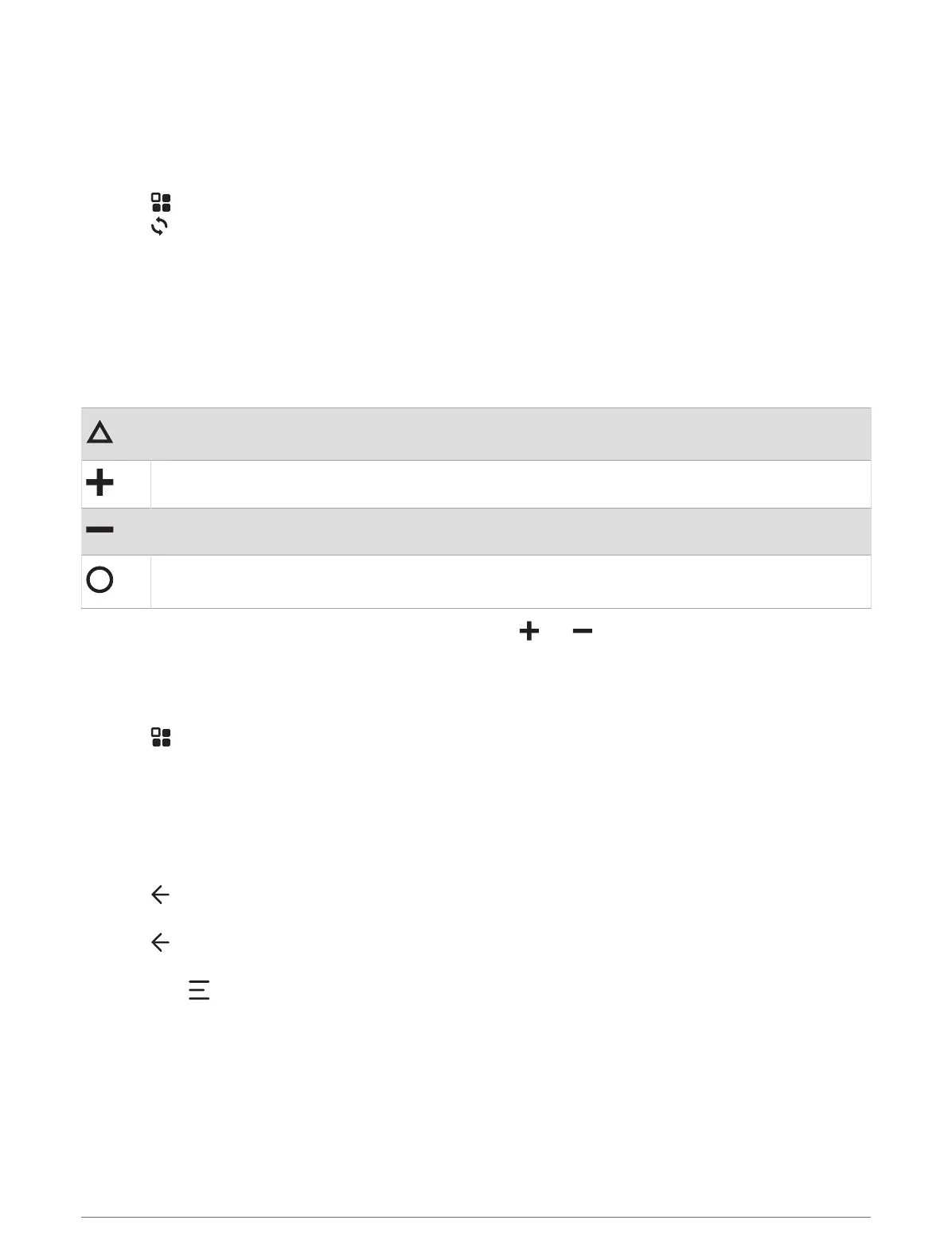
By default, the handlebar controller buttons trigger the following actions.
Short press to save the current location.
Long press to skip the next destination on your route.
Press to zoom in on the map.
Press to zoom out on the map.
Short press to change the map type.
Long press to lock or unlock the screen.
In addition to the user-configurable actions, you can press the and buttons to interact with on-screen
dialogs.
Configuring the Buttons
You can configure each button on the handlebar controller to trigger different actions.
1 Select > Handlebar Controller.
A diagram of the handlebar controller appears. Each button is linked to a short press action and a long press
action.
2 Select Short Press to choose the action to trigger with a short press of the linked button.
Some actions, such as zooming in or out on the map, must trigger with both a short press or a long press
and will automatically be set for both modes.
3 Select an action.
4 Select .
5 Select Long Press to choose the action to trigger with a long press of the linked button.
6 Select .
7 Repeat steps 2 through 6 for each of the buttons.
You can select > Restore to set all the handlebar controller buttons back to their default configuration.
Wireless Cameras
Your device can display the video feed from one or more connected wireless cameras (sold separately).
38 Using the Apps















 To Next Page