ThinPrep
®
Integrated Imager Operator’s Manual
3.23
USER INTERFACE
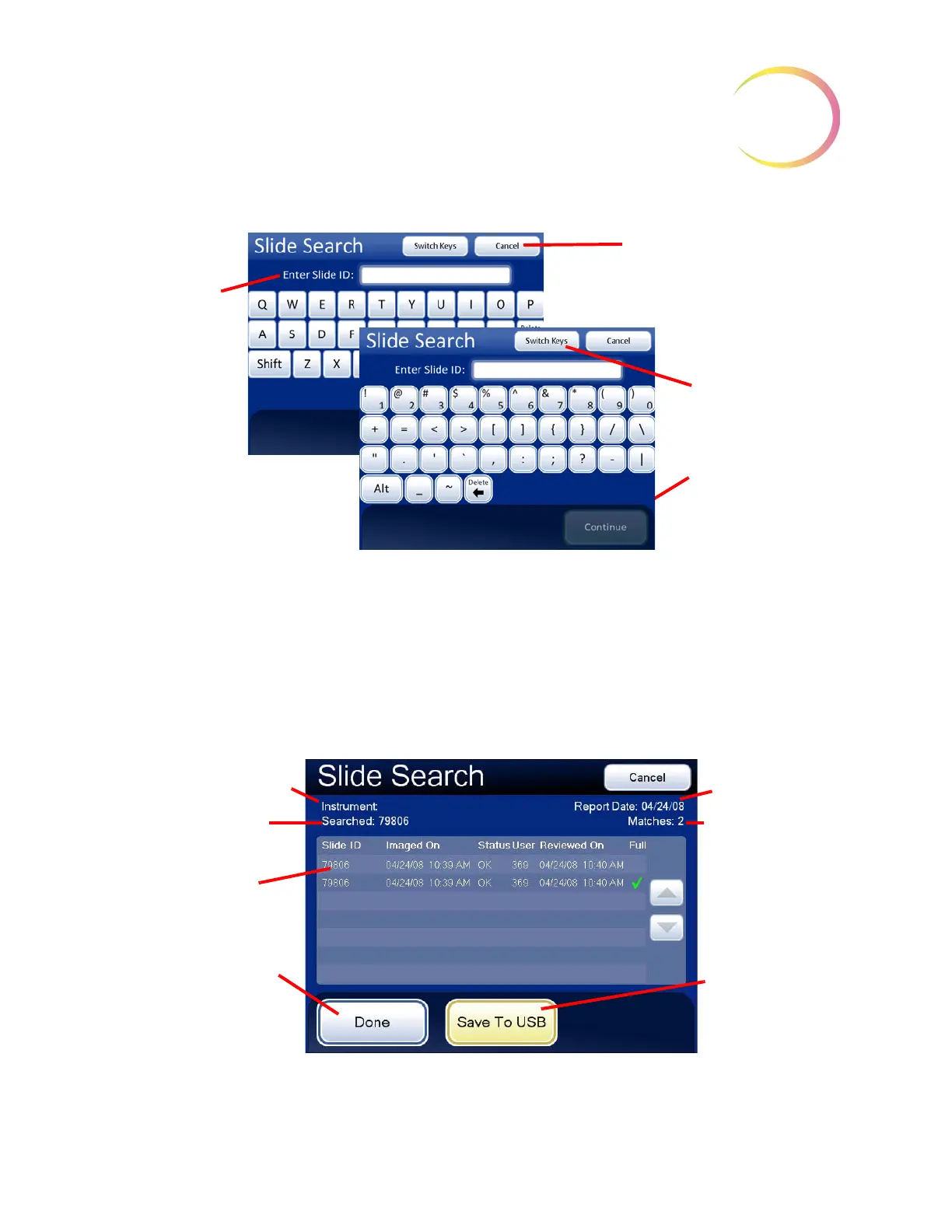
Figure 3-35 Enter Slide ID to Begin Search
To search for a specific slide, enter the slide ID using the keypad buttons. Switch between keypad
and keyboard, if the ID contains alpha and numeric characters. Press the
Continue
button when
ready to perform the search.
To search for a range of slides, enter the first digits of the slide ID that they have in common. For
example, enter “01234” and then press the
Done
button.
The database retrieves the slide ID or range of IDs and lists them as shown below, Figure 3-36.
Figure 3-36 Slide Search Report Screen
The slide IDs are listed with any available data for that ID:
Cancel
button, to return to
Reports and Logs screen
Enter a slide ID
via the keypad.
Switch Keys
button,
to display keyboard
to enter letters
Press
Continue
to
perform the search.
Instrument name
Number(s)
searched for
Slide data
Done
button, to
return to Reports
and Logs screen
Report date
Number of
matches found in
the database
Save to USB


 To Next Page