ThinPrep
®
Integrated Imager Operator’s Manual
3.27
USER INTERFACE
An administrative password may be set to limit access to the Administrative Options screen. Only by
entering the correct password can the screen be displayed and used.
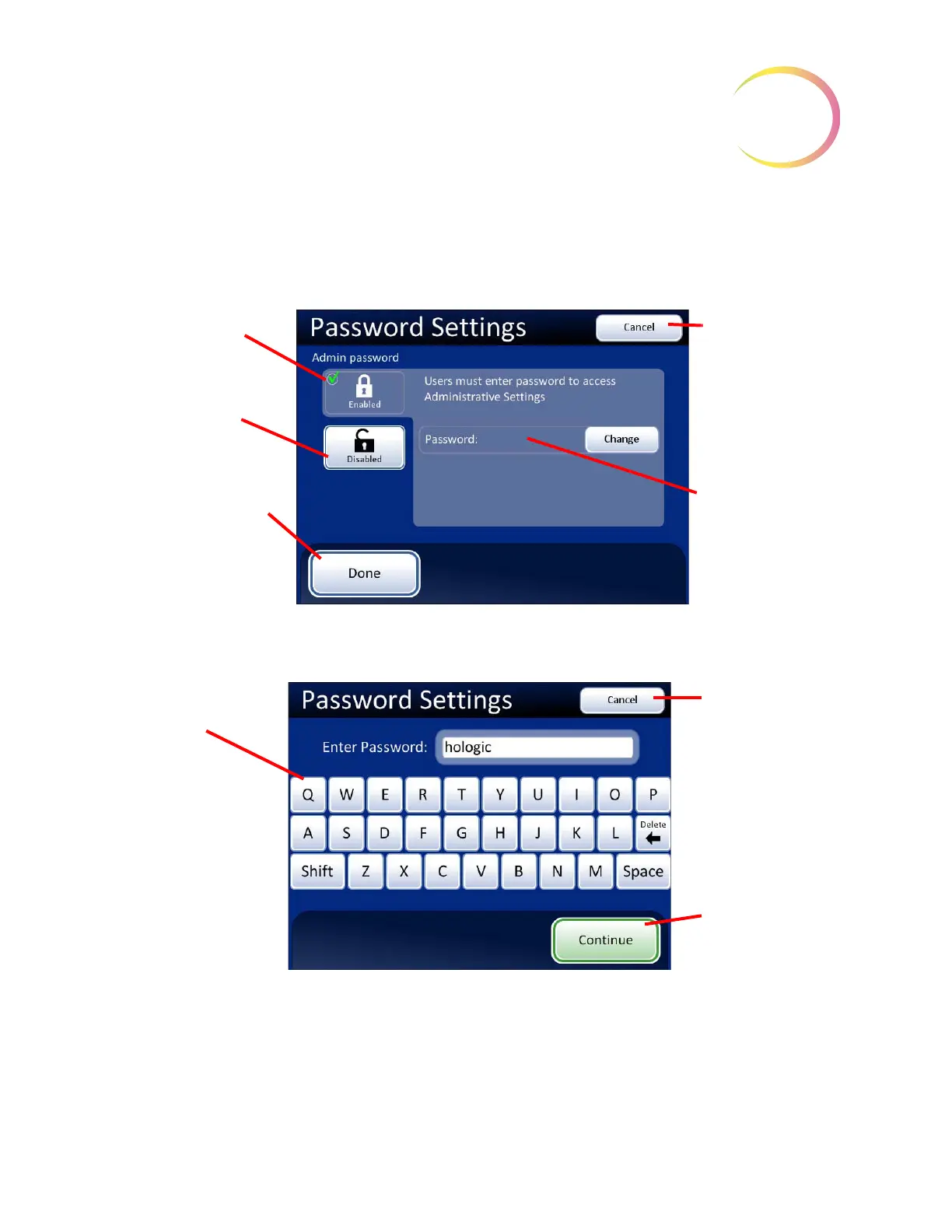
Press the
Password Settings
button to display the Password screen (Figure 3-43).
Figure 3-43 Password Settings Screen
To Set a Password
Figure 3-44 Password Settings Keyboard
Press the
Enabled
button. The keyboard screen will appear and prompt for a password to be entered.
The word may be up to 20 alpha characters long and it is case-sensitive.
Press the
Continue
button and the display returns to the Password Settings screen. The password is
visible in the password field.
Button to enable
password
Password
Disabled
Done
button, to
accept changes and
return to Administra-
tive Options screen
Cancel
, to return
to Administrative
Options screen.
Revert to what
was previously set
Password will be
present here
when it is
enabled.
Enter a password via
keyboard.
Cancel
, to return
to System Set-
tings screen.
Revert to what
was previously set
Continue
to the
next step.


 To Next Page