ThinPrep
®
Integrated Imager Operator’s Manual
3.29
USER INTERFACE
Change a Password
Enter the Admin Options screen by entering the required password. Press the
Password Setting
button to view the password screen. (See
Figure 3-45.)
Press the
Change
button and type the new word using the keyboard that appears. Press the
Done
button to set the new password and return to the System Settings screen.
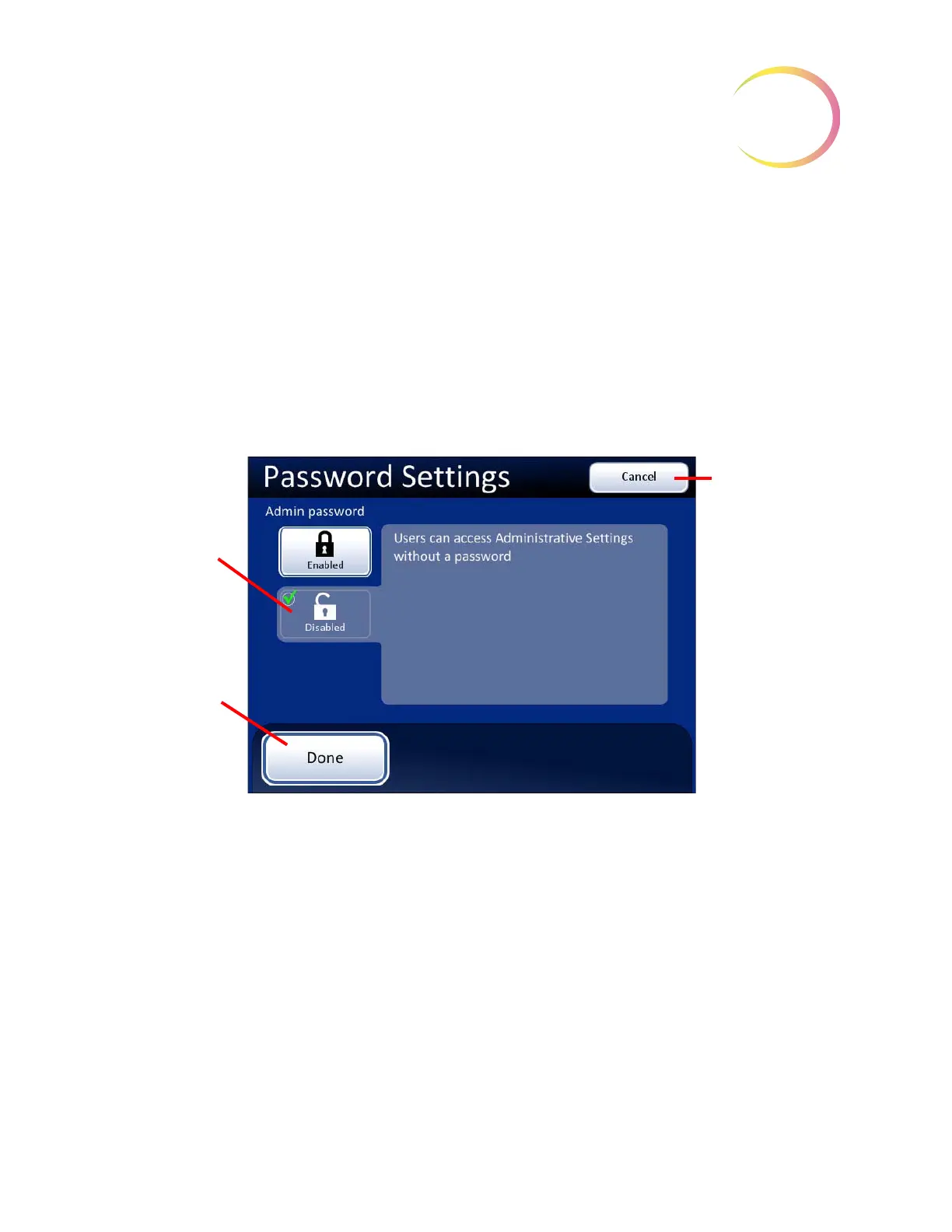
Remove a Password
To remove a password, access the Admin Options screen using the current password. At the
Password Settings screen, press the
Disabled
button. Then press the
Done
button to accept the
change.
Figure 3-47 Disable the Password
Note:
The password is removed. If an admin password is used later, the password has to be set up
again, as described in
“To Set a Password” on page 3.27.
Cancel
button,
to abandon
changes and
return to the
previous screen
Disabled
button
will remove
password
requirement to
access Admin
Options.
Done
button, to
accept changes
and return to
Admin Options


 To Next Page