800-13897 - A - 01/2013
Live View | 47
Setting the Camera Order
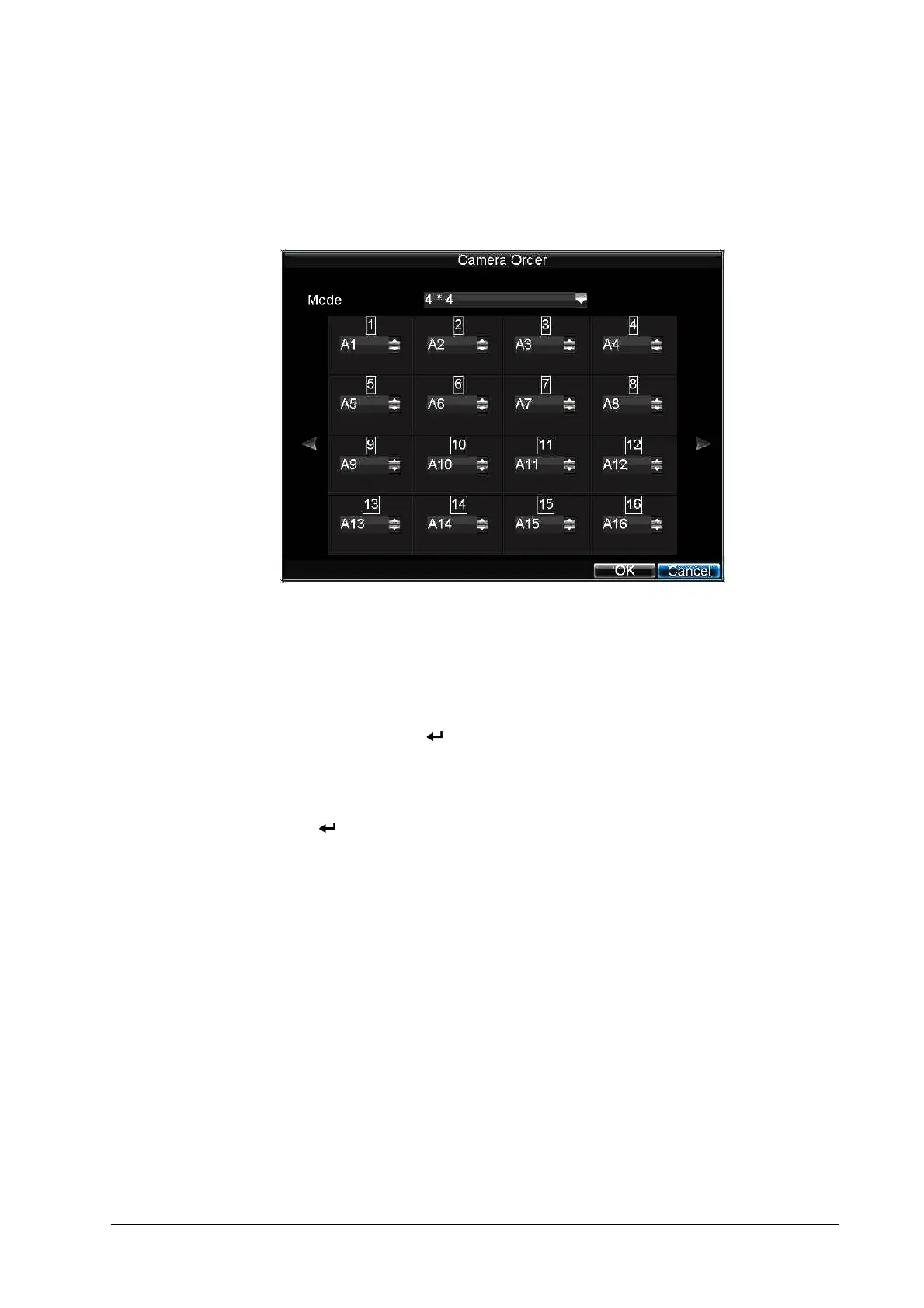
The Camera Order settings allow you to set camera sequence in selectable Live View display
mode (see Figure 3-4).
Figure 3-4 Camera Order Settings
To set the camera order, do the following:
1. Click Menu Settings Display to enter the Display Settings menu.
2. Next to Camera Order, click Set.
3. Select the video output port and the display mode (1×1, 2×2, 3×3, and 4×4 selectable).
4. Use the direction buttons on the front panel of the DVR to move to the display pane for
setting, and then press to confirm the selection.
5. Use the direction buttons on the front panel of the DVR to select the camera you want to
be view in the display pane.
The option '×' indicates that no camera is displayed.
6. Press to confirm the selection.



 To Next Page
 Loading...