84 | HRG Performance Series DVR User Guide
www.honeywellvideo.com
3. If you want to configure your own settings, enter the settings for:
• IP Address: IP address you would like to use for your HRG DVR.
• Subnet Mask: Subnet Mask of network.
• Default Gateway: IP address of your Gateway. Typically the IP address of your router.
• Preferred/Alternate DNS Server: The preferred and alternate Domain Name System
(DNS) Server to be used with your HRG DVR.
4. If you have a DHCP server running and would like your DVR to automatically obtain an IP
address and other network settings from that server, select the DHCP check box. You can
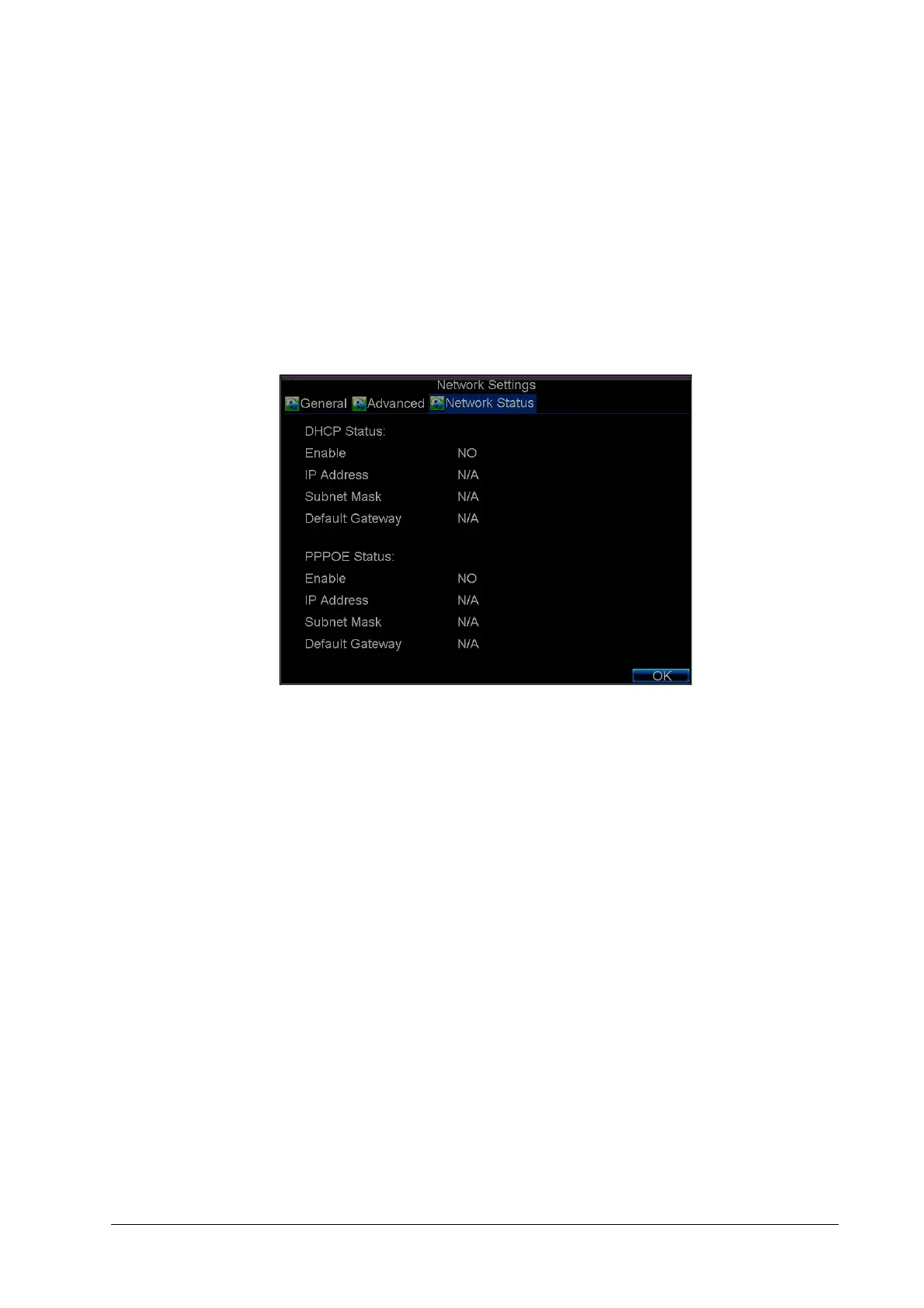
check the DHCP status by going to the Network Status tab (see Figure 8-2).
Figure 8-2 Network Status
5. Click OK to save the settings and exit the menu.
Configuring PPPoE Settings
Your DVR also allows for Point-to-Point Protocol over Ethernet (PPPoE) access.
To set up PPPoE access:
1. Click Menu Settings Network to enter the Network Settings menu.
2. Select the Advanced tab to enter the Advanced Network Settings menu (see Figure 8-3).



 To Next Page
 Loading...