800-13897 - A - 01/2013
Network Settings | 85
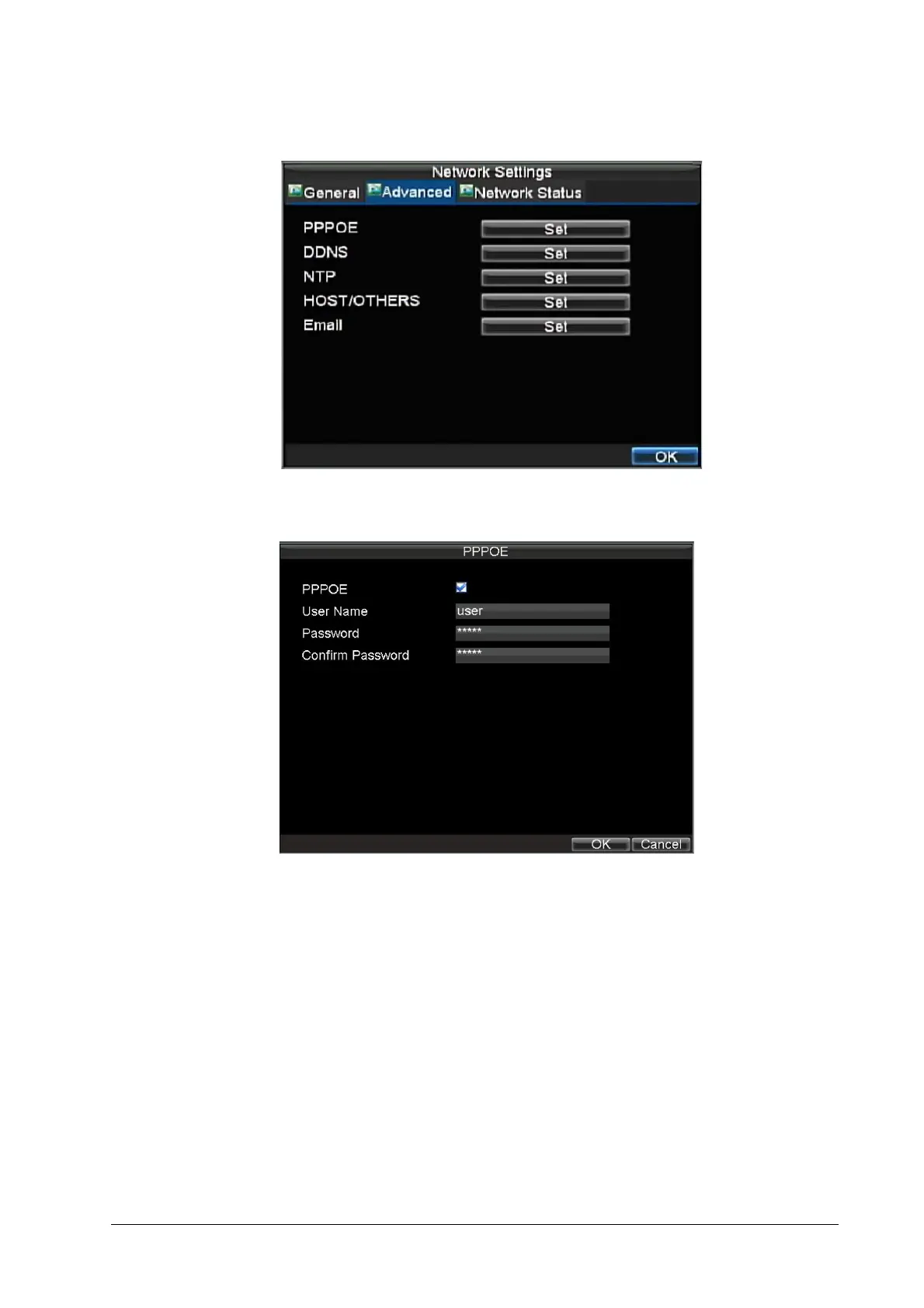
Figure 8-3 Advanced Network Settings Menu
3. Click Set next to PPPOE to enter the PPPoE Settings menu (see Figure 8-4).
Figure 8-4 PPPoE Settings
4. Select the PPPOE check box to enable this feature.
5. Fill in the User Name, Password, and Confirm Password boxes, and then click OK.
PPPOE credentials can be obtained from your network administrator. Once the setup is
completed, your DVR will automatically dial-up into your network after reboot.
6. Click OK to save the settings and exit the menu.
You may be asked to restart your HRG DVR for the settings to take effect. To check on the
status of your PPPoE connection, go to Menu
Settings Network and select the
Network Status tab.



 To Next Page
 Loading...