86 Chapter 6 Customizing the look of the HP IndiChrome window ENWW
Changing the 2D color space panel background color
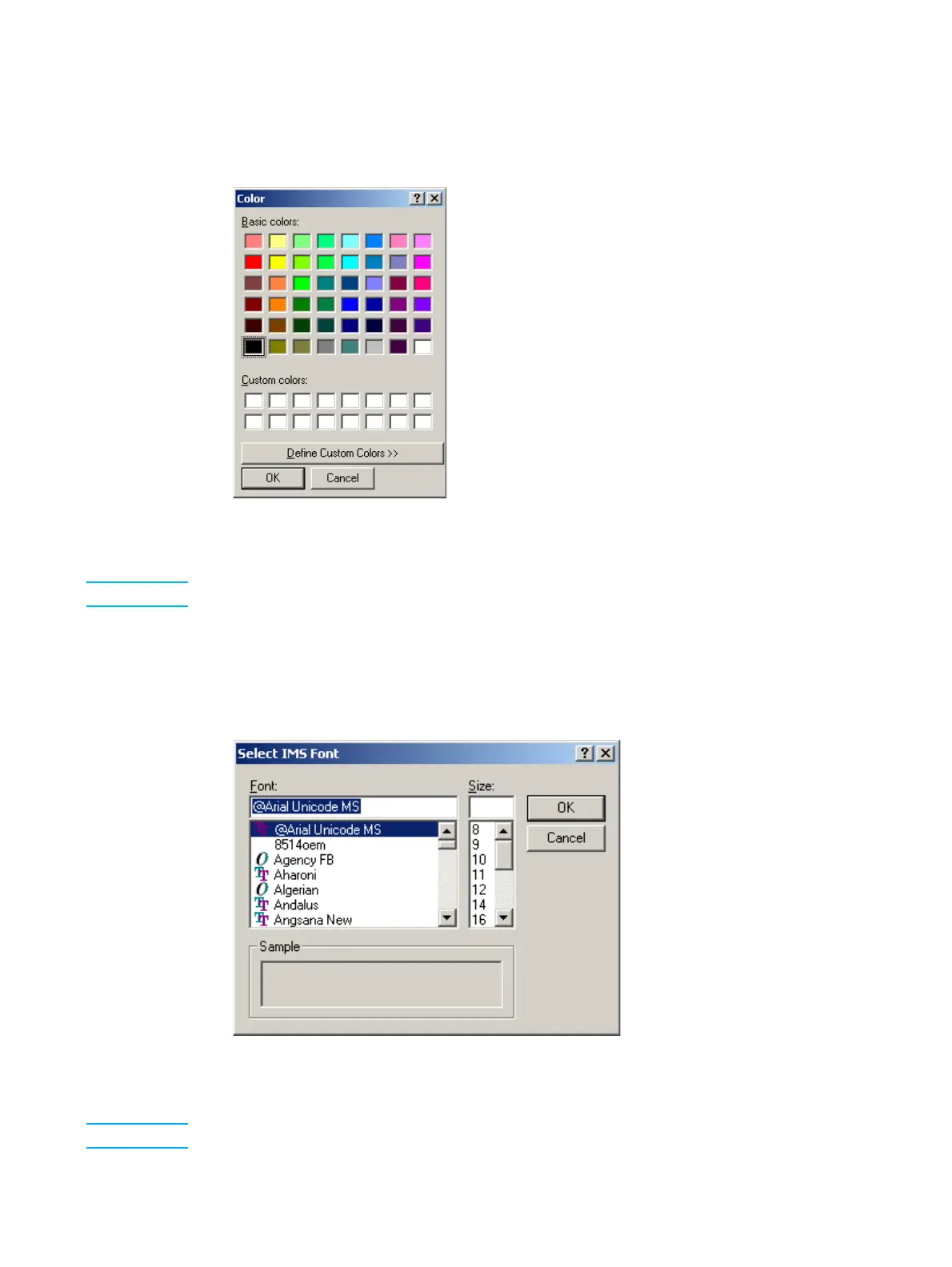
1 From the Configuration submenu of the View menu, select Change Axis
Background Color. The Color window appears.
Color window
2 Refer to step 2 on page 85 for details on using the Color window.
Note The default background color for the 2D color space panel is white.
Changing the color name font
1 From the Configuration submenu of the View menu, select Change Colors Font.
The Font window appears.
Font window
2 Select the font details you want for the color name display and click OK.
Note The default font for the color name in the 2D color space panel is 12-pt Futura Regular.



 To Next Page