ENWW Visually comparing the printed color 53
Visually comparing the printed color
Use a light box to compare the printed sample color to the target color. The light standard
should be identical to the standard that you chose in "Selecting a PANTONE
®
color" (step
8) on page 40.
If you are satisfied with the color match, you can select Additional Cans on the hp
IndiChrome window, which supplies the ink weights for 500 g cans.
If you are not satisfied with the color match or if you want to determine the
spectrophotometric results of the print, proceed to the next section “Adjusting the ink mix
from the printed output.”
Adjusting the ink mix from the printed output
1 With the IMS software running, measure the printed color with a spectrophotometer.
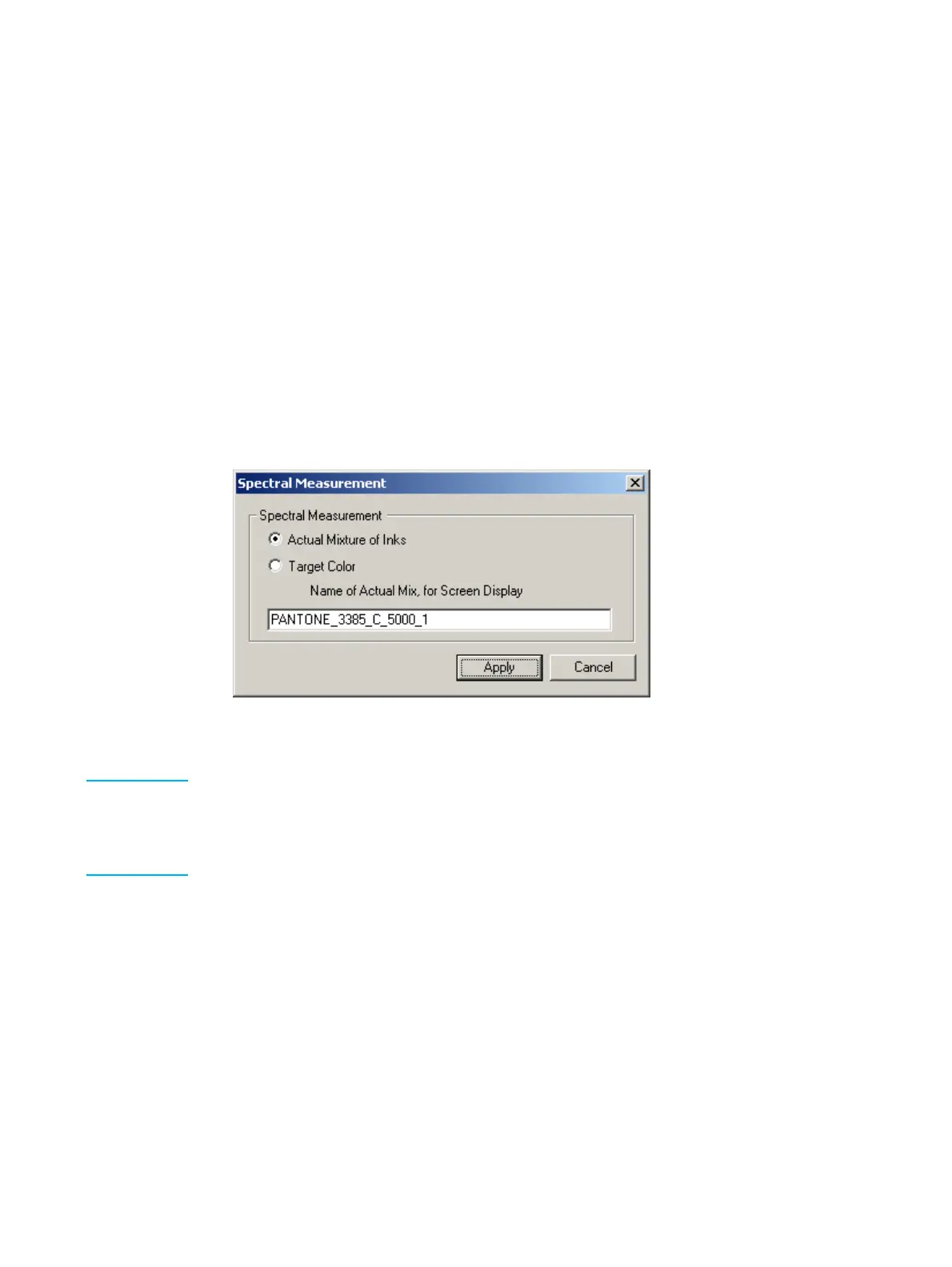
The Spectral Measurement window appears.
Spectral Measurement window
2 Verify that the Actual Mixture of Inks option is selected. If not, select it.
Note If the Target Color option is selected and the Actual Mixture of Inks option is unavailable (grayed
out), do the following:
a Click Cancel.
b Perform the procedure in ‘Save the Ink Definition file’ on page 43.
c Restart this procedure (“Adjusting the ink mix from the printed output”).
3 Click Apply. A message appears which reports one of the following color comparison
results:
• Accurate match
• Match can be improved by a fix can
• Fix can would add too much ink to the ink tank
• Improvement possible by changing optical density



 To Next Page