114
9
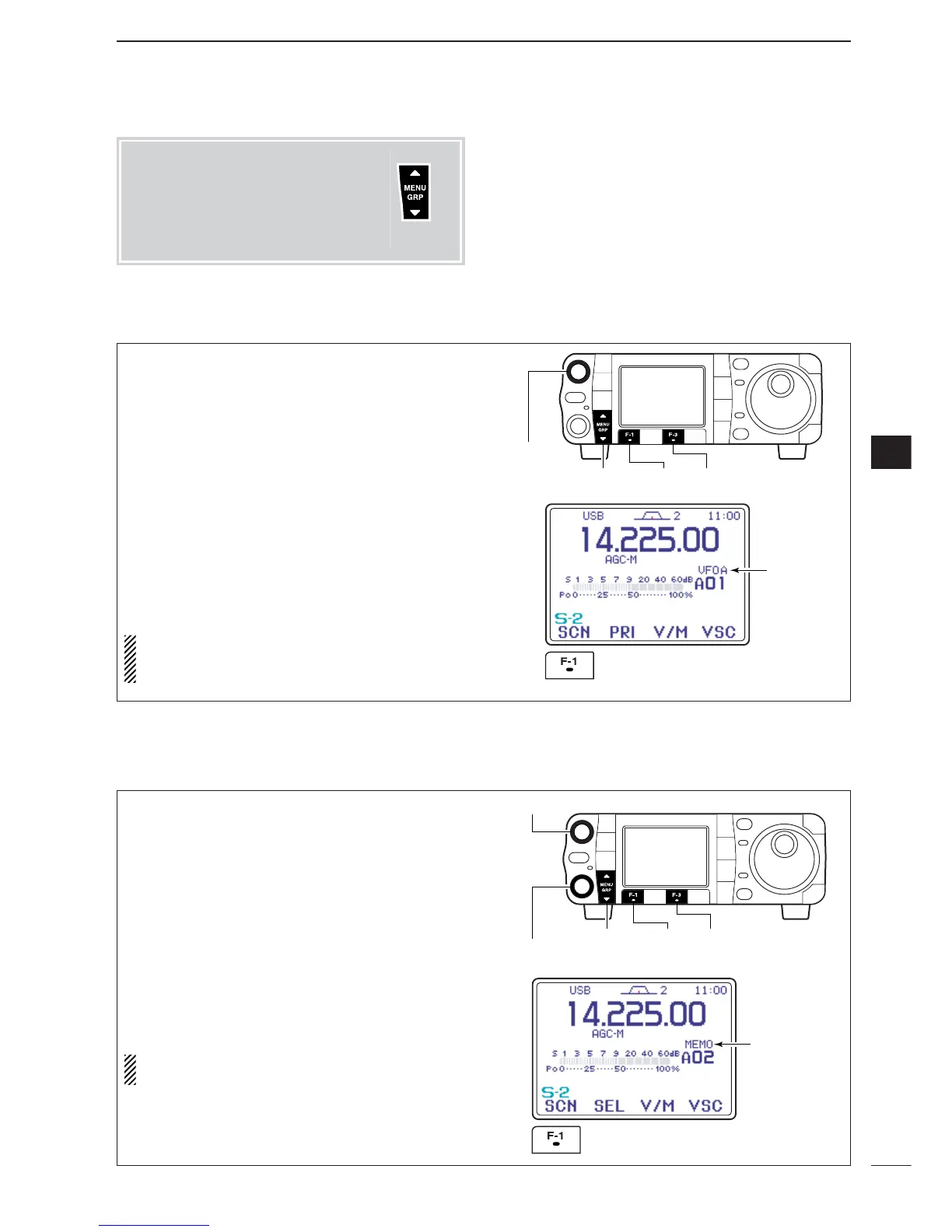
SCAN OPERATION
9
q Select
S
-
2
.
w Push [F-3
V/M
] to select VFO mode.
e Select the desired operating mode.
•The operating mode can also be changed while scan-
ning.
r Set [RF/SQL] open or closed.
• See page a left for squelch condition.
•If the [RF/SQL] control function is set as “AUTO,” the
squelch is always open in SSB, CW and RTTY modes.
See pgs. 1, 35, 131 for details.
t Push [F-1
SCN
] to start the scan.
• Decimal point blinks while scanning.
y When the scan detects a signal, the scan turns
OFF, pauses or ignores it depending on the re-
sume setting and the squelch condition.
u To cancel the scan push [F-1
SCN
].
NOTE:
If the same frequencies are programmed
into the scan edge memory channels 1A and 1B,
programmed scan does not start.
■ Programmed scan operation
q Select the desired memory bank, if necessary.
●
●
Push [PBT/M-ch/RIT] momentarily to select the
M-ch/RIT function, if the twin PBT is selected.
•[PBT/M-ch/RIT] indicator (Green) goes out.
●
●
Rotate [RIT] (outer) control to select the desired
memory bank.
w Select
S
-
2
.
e Push [F-3
V/M
] to select memory mode.
r Close the squelch with [RF/SQL].
t Push [F-1
SCN
] to start the scan.
• Decimal point blinks while scanning.
y When the scan detects a signal, the scan stops or
pauses depending on the resume setting.
u To cancel the scan push [F-1
SCN
].
NOTE:
Two or more memory channels must be
programmed for memory scan to start.
■ Memory scan operation
Menu group selection
Push [MENU/GRP] for 1 sec.
Selection from:
M
,
S
or
G
(Graphic)
Menu selection (Example: M)
Push [MENU/GRP] momentarily.
Selection from:
S
-
1
,
S
-
2
or
S
-
3


 To Next Page
 Loading...