39
Chapter 3: Troubleshooting & Testing
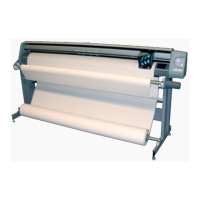
Regular or intermittent paper tearing.
Cause:
1. Front or rear dancer bar is not
installed.
2. Paper gets “yanked” by the
machine during take up.
3. Paper buckles when plotting to
oor.
4. Paper roll damaged.
5. Paper not loaded correctly.
6.
Platen not level.
7. Outdated rmware does not
advance paper at startup.
8. Pinchwheels press on a
drive
shaft bearing.
Solution:
1. Install front or rear dancer bar.
2. Make sure the front dancer bar
is below the Take-up Sensor,
then press Set Origin.
3. Clear paper path. Refer to the
FlexJet User Guide for proper
loading procedures.
4. Inspect the feed paper roll.
Dropping the paper roll on an
end can wrinkle the edge which
can catch the carriage and cause
a tear.
5. Correct paper loading is vital.
Follow the steps in the Opera-
tion chapter of the FlexJet User
Guide to reset paper align-
ment. Make sure the front silver
dancer bar is BELOW the front
optical sensor before plotting.
6. Make sure the distance between
the print heads and platen
surface is the same at the right,
center and left side of the printer.
Adjust the platen levelers as
described in the FlexJet Quick
Start Guide if necessary.
7. Use the Control Center to
check the rmware version and
ensure it is 324 or greater.
8. With power off, raise the
pinchwheels and align them with
the white driveshaft markers on
the traverse.
Jagged scan alignment.
Cause:
1. Cartridge alignment is incorrect.
2. Motion alignment is incorrect.
3. Platen or stand is not level.
4. Loose carriage pulley causing ran-
dom/uneven gaps between scans.
Solution:
1. Use the Control Center to
adjust cartridge alignment as
shown later in this chapter.
2. Use the Control Center to ad-
just motion alignment as shown
later in this chapter.
3. Follow the directions in the
FlexJet Quick Start Guide to
level the stand and platen.
4. Contact Ioline customer service.



 To Next Page