Chapter 2. Installing and Using RF ValProbe Software
RF ValProbe® User’s Manual 25
2.4 Starting the RF ValProbe System
To start up the RF ValProbe system for the first time:
1. Power up the Base Station, having connected it via USB to your PC.
2. Position and switch on the Loggers, with any external sensors or auxiliary inputs
connected.
3. To open RF ValProbe validation software for the first time, click
Start >Programs>RF
ValProbe>RF ValProbe.
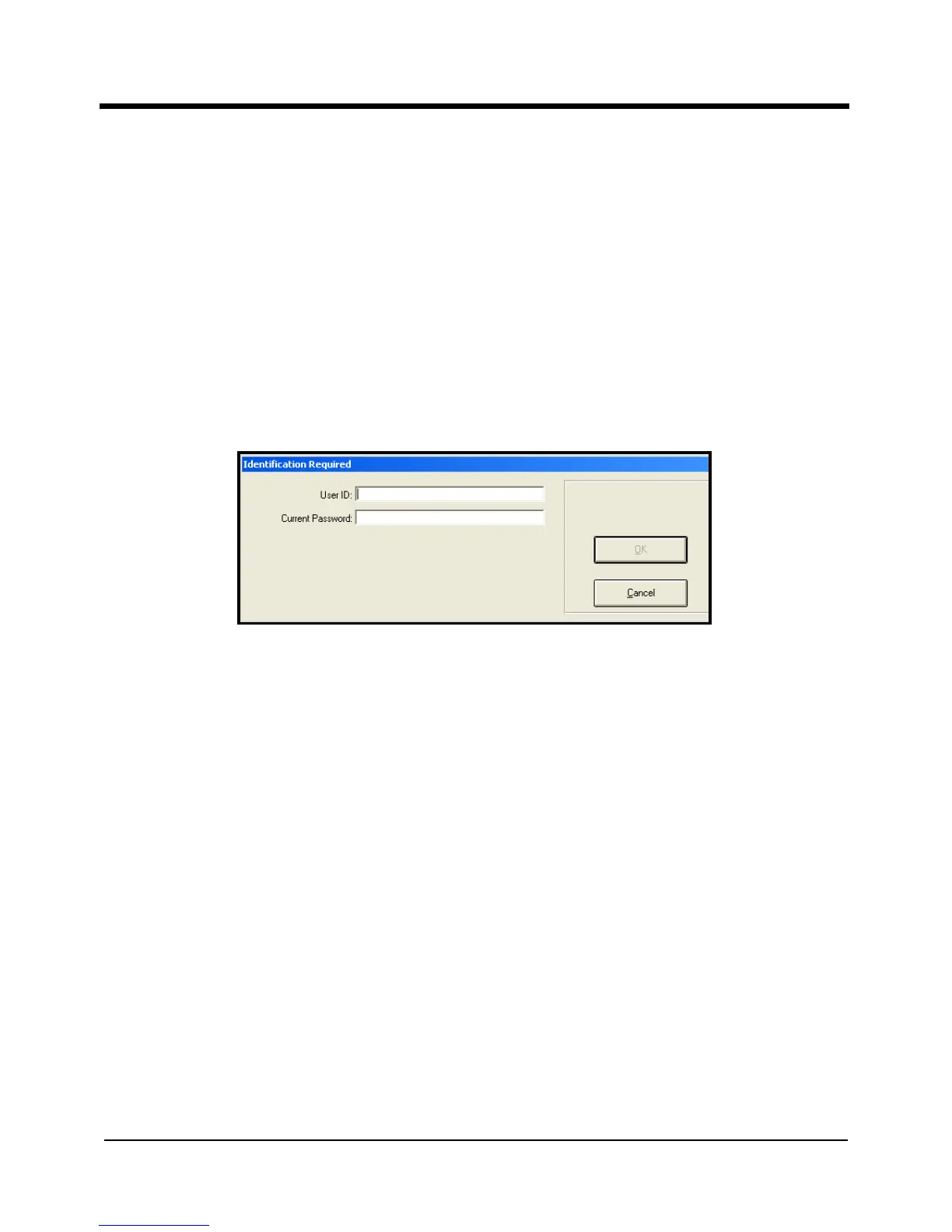
4. The Identification Required dialog box (shown in Figure 8 below) appears.
Figure 8: Identification Required Box
5. Enter
Kaye in the User ID text box.
Kaye is the default System Administrator user ID. The User ID text box is case sensitive,
so make sure you enter the default user ID exactly as it appears here.
Note: To access the Password Maintenance utility after your initial login, click
Start
>Programs>RF ValProbe>RF ValProbe Utilities.
Then click Site Options, and enter
your System Administrator user ID and password in the System Administrator Log
In dialog box.
6. Enter
411 in the Current Password text box.
411 is the default System Administrator password.


 To Next Page