Appendix B. Using the OPC Server and Client
RF ValProbe® User’s Manual 65
B.5.1 Viewing Sensor Data
Once you have set up your RF ValProbe on the OPC Server, you will find that two buttons
on the Device window are enabled:
Sensors and Advanced. Sensors permits users to
monitor all the Loggers that send data to the RF ValProbe, while
Advanced allows users to
set up parameters for the best data transmission.
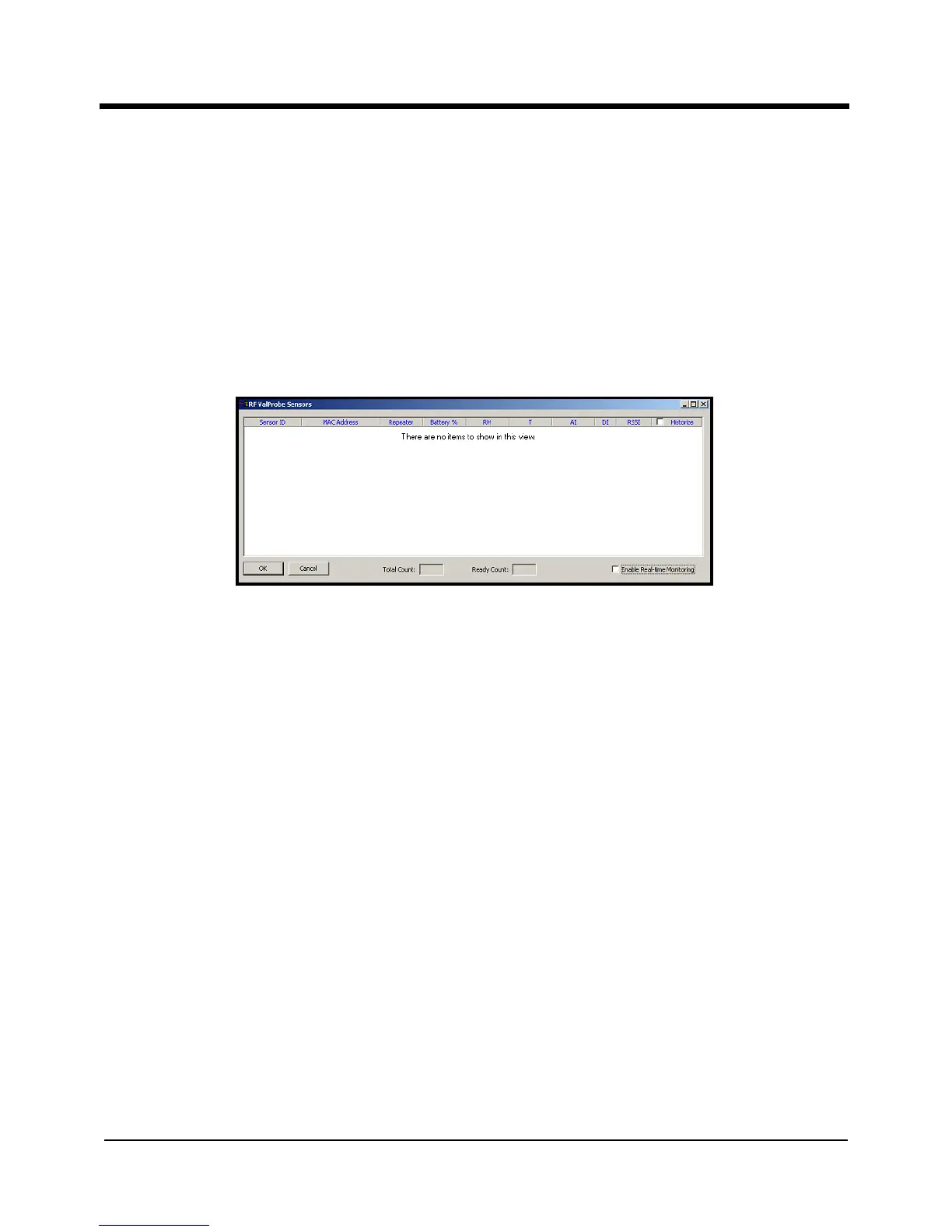
Click on the Sensors button to review your loggers. The screen initially appears similar to
Figure 32 below.
Figure 32: The Sensors Window
Wait for several minutes while the Server collects data. The screen first displays data in
red (indicating that the sensors are present on the network) and then displays data in black.
Two boxes at the bottom of the screen show the total number of Loggers on the network
and the number of Loggers ready for transmitting. The screen now appears similar to
Figure 33 on the next page.
Note: When you discover devices, the OPC Server retrieves all information about
configuration parameters, measurement parameters, and units from the RF
ValProbe. Depending upon your communication channel and its supported speed,
this procedure might take a few minutes.


 To Next Page