Appendix B. Using the OPC Server and Client
RF ValProbe® User’s Manual 71
B.7 Setting Up the OPC Test Client
Normally, users conduct real-time monitoring on their computer screens via the OPC
Client connected to the OPC Server. Kaye supplies the OPC Test Client so that installers
can check the operation of the OPC Server. (For real-time monitoring, users can set up
their own OPC Clients, or Kaye can provide a custom solution.) To open the OPC Test
Client, open the Windows Start Menu. From the Programs Menu, click on
Kaye, and then
on
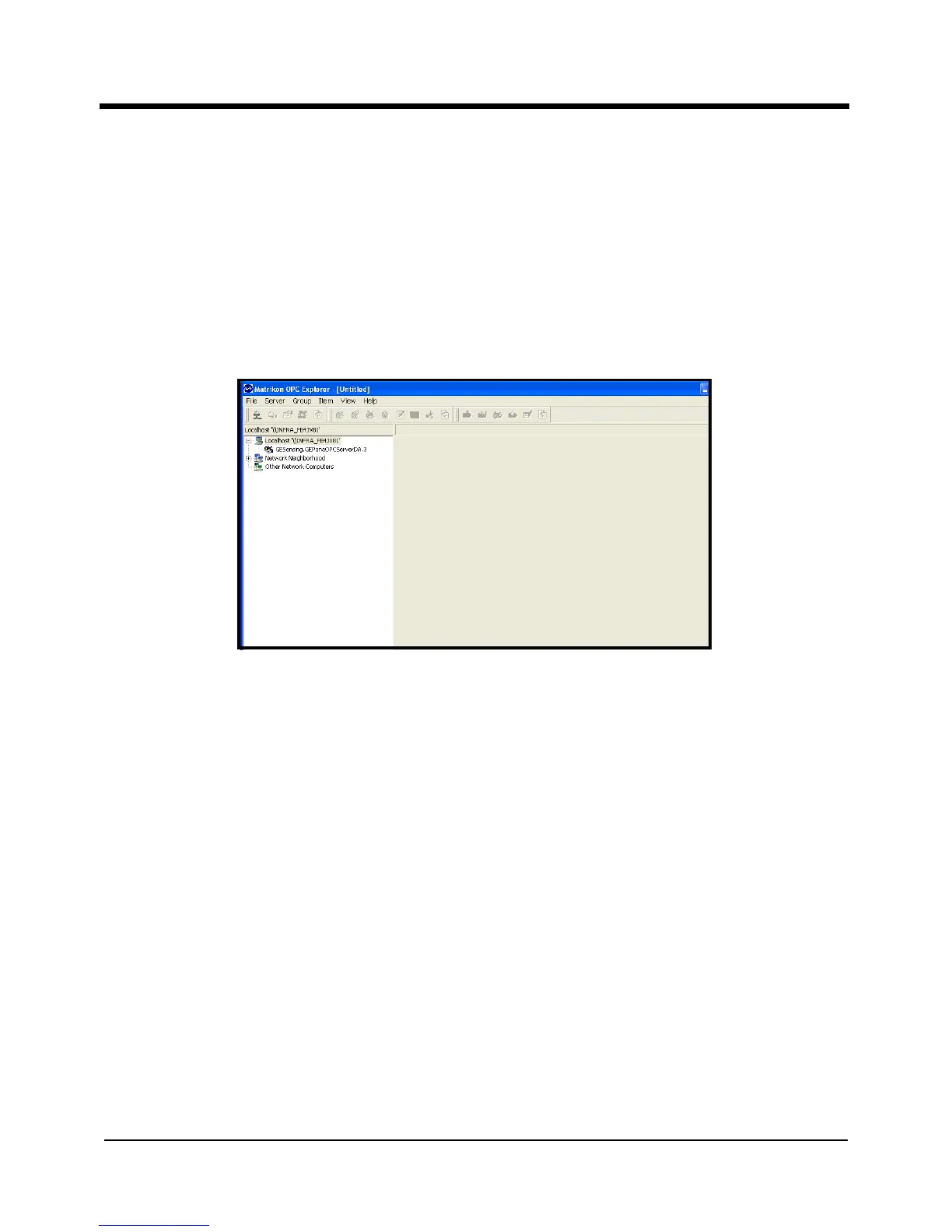
OPC Test Client. The OPC Client window appears similar to Figure 36 below.
Figure 36: OPC Client Window
To set up the OPC Client:
1. First, connect the client to the OPC Server.
a. Highlight the Server in the address tree in the left pane.
b. Click on the
Connect button, or right-click on the server and click Connect. In either
case, the Server is connected to the Client.
2. Next, you must establish at least one group of items to be monitored.
a. Be sure the Server is highlighted in the address tree.


 To Next Page