Appendix B. Using the OPC Server and Client
72 RF ValProbe® User’s Manual
B.7 Setting Up the OPC Client (cont.)
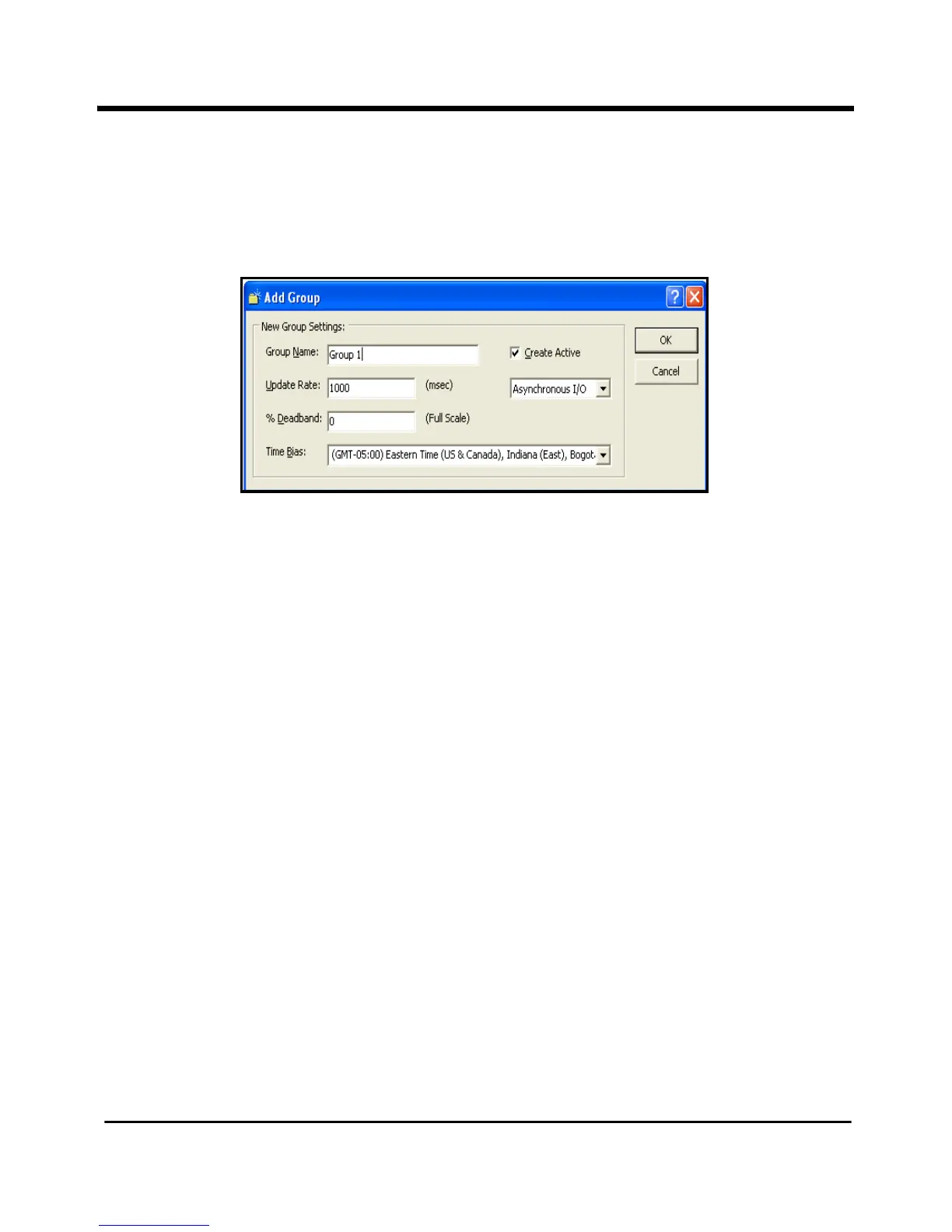
b. Click on the Add Group button, or right-click on the server and click Add Group. In
either case, the Add Group window appears (shown in Figure 37 below.
Figure 37: The Add Group Window
c. Type in the desired group name, adjust any necessary parameters, and click
OK. The
group folder appears in the address tree, below the server.
3. The last step calls for setting up tags with monitored parameters within the group.
a. Highlight the group folder in the address tree in the left pane.
b. Click on the
Add Items button, or right-click on the folder and click Add Items. The
Tag window opens, shown in Figure B-14 on the next page.
c. In the
Tag Entry window, click on each folder in the program tree until you open a
sensor folder.
d. The bottom pane displays the available tags (corresponding to the available
parameters for display). Right-click on one tag, and three options appear:
• Edit Item ID enables you to change the name of the tag.


 To Next Page