Appendix B. Using the OPC Server and Client
RF ValProbe® User’s Manual 63
B.4 Setting up a Communication Channel (cont.)
Enter the channel name, and select the channel type from the drop-down menu. For RF
ValProbe, the appropriate channel type is TCPIP.
Note: If you select a different channel type, a data entry menu appears. However, for
TCP/IP, the device view provides the IP address and IP Port.
Click
Add New to add another communication channel, Reset to change the settings, or
Apply to apply the settings and close the window.
B.5 Setting up a New Device
Once you have set up the communication channel, you can now set up your RF ValProbe.
IMPORTANT: Be sure to install your RF ValProbe Base Station and place your Loggers in
the desired locations before setting up the RF ValProbe on the OPC Server.
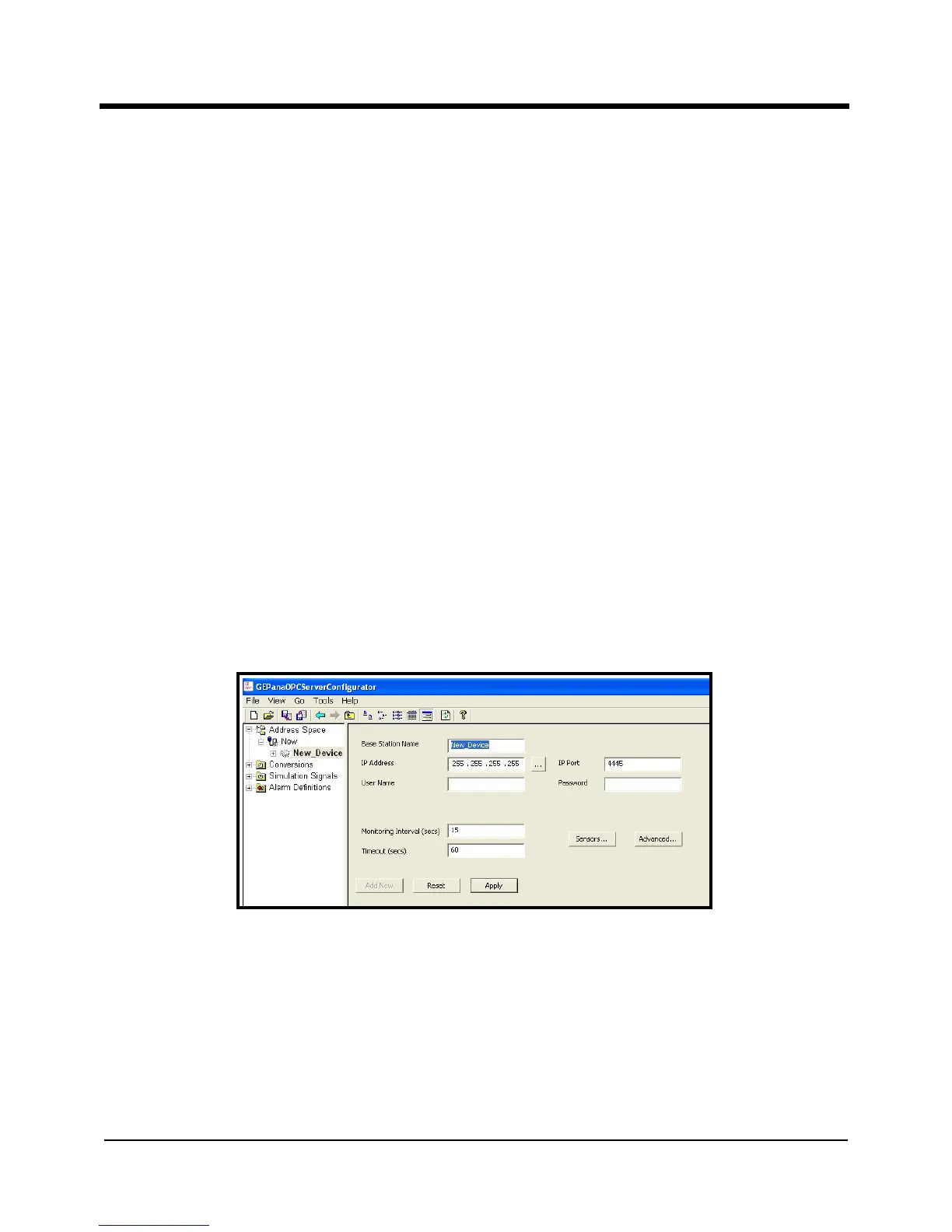
1. Right-click on the newly created channel. From the
New option, click on the RF
ValProbe Device
selection. The right pane of the window appears similar to Figure 31
below.
Figure 31: New Device Option


 To Next Page