2 General Operating Information
46 Keysight 2050/60 X-Series User’s Guide
Using the 2050/60 X-Series with the Keysight BenchVue
The BenchVue Power Meter application provides a virtual operating interface for the 2050/
60 X-Series. This chapter describes the 2050/60 X-Series functions in the BenchVue Power
Meter application in general.
Go to Start > All Programs > Keysight > Keysight BenchVue > Keysight BenchVue to launch the
BenchVue Power Meter application.
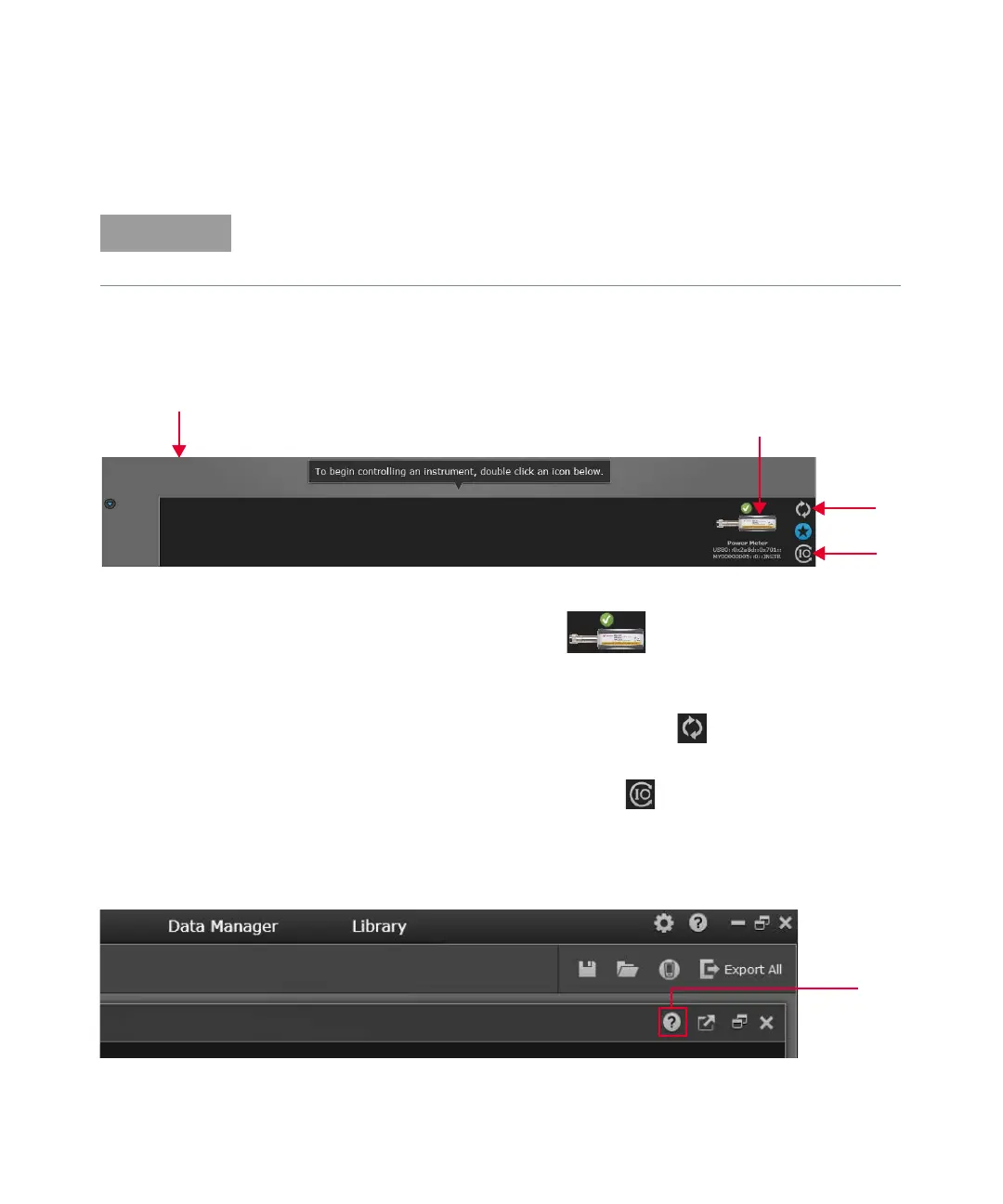
Figure 2-1 Launch the Keysight BenchVue
a Double-click the connected sensor ( ) at the Instrument panel to start
controlling the power sensor.
b If the sensor is found in the Keysight Connection Expert but is not shown in the
BenchVue Instrument panel, select the refresh icon ( ) to refresh the instrument
list.
c If the sensor is not found, select the IO icon ( ) to launch the Keysight
Connection Expert to verify that the power sensor is connected properly.
When you launch the BenchVue Power Meter application, the Digital Meter is displayed by
default.
Figure 2-2 Accessing the BenchVue Power Meter help documentation
For more information on how to configure each 2050/60 X-Series function or use each
BenchVue Power Meter feature, refer to the Keysight BenchVue Power Meter help
documentation.
a
b
Instrument panel
c
d



 To Next Page