86
RC300RC300hNavi(EE)
3-2. Destination search
Select to display the starting route
guidance screen. (P.87)
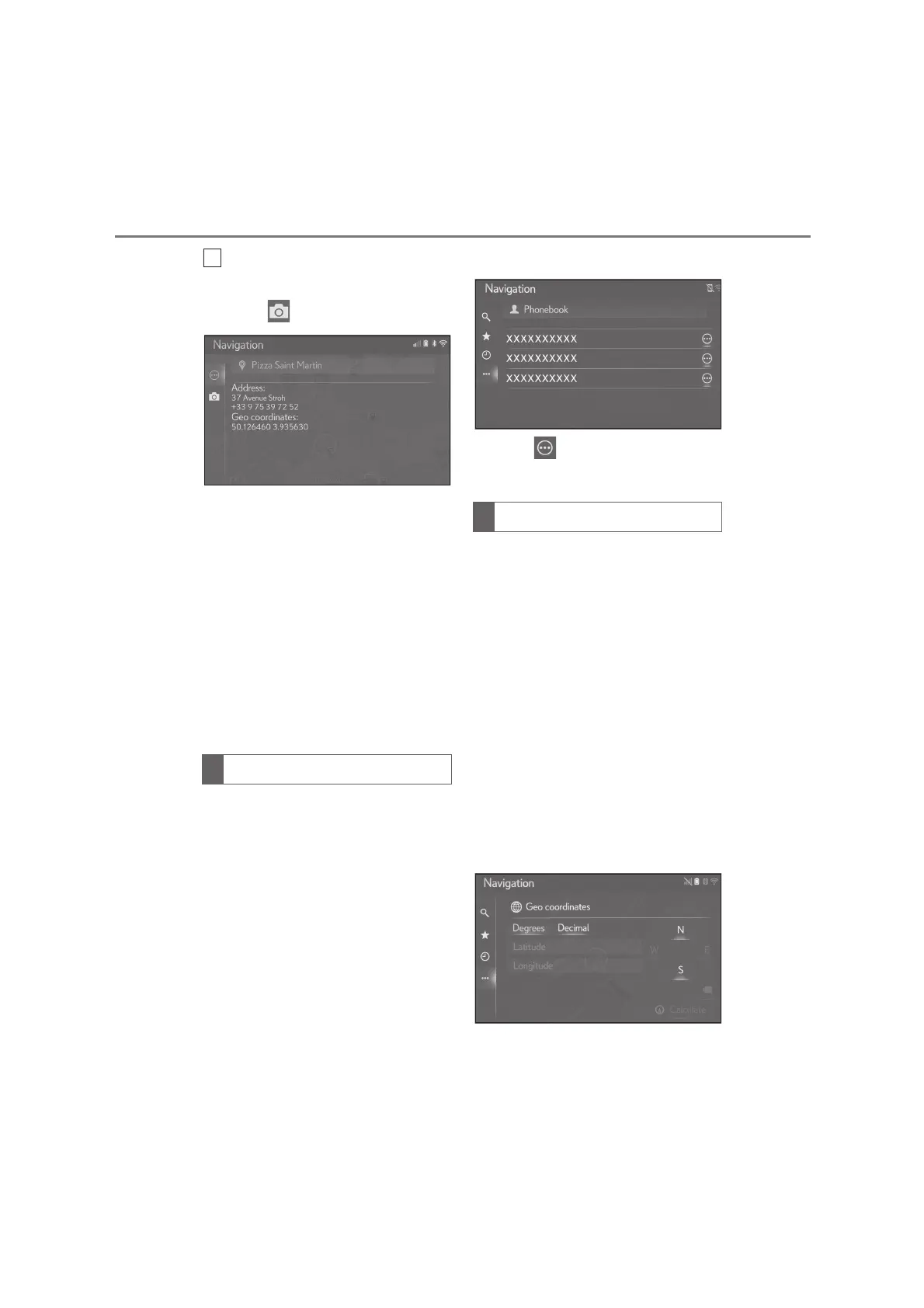
3 Select .
Selecting the Pictures button dis-
plays up to 6 pictures as thumbnails
in the screen. Selecting a thumbnail
will enlarge the picture.
4 Select the desired thumbnail.
The previous/next buttons are only
shown if there is more than one pic-
ture available. If a picture can’t be
shown as enlarged, a message
“Image is not available.” will be dis-
played.
Before using this function, it is neces-
sary to connect a Bluetooth
®
phone.
If a contact does not have address
information stored, the entry will not be
shown.
1 Press the “MENU” button on the
Remote Touch and then select
“Destination” on the menu screen.
2 Select “Other”.
3 Select “Phonebook”.
4 Select the desired entry.
Select to display the details
screen. (P.78)
Geo coordinates can be entered in
DMS format (Degrees°, Minutes’, Sec-
onds”) and Decimal. Only coordinate
values that can potentially exist are
able to be entered. Impossible coordi-
nate values and their relevant screen
buttons will be dimmed.
1 Press the “MENU” button on the
Remote Touch and then select
“Destination” on the menu screen.
2 Select “Other”.
3 Select “Geo coordinates”.
4 Select “Degrees” or “Decimal”.
5 Enter the latitude and longitude.
6 Select “Calculate”.
Searching by phonebook
Searching by coordinates




 To Next Page