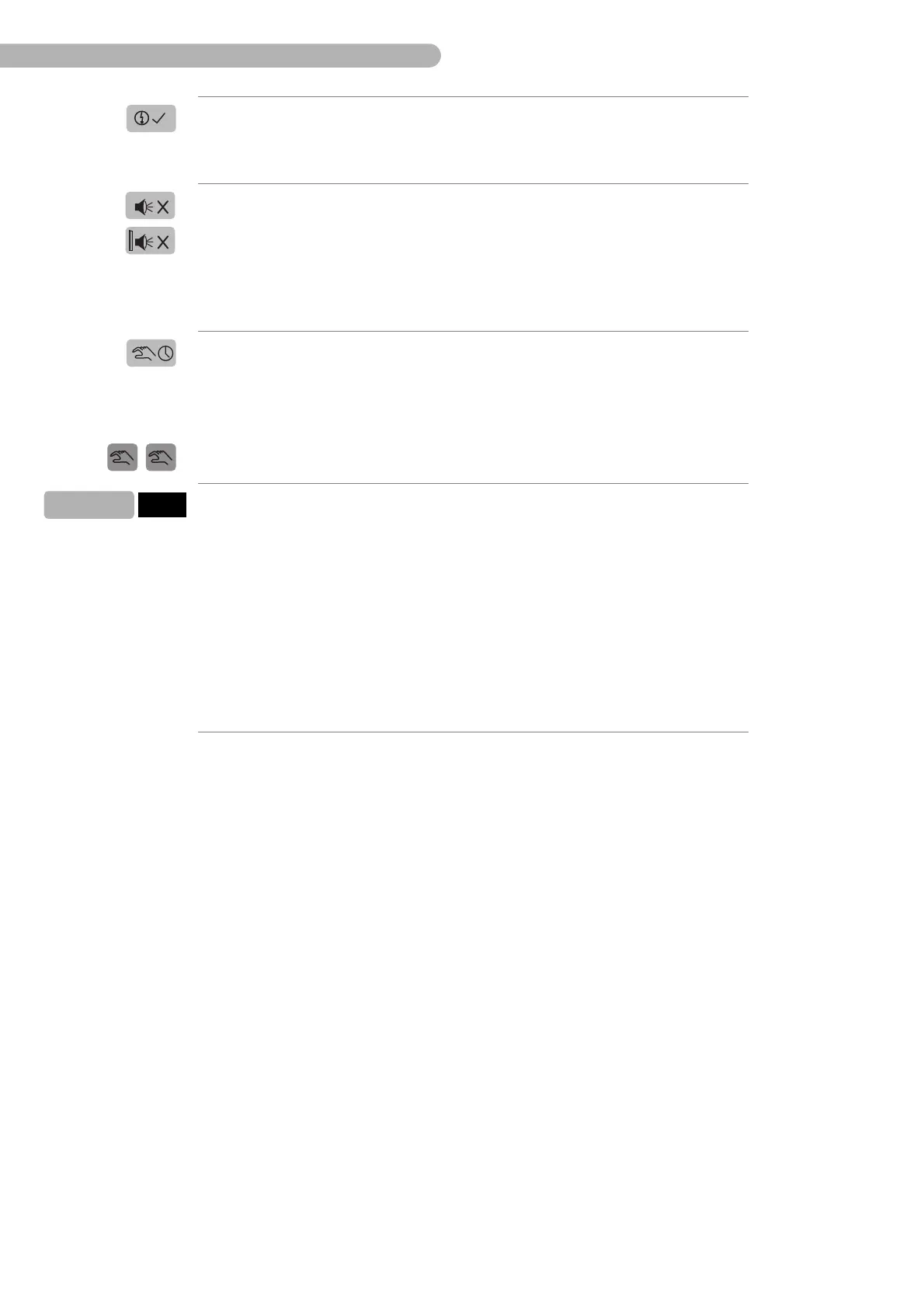
CP5 • Key icons and display (brief overview)
34 CP_SEM_60-00-60.001
The key icons and displays listed above always have the same function and meaning. The following
sections explain the special, non-general key icons and displays of the individual menus.
Only those key icons which can be pressed in the menu shown are displayed (e.g. the key icon Scroll in
the System menu).
When a key icon is pressed, it briefly appears yellow. Activated functions are indicated by a vertical bar
in the key icon (on the left side).
The following applies to the key icon Override:
The key icon must be pressed until it is displayed in yellow. When the pressure is removed, the
override function is activated.
To prevent unintentional activation of the override, activation does not occur when the key icon is
touched for a brief moment.
To terminate the override, press the key icon Override again until it is displayed in yellow. When the
pressure is removed, the override function is deactivated.
Key icon Clear alarm – Clears the alarm indicated in the System menu, after
the cause of the alarm has been eliminated.
– Clears the bubble alarm, after the cause of the alarm
has been eliminated.
Key icon Audio off
(Tone off)
Switches currently active alarm and warning tones
(temporarily) off. If another alarm condition occurs, the
corresponding tone will sound again.
A warning tone can be activated or deactivated in the
menu of the corresponding monitoring function. This is
not the case for alarm tones.
Key icon Override Temporarily switches off an alarm which is pending. There
is a difference between:
– selective override of the corresponding monitoring
function in the System menu (time limited: 5 minutes)
– on the pumps: overriding all assigned monitoring
functions (time limited)
Icon Entry displet Consists of a key icon and a display.
The key icon Entry displet opens the
– alphanumeric displet (see operating Instructions),
– numeric displet (see operating Instructions),
– lists displet (see operating Instructions),
– or an additional sub-menu (for further entry or
display)
The parameters which have been entered appear on the
display (in this example: the pressure should be
displayed in mmHg.)



 To Next Page