63
User Manual
4.1.2.3 Reversing route
'MENU' + "ADVANCED SETTINGS" + 'ENTER' + "ROUTE" + 'ENTER' +
"ROUTE REVERSE" + 'ENTER'
Reversing a route plan is most typically used to return to the point where the
route originally started.
4.1.2.4 Route Color
'MENU' + "ADVANCED SETTINGS" + 'ENTER' + "ROUTE" + 'ENTER' +
"ROUTE COLOR" + 'ENTER'
A window is opened: use the cursor keys to select the route color you want
among the eight colors available. Press 'ENTER' to confirm. The route appears on
the screen colored by the selected color. It is possible to select a different color for
any route.
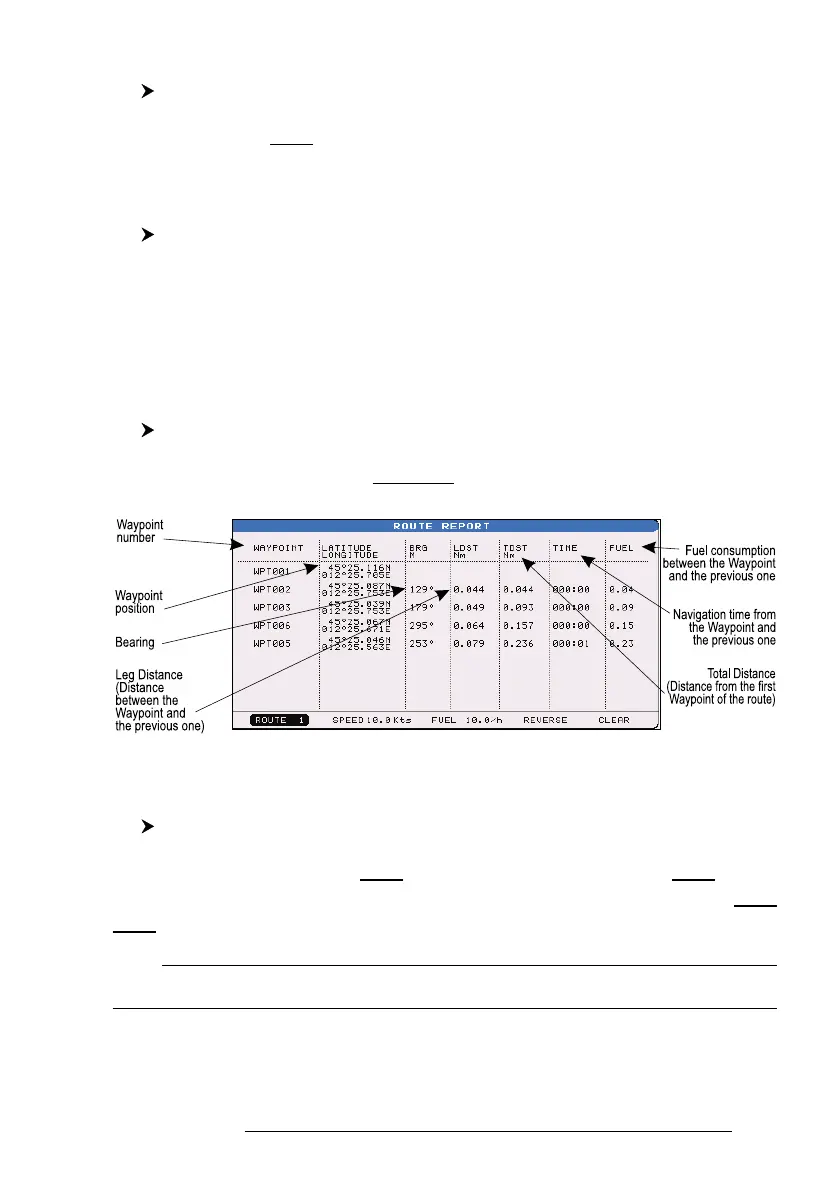
4.1.2.5 Finding information about a route: Route Report
'MENU' + "ADVANCED SETTINGS" + 'ENTER' + "ROUTE" + 'ENTER' +
"ROUTE REPORT" + 'ENTER'
If there are more than 8 Waypoints shown, use the cursor key to select an-
other page.
Fig. 4.1.2.5 - Route Data Report page
Selecting route
'MENU' + "ADVANCED SETTINGS" + 'ENTER' + "ROUTE" + 'ENTER' +
"ROUTE REPORT" + 'ENTER' + "ROUTE #" + 'ENTER'
Use the cursor key to select the route number and press 'ENTER'. The route, shown
by straight segments, is centered on the screen, with the cursor on the central Way-
point. See also Par. 4.1.2.1.
Note
If there is the Target in the current route, it is not possible to change the current route. So if the
"Route #" item is selected, the chart plotter emits three beeps.



 To Next Page