68
User Manual
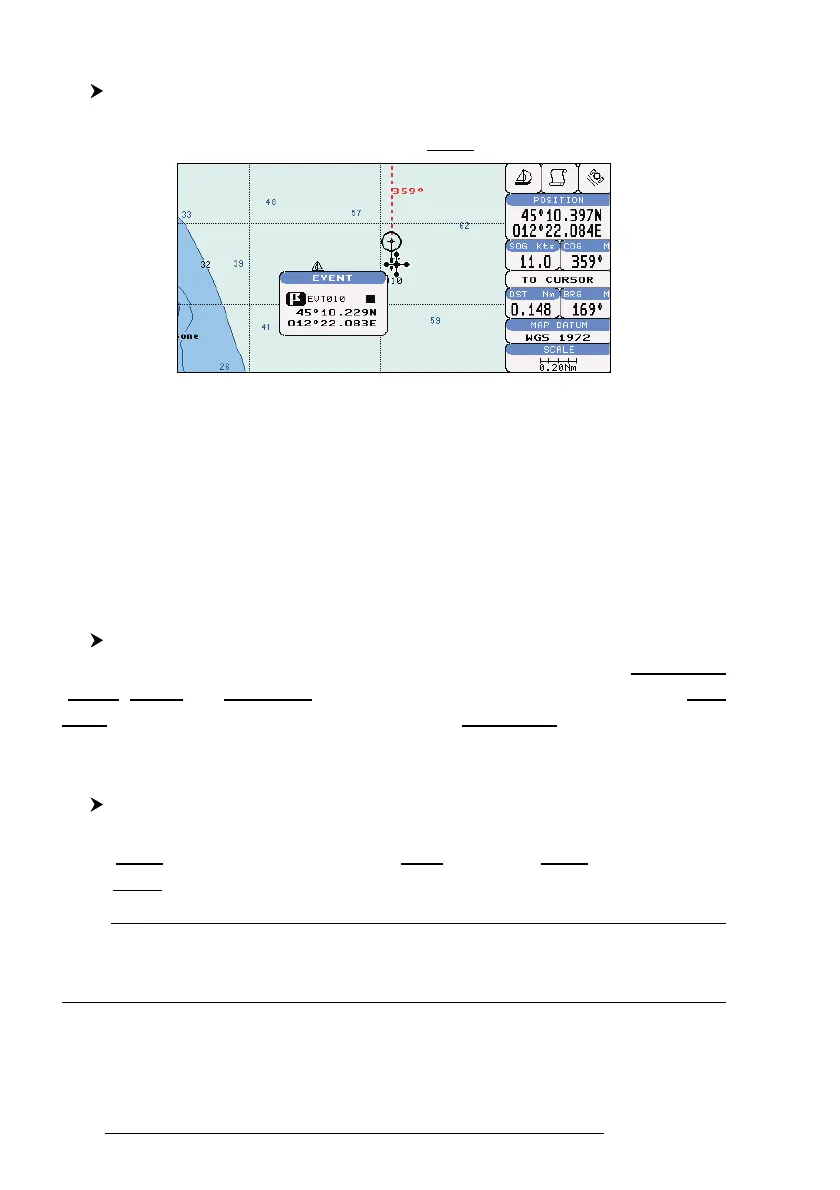
4.2.2.4 Editing Event
Place cursor on Event
Press 'ENTER'. Select "EDIT" and press 'ENTER'. A window appears to
modify Name, Symbol, Color of the existing Event.
Fig. 4.2.2.4 - Edit Event
Use the cursor key to select the field. If you have selected Name field, press
'ENTER': use the cursor key to insert the character (8 characters max), then press
'ENTER'. If Symbol field is selected press 'ENTER': a window with 16 different
symbols appears. Use the cursor key to select the symbol and press 'ENTER'. If
Color field is selected press 'ENTER': a window with 8 different colors appears, use
the cursor key to select the desired color and press 'ENTER'. Then press 'CLEAR'.
4.2.2.5 Finding information about Events: User Points List page
'MENU' + "ADVANCED SETTINGS" + 'ENTER' + "USER POINTS" + 'ENTER'
A full window is opened showing information about all stored User Points
(Marks, Events and Waypoints). Move up/down the cursor key to select the User
Point you wish. If the page contains more than 8 User Points, the list continues in
the next pages. See Par. 4.1.1.9.
4.2.2.6 Add to Route
Place cursor on Event
Press 'ENTER'. Select "ADD TO ROUTE" and press 'ENTER': the se-
lected Event is connected to the current route. The same Event can be added in
many routes.
Note
An existing Event can be connected to the current route in another mode too. Place cursor on
Event, the information window related to the Event appears, press 'CLEAR' to close the window
and then press 'ENTER', select the Waypoint option and press 'ENTER'. The Event is connected
to the current route.



 To Next Page