Piccolo 41 from 82
www.lt-light.com
- Also it’s possible to delete all libraries of one category, for example, position,
pressing: [POS][DELETE][DELETE]
Examining libraries. You can exam one library or all libraries of one category:
- Activate [LIBs], its LED is lit.
- [POS] [#] [EXAM] to exam the position library nº #
- Return to the main screen pressing [EXIT].
- Also it’s possible to exam all libraries of one category, for example, position,
pressing [POS][EXAM]. Close the exam screen pressing [EXIT]
Special DIM libraies (Scenes)
DIM libraries, or “scenes”, admit any item (channels and fixture parameters). Whit them it’s
possible to store as reference a total scene and, each scene can have one, someone or all show items.
Process of recording, deleting, etc, are the same process that the used in the rest of the libraries.
Applying DIM libraries, we can do it with the previous commands, or in a new “total mode” that
doesn’t need a previous selection. In this way, we can:
{fixtures and/or channels selection} [DIM] [#] [ENTER]
To apply the values stored in DIM # at the selected items.
[DIM] [#] [ENTER]
To apply all values stored in DIM # over all its items.
DIM libraries are very interesting to store the basic scenes of our show, also to store, in a unique
library, the different colors of one complete scene (nightfall, dawn, etc), the levels of balance for a
cyclorama, blades and positions, etc…
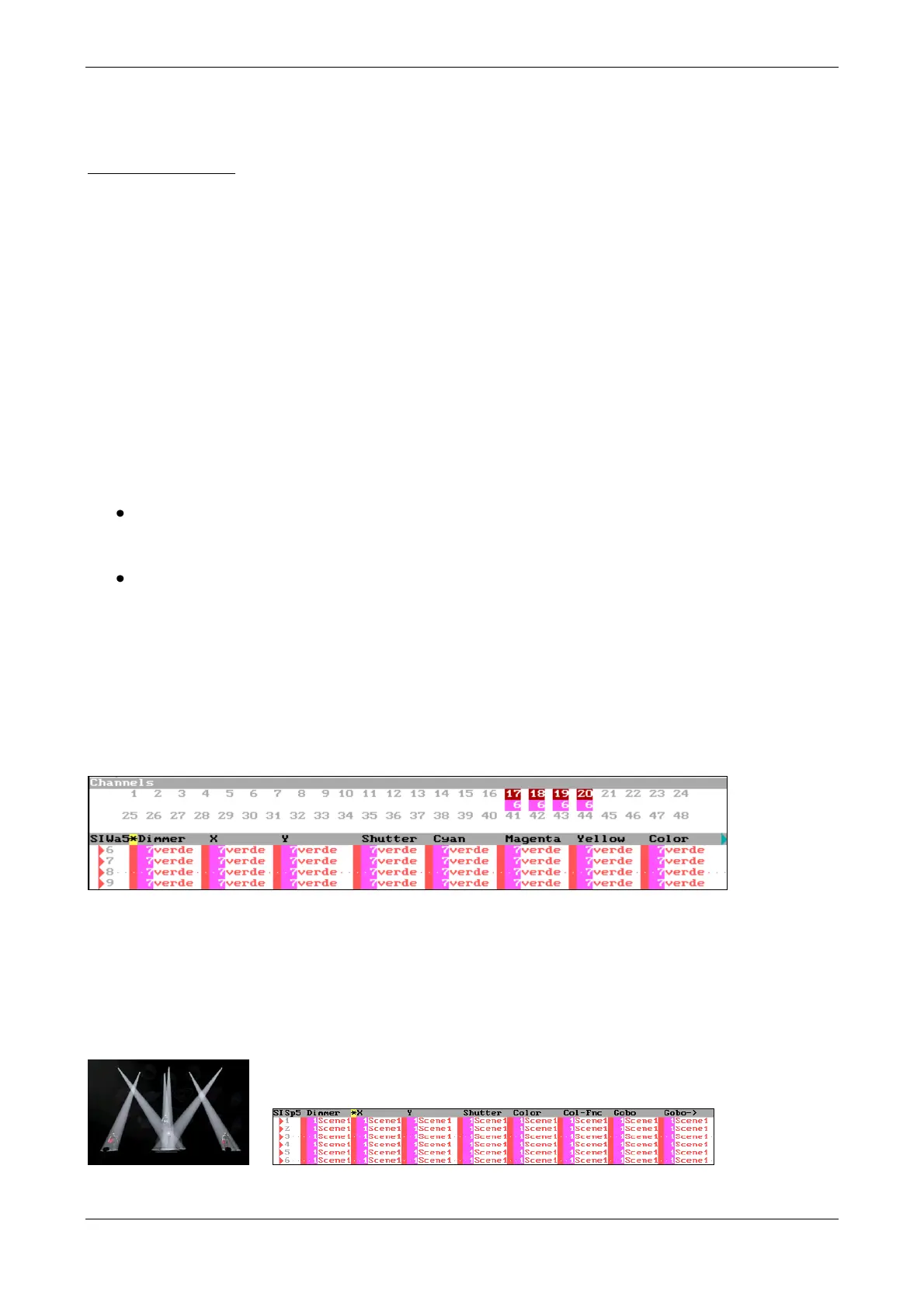
These references (of dimmer libraries) are marked in light magenta in the editor (on monitor):
Example using DIM libraries, “scenes”:
Editing a basic scene with 6 fixtures, including positions, beams, gobo, etc
Now, record a DIM library with all this information: [DIM] [1] [REC]
Apply DIM 1 pressing: [DIM] [1] [ENTER]



 To Next Page