EasyManua.ls Logo

Magellan Maestro 4040 - Page 28

Magellan Maestro 4040
104 pages
Print Icon
To Next Page IconTo Next Page
To Previous Page IconTo Previous Page
Loading...
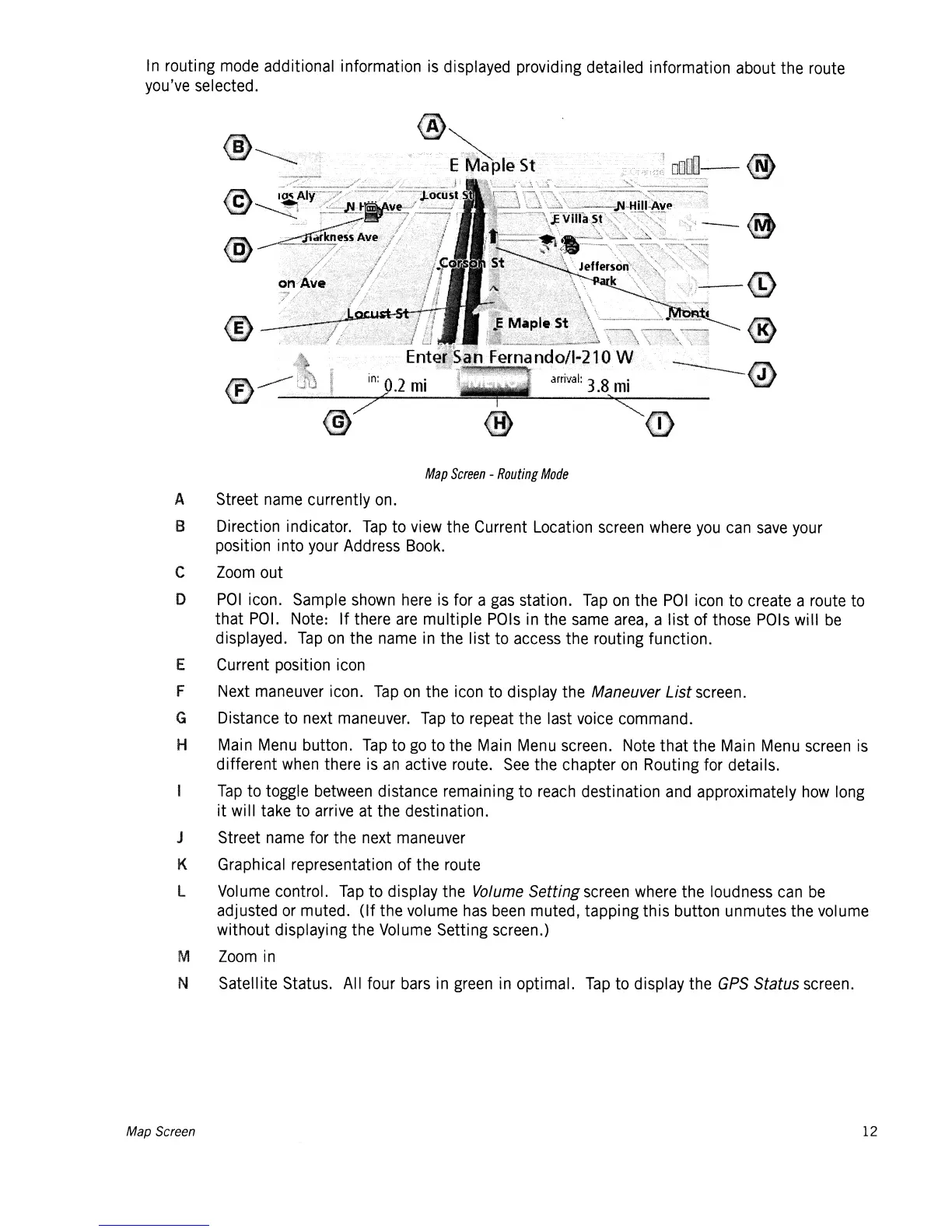
In
routing
mode
additional information
is
displayed providing detailed information about the route
you've
selected.
@)
Map
Screen
-
Routing
Mode
." -
-8
.,
..
,,.,.-..--.-"
@
@
A Street
name
currently
on.
a Direction indicator.
Tap
to
view
the Current Location
screen
where
you
can
save
your
position into
your
Address
Book.
e
Zoom
out
D
POI
icon. Sample
shown here
is
for a
gas
station.
Tap
on
the
POI
icon
to create a route
to
that
POI.
Note:
If there
are
multiple
POls
in
the
same
area,
a list of
those
POls
will
be
displayed.
Tap
on
the
name
in
the list
to
access
the routing function.
E Current position
icon
F
Next
maneuver
icon.
Tap
on
the
icon
to display the Maneuver
List
screen.
G Distance
to
next
maneuver.
Tap
to
repeat
the last
voice
command.
H
Main
Menu
button.
Tap
to
go
to the
Main
Menu
screen.
Note
that the
Main
Menu
screen
is
different
when
there
is
an
active route.
See
the chapter
on
Routing for details.
Tap
to toggle
between
distance remaining to
reach
destination
and
approximately
how
long
it
wi
II
take to
arrive
at
the destination.
J Street
name
for the
next
maneuver
K Graphical representation of the route
L
Vol
ume
control.
Tap
to display the Volume Setting
screen
where
the loudness
can
be
adjusted
or
muted. (If the volume
has
been
muted, tapping this button unmutes the volume
without displaying the
Volume
Setting screen.)
M
Zoom
in
N Satellite Status.
All
four
bars
in
green
in
optimal.
Tap
to display the
GPS
Status
screen.
Map Screen 12

Table of Contents