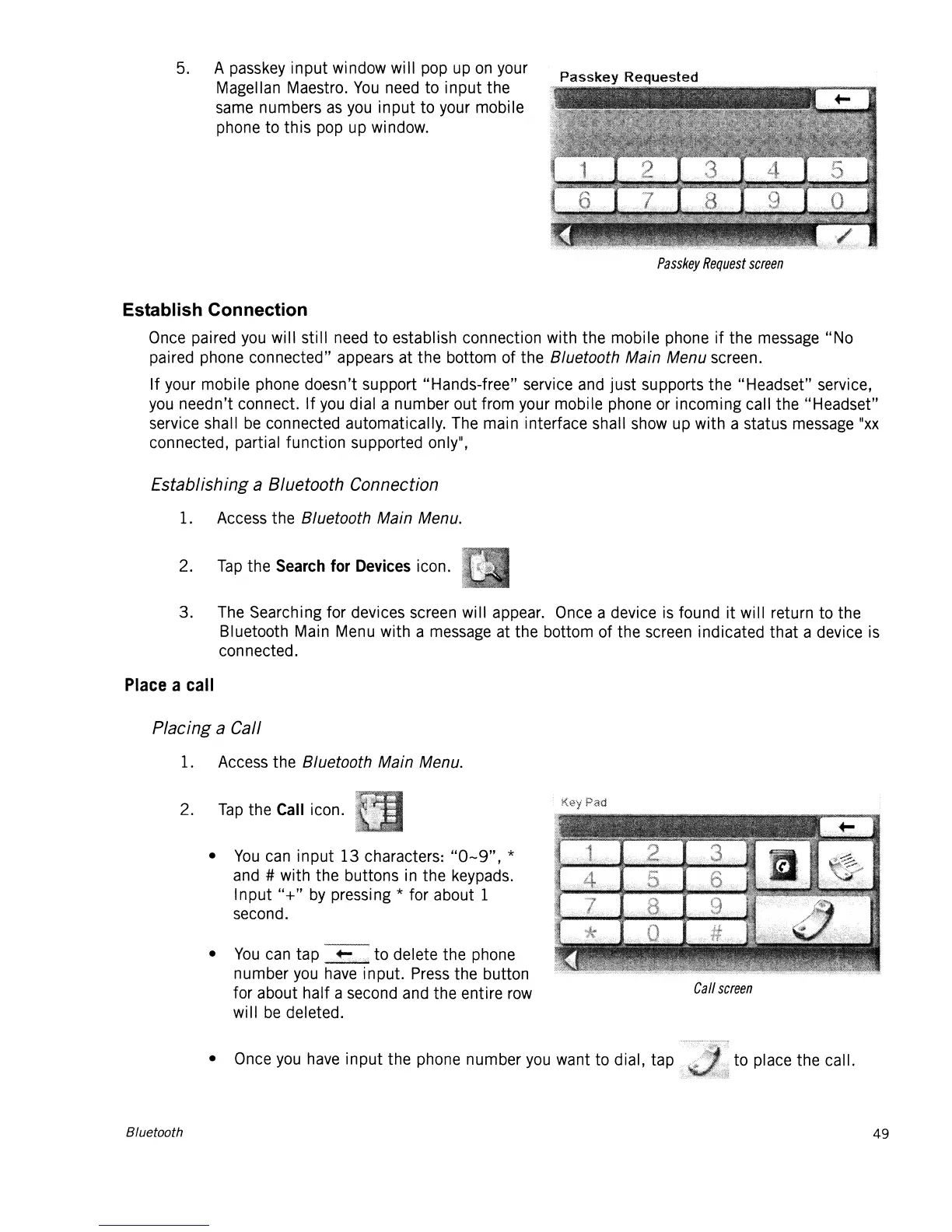
5. A passkey
input
window will pop up
on
your
Magellan Maestro.
You
need to
input
the
same numbers
as
you
input
to your mobile
phone to
this
pop up window.
Passkey
Request
screen
Establish Connection
Once paired you will still need
to
establish connection with the mobile phone
if
the message
"No
paired phone connected" appears at
the
bottom of the Bluetooth Main Menu screen.
If
your mobile phone doesn't support "Hands-free" service and just supports the "Headset" service,
you
needn't connect.
If
you
dial a number out from your mobile phone or incoming call the "Headset"
service shall
be
connected automatically. The main interface shall show up with a status message
"xx
connected, partial function supported only",
Establishing a Bluetooth Connection
1. Access the Bluetooth Main Menu.
2.
Tap
the
Search
for
Devices
icon.
3.
The Searching for devices screen will appear. Once a device
is
found
it
will return to the
Bluetooth Main Menu with a message at the bottom of the screen indicated
that
a device is
connected.
Place
a
call
Placing a Call
1. Access the Bluetooth Main Menu.
•
You
can tap to delete the phone
number
you
have input. Press the button
for about half a second and the entire row
Call
screen
will
be
deleted.
•
You
can
input
13
characters:
"0-9",
*
and # with the buttons in the keypads.
Input
"+"
by
pressing * for about 1
second.
2.
Tap
the
Call
icon.
• Once you have
input
the phone number
you
want to dial, tap to place the call.
Bluetooth
49













 To Next Page