Selecting POls to be Displayed
on
the Map
In
some
areas
the
map
can
be
cluttered with
POls
making it difficult to find what
you
are
looking
for.
Use
POI
Selection to
set
what categories of icons will
be
shown
and
which
ones
will
be
hidden.
1.
From
page
2 of the Main Menu, tap User Options.
2.
Tap
POI
Selection.
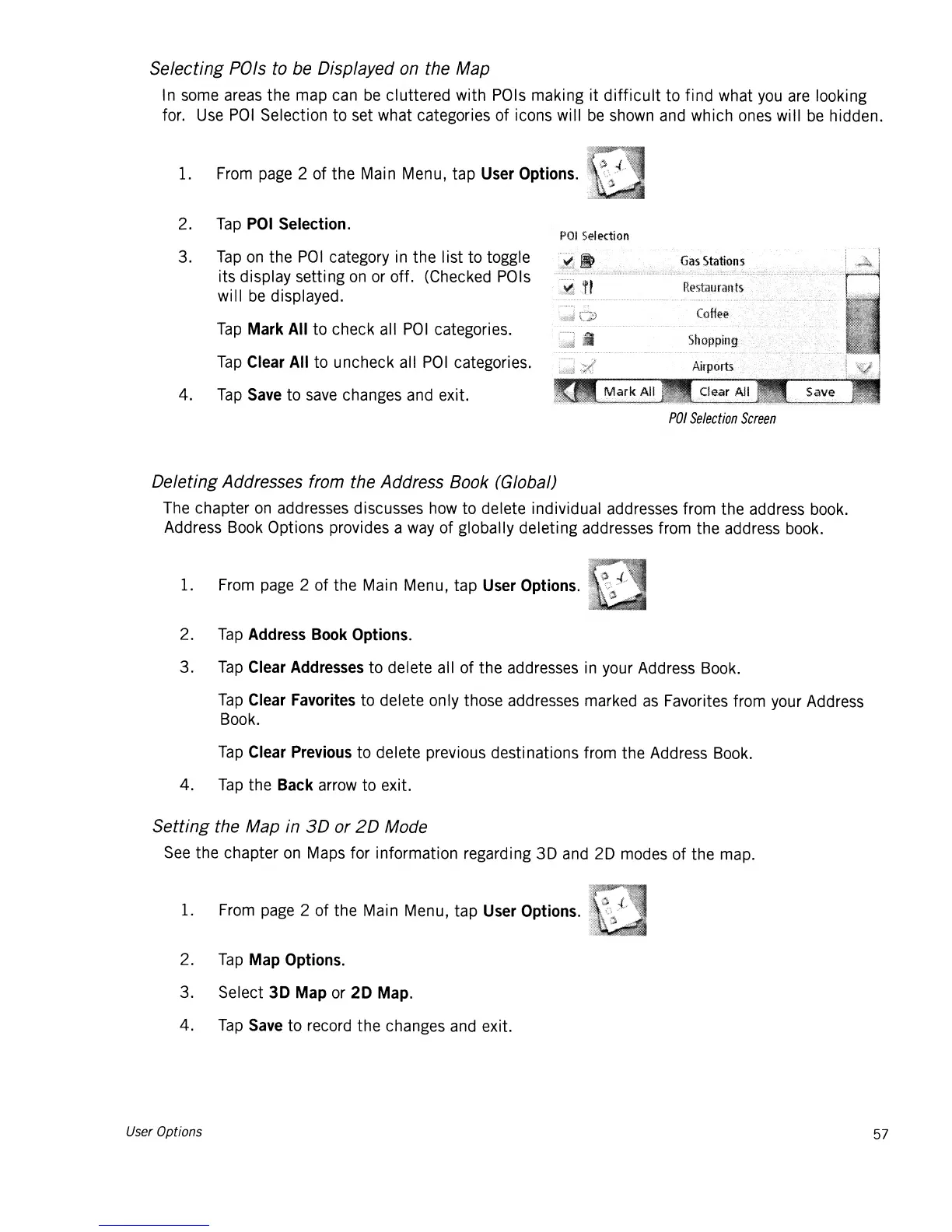
3.
Tap
on
the
PO
I category
in
the Iist to toggle
its display setting
on
or
off.
(Checked
POls
will
be
displayed.
Tap
Mark
All
to check all
POI
categories.
Tap
Clear
All
to uncheck all
POI
categories.
4.
Tap
Save
to
save
changes
and
exit.
POI
Selection
POI
Selection
Screen
Deleting Addresses from the Address Book (Global)
The
chapter
on
addresses
discusses
how
to delete individual
addresses
from the
address
book.
Address
Book
Options provides a
way
of globally deleting
addresses
from the
address
book.
1.
From
page
2 of the Main Menu, tap User Options.
2.
Tap
Address
Book
Options.
3.
Tap
Clear
Addresses
to delete all of the
addresses
in
your
Address
Book.
Tap
Clear
Favorites
to delete only those
addresses
marked
as
Favorites from
your
Address
Book.
Tap
Clear
Previous
to delete previous destinations from the
Address
Book.
4.
Tap
the
Back
arrow
to exit.
Setting the Map in
3D
or
20
Mode
See
the chapter
on
Maps
for information regarding 3D
and
2D
modes
of the
map.
1.
From
page
2 of the Main Menu, tap
User
Options.
2.
Tap
Map
Options.
3. Select
30
Map
or
20
Map.
4.
Tap
Save
to
record
the
changes
and
exit.
User Options 57













 To Next Page