Map
Screen
The
most commonly
used
screen will
be
the Map screen. Whether
on
a route
or
just travelling around
town, chances
are
the Map screen will
be
displayed. There
are
two unique modes that the
Map
screen
can
be
displayed in; normal
and
routing. -
In
normal mode, your position
is
shown
on
the map along with the time
and
your speed.
As
you
travel, your position will
be
updated, giving
you
a clear view of your position
and
surrounding streets.
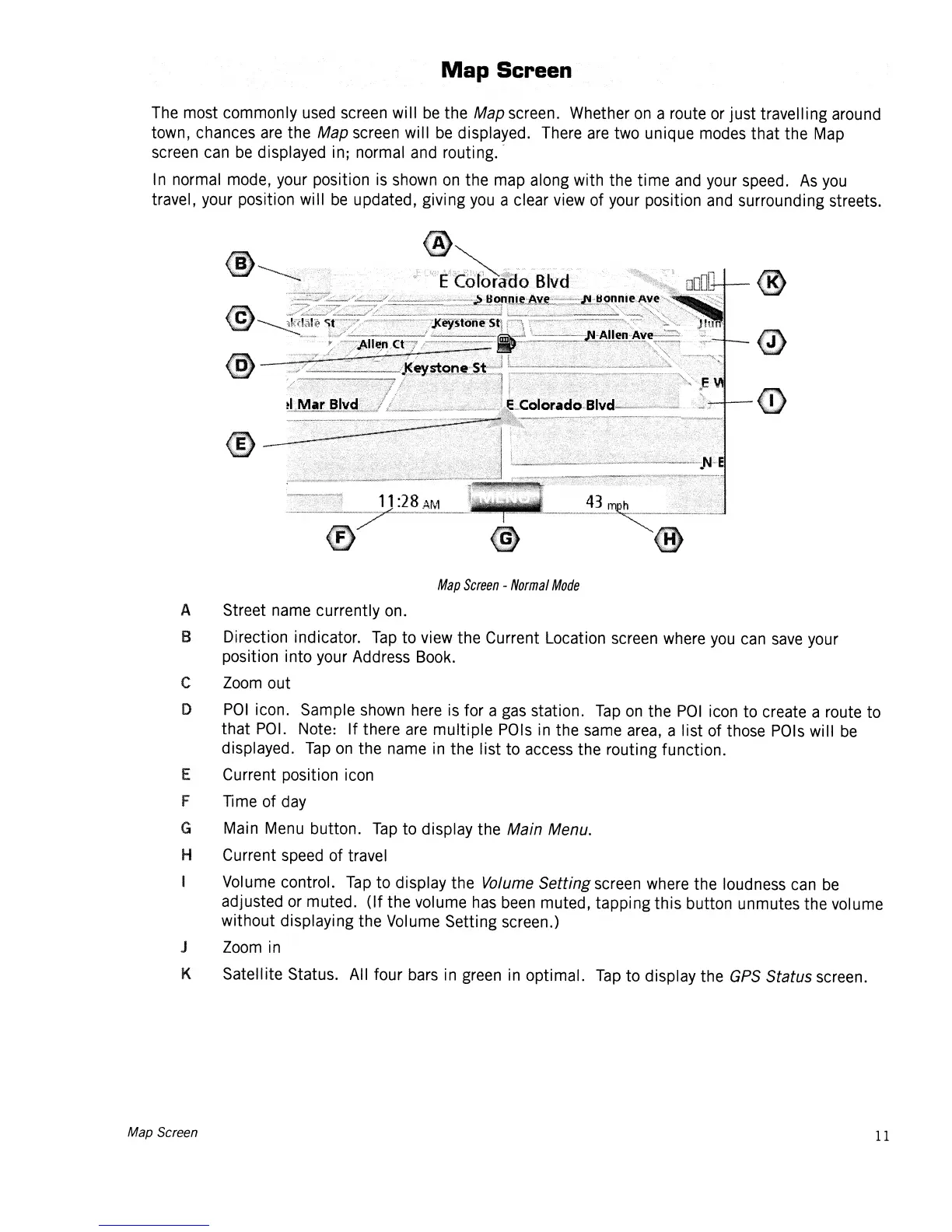
Map
Screen
-
Normal
Mode
A Street name currently on.
S Direction indicator.
Tap
to view the Current Location screen where
you
can
save
your
position into your Address
Book.
e
Zoom
out
D
POI
icon. Sample shown
here
is
for a
gas
station.
Tap
on
the
POI
icon to create a route to
that
POI.
Note: If there
are
multiple
POls
in
the
same
area,
a list of those
POls
will
be
displayed.
Tap
on
the name
in
the list to access the routing function.
E Current position icon
F Time of
day
G Main Menu button.
Tap
to display the Main Menu.
H Current speed of travel
I Volume control.
Tap
to display the Volume
Setting
screen where the loudness
can
be
adjusted
or
muted. (If the volume
has
been
muted, tapping this button unmutes the volume
without displaying the Volume Setting screen.)
J
Zoom
in
K Satellite Status. All four
bars
in
green
in
optimal.
Tap
to display the
GPS
Status screen.
Map Semen
11













 To Next Page