EasyManua.ls Logo

Magellan Maestro 4040 - Setting the Map Display to Heading Up or North Up; Setting Split Screen (TrueView) Options; Setting Auto Night Map Display

Magellan Maestro 4040
104 pages
Print Icon
To Next Page IconTo Next Page
To Previous Page IconTo Previous Page
Loading...
Setting the Map Display to Heading Up
or
North Up
The
map
can
be
displayed with the top of the display
in
the direction of
your
heading
or
North.
1.
From
page
2 of the
Main
Menu,
tap
User
Options.
2.
Tap
Map
Options.
3. Select
Heading
Up
or
North
Up.
4.
Tap
Save
to
record
the
changes
and
exit.
Setting
Split
Screen (TrueView™) Options
As
you
approach
a
maneuver,
the display
changes
to
the split
screen
mode.
Under
Map
Options
you
can
turn off the
spl
it
screen
or
set
it
to
be
just the
TrueView
portion of the
spl
it
screen.
1.
From
page
2 of the
Main
Menu,
tap
User
Options.
\;.lllW.
2.
Tap
Map
Options.
3.
Tap
Auto
TrueView
to turn
set
it to
on
or
off.
(Checked
is
on
and
the
TrueView
image
will
be
displayed.)
4.
Tap
Split
TrueView
to
set
the
TrueView
display
to
split
or
single
view.
(Checked
sets
split
screen
on.)
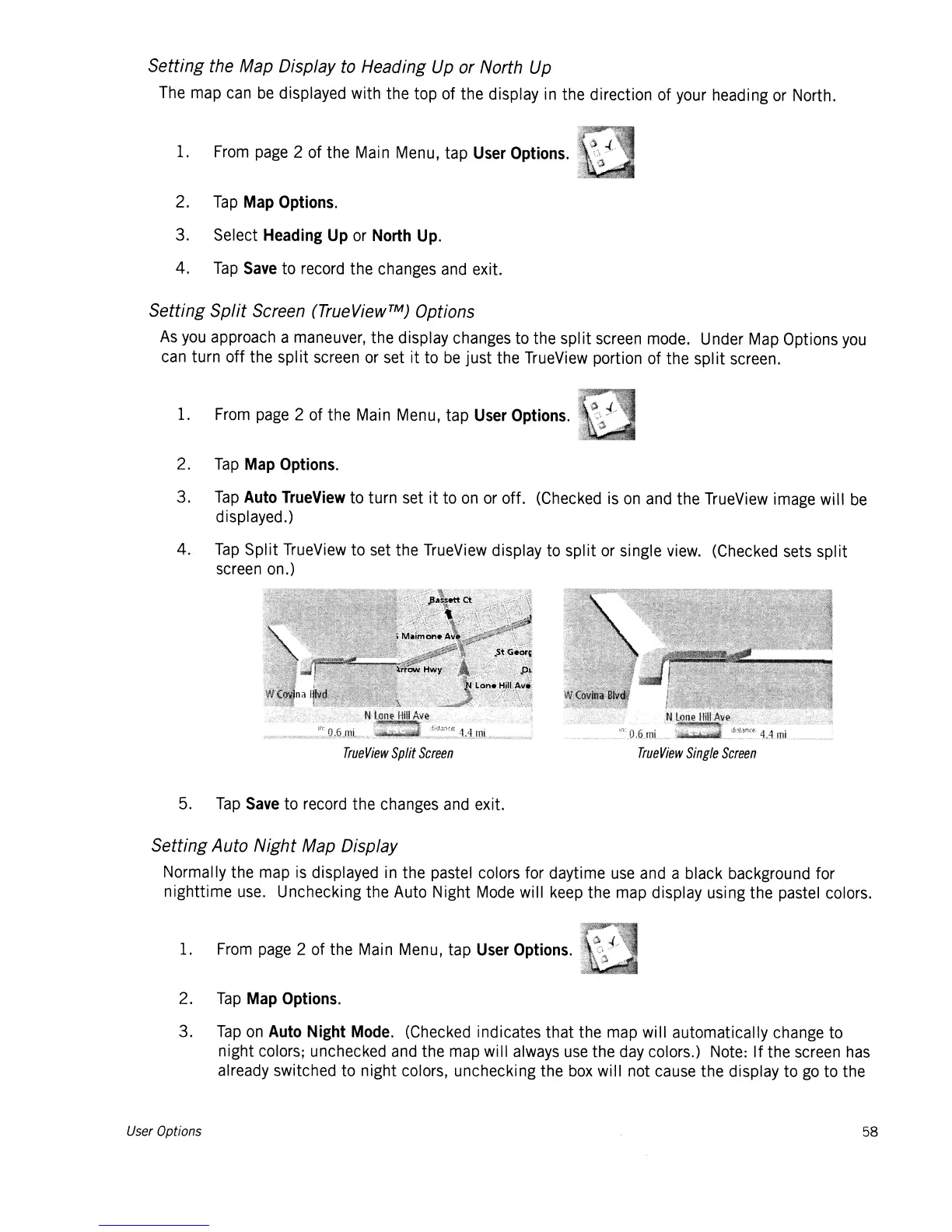
True
View
Split
Screen
5.
Tap
Save
to
record
the
changes
and
exit.
True
View
Single
Screen
Setting Auto
Night
Map Display
Normally the
map
is
displayed
in
the
pastel
colors for daytime
use
and
a black background for
nighttime
use.
Unchecking the Auto Night
Mode
will
keep
the
map
display using the
pastel
colors.
1.
From
page
2 of the
Main
Menu,
tap
User
Options.
2.
Tap
Map
Options.
3.
Tap
on
Auto
Night
Mode.
(Checked
indicates that the
map
will automatically
change
to
night colors; unchecked
and
the
map
will
always
use
the
day
colors.)
Note:
If the
screen
has
already switched to night colors, unchecking the
box
will not
cause
the display to
go
to the
User Options
58

Table of Contents

Related product manuals