Accessing the Map Screen
1.
On
the
Main Menu,
tap
Show
Map.
20
Mode
The map is normally displayed in
3D
mode
but
you
can set the map to
20
mode
if
so
desired. Choose
the mode
that
is best
su
ited for you.
In
20
mode, you can pan across the map looking for
a location
to
route
to
or save in your address book.
Setting the Map Modes
(20
or 3D)
1. From the Map screen, tap MENU.
2.
Tap
the
Next
arrow
to access page 2
of
the
Main Menu.
3.
Tap
User
Options.
4.
Tap
Map
Options.
5.
Tap
30
Map
or
20
Map.
6.
Tap
Save.
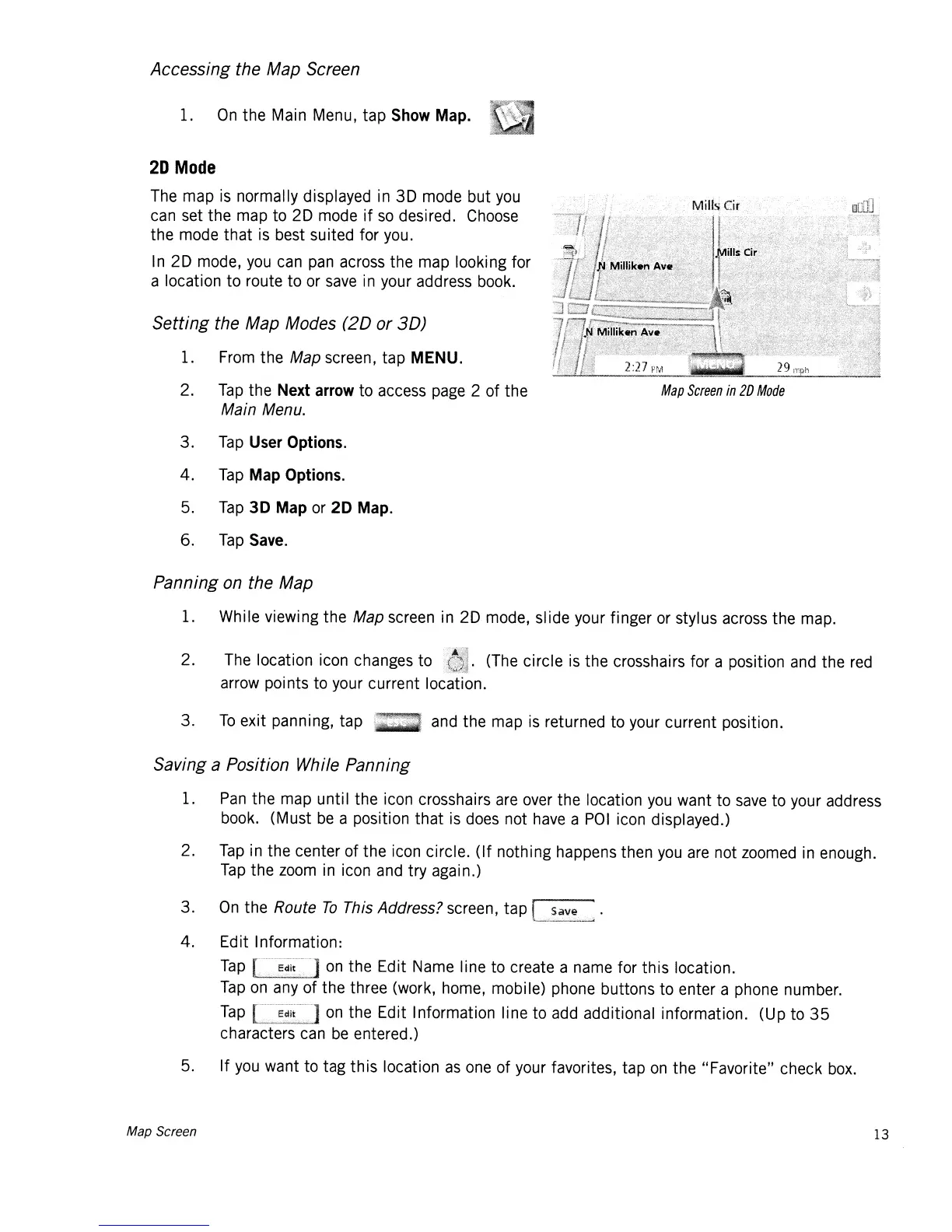
Map
Screen
in
2D
Mode
Panning
on
the Map
1. While viewing
the
Map screen in
20
mode, slide your finger or stylus across the map.
2. The location icon changes
to
. (The circle is
the
crosshairs for a position and the red
arrow points to your current location.
3.
To
exit panning, tap
and the map is returned to your current position.
Saving a Position While Panning
1.
Pan
the map until the icon crosshairs are over the location
you
want to save to your address
book. (Must
be
a position
that
is does not have a
POI
icon displayed.)
2.
Tap
in the center
of
the
icon circle.
(If
nothing happens then
you
are not
loomed
in enough.
Tap
the loom in icon and try again.)
3.
On
the
Route
To
This Address? screen,
tap
t.
..
<.,.,;.~<.~~~:,<.,"~,u~
4.
Edit Information:
Tap
[.~di~~·~.~]
on
the Edit Name line to create a name for
this
location.
Tap
on
any
of
the three (work, home, mobile) phone buttons to enter a phone number.
Tap
on
the Edit Information line to add additional information. (Up to
35
characters can
be
entered.)
5.
If
you want
to
tag
this
location
as
one
of
your favorites, tap
on
the
"Favorite" check box.
Map Screen 13













 To Next Page